Introduction
The Auto-Draft feature in Jetwriter AI automatically generates email replies in your Gmail inbox before you even open them, but only if a new email actually needs a reply. By drafting context-aware responses in the background, this tool eliminates the blank screen and helps you clear your inbox faster. This guide explains how to set up, customize, and securely manage your Auto-Draft settings.
How Auto-Draft Works
Jetwriter AI reads the entire email chain, not just the last message, to understand the full context of the conversation. It then evaluates the message to see if an answer is expected. If the email needs a reply, it writes a highly accurate draft and leaves it ready in your inbox.
Jetwriter AI only writes the draft. It will never click the send button on its own. You always review the draft, make any desired changes, and manually click send.
Setting Up Auto-Draft
Turning this feature on takes just a minute. Please note that Auto-Draft is a premium feature available on paid plans.
Log into the Web App: Open and log into the Jetwriter AI Web App.
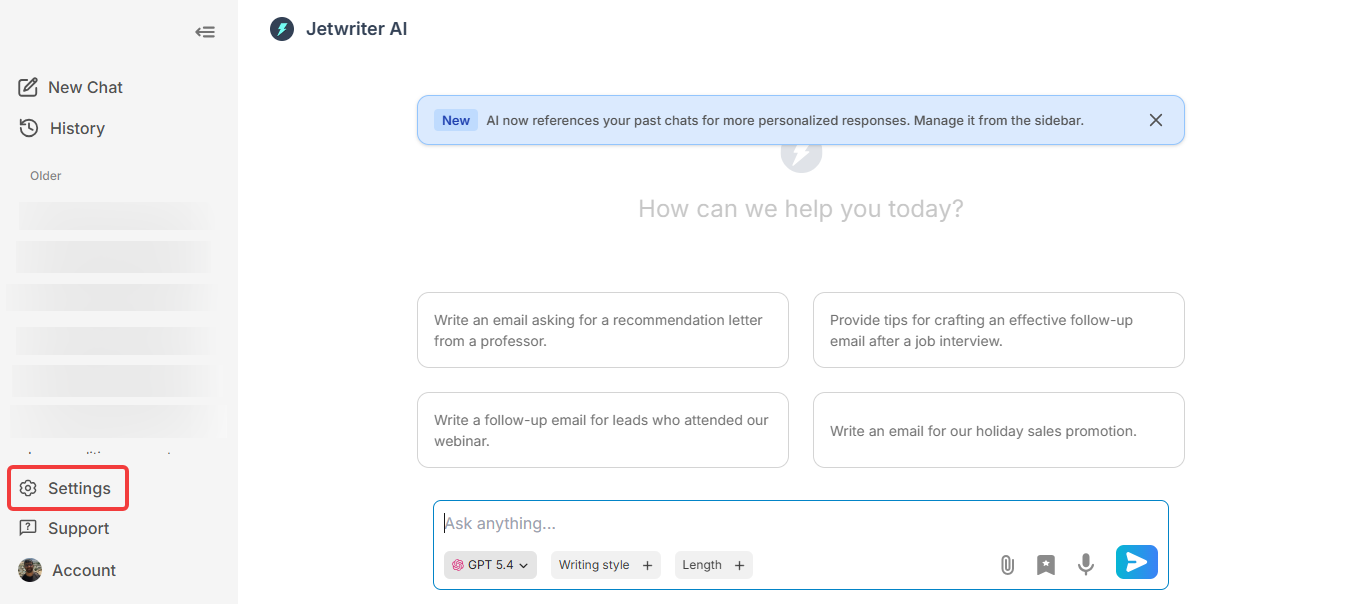
Navigate to Settings: Go to your "Settings".
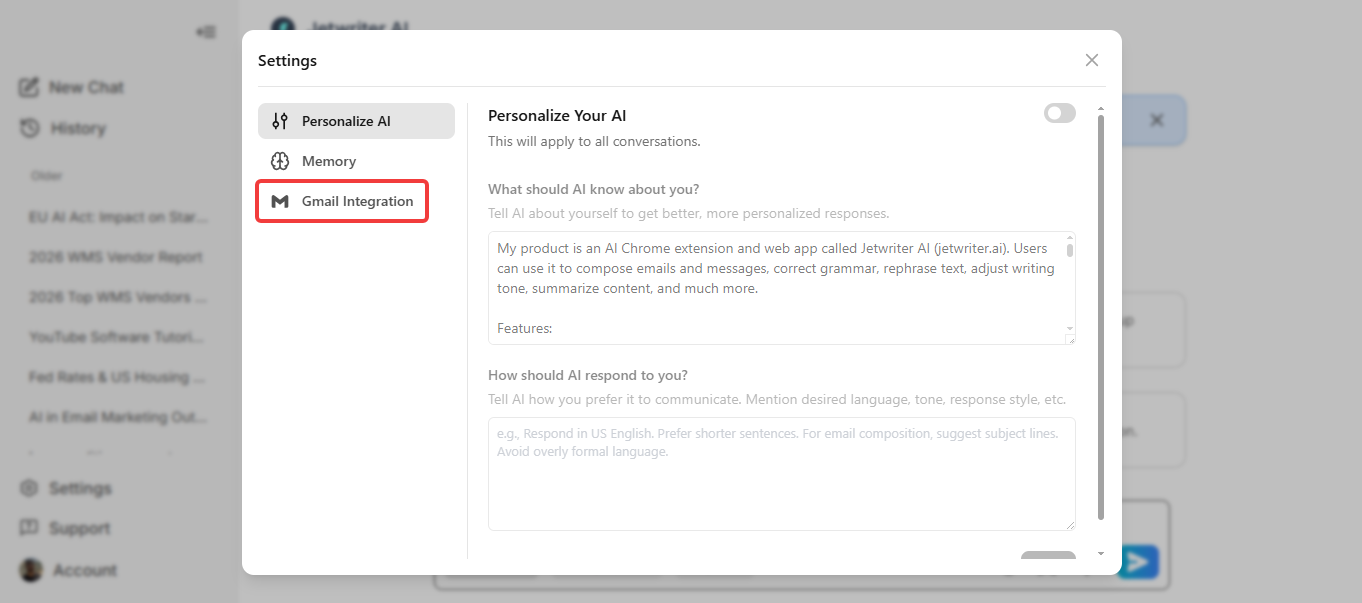
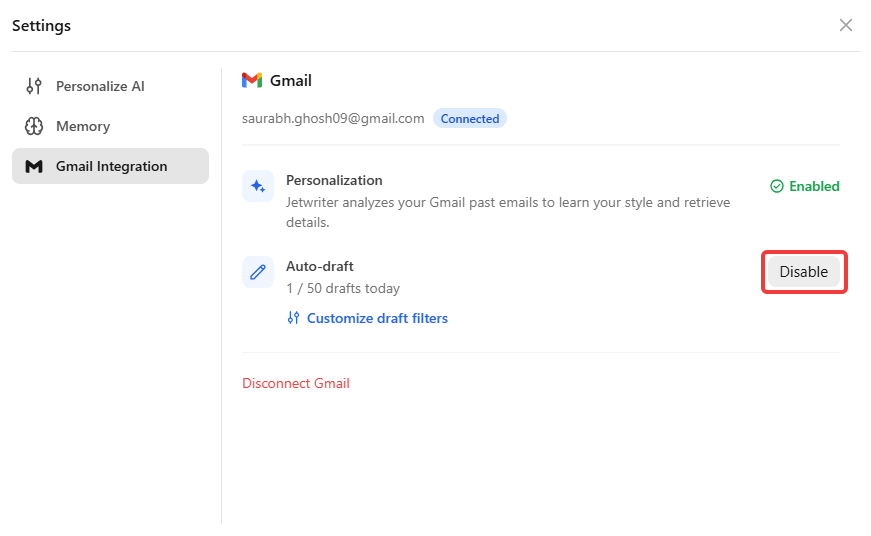
Next, click on the "Gmail Integration" option.
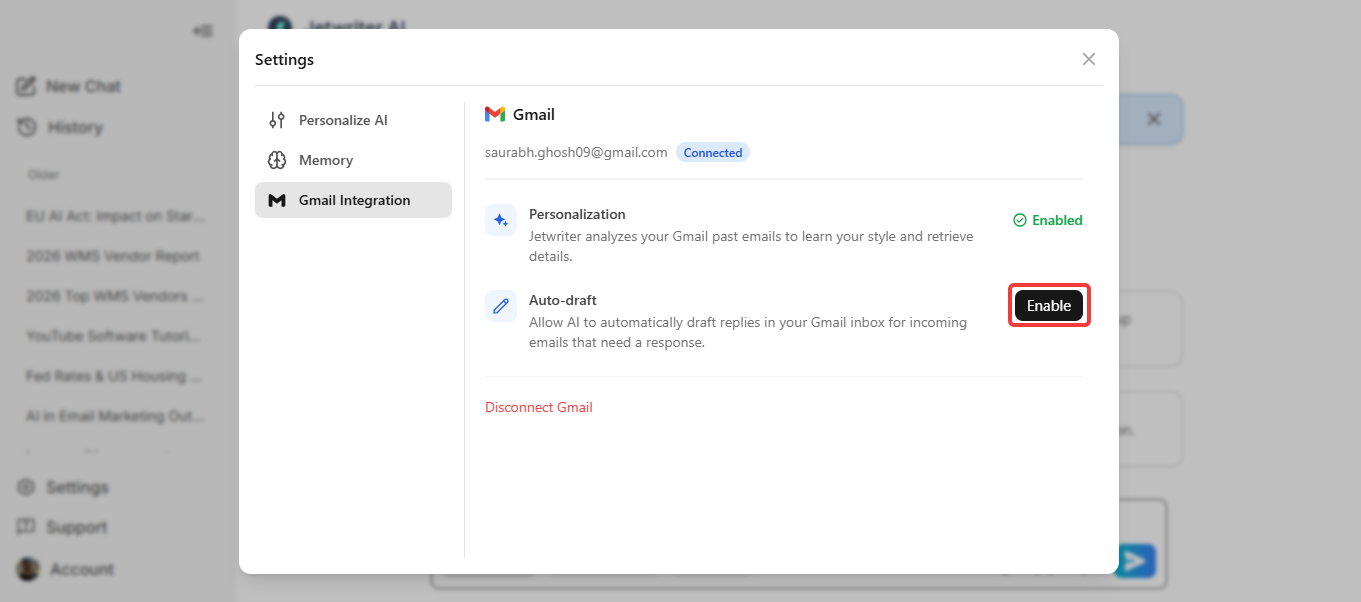
Enable Auto-Draft: Find the "Auto Draft" section and click the "Enable" button.
Authorize Gmail: A secure Google sign-in window will pop up. Sign in to your Gmail account and click "Allow" when Google asks for permission to "View and manage draft messages."
Controlling Your Auto-Draft Settings
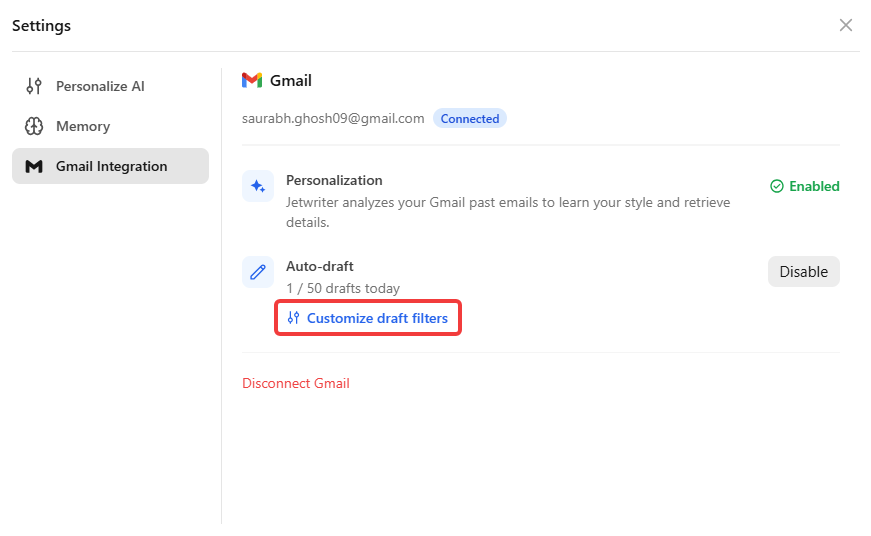
You have full control over which emails get an automatic draft. You can customize these filters in your Auto-Draft settings:
Answer Everything: Leave the filter settings blank, and Jetwriter AI will draft a reply for every email that requires a response.
Answer Important Emails: Configure the tool to only draft replies for emails automatically marked as "Important" or emails that have a specific label (like "Clients").
Skip Certain Jobs: Instruct the AI to skip drafting replies for specific types of incoming mail, such as recruiters or promotional newsletters.
Pick Exact Email Addresses: Whitelist or blacklist specific addresses. For example, you can tell it to always draft a reply for "boss@company.com" or to never draft one for "coupons@shop.com".
Disabling Auto-Draft
You are always in control and can pause the feature at any time.
Turn Off the Feature: Go back to the "Gmail Integration" section on your settings page, find the "Auto Draft" option, and click the "Disable" button. The tool will immediately stop generating background drafts.
Personalization and Privacy
Auto-Draft is designed to be secure and authentic to your voice.
Write in Your Real Voice: Auto-Draft utilizes the "Connect Gmail" personalization feature to mimic your exact writing style. It applies your preferred vocabulary, greetings, and sign-offs so the drafts look exactly like something you typed yourself.
Keeping Your Emails Safe: Jetwriter AI accesses your emails strictly to save you time. Your data is protected with industry-standard encryption, is never sold, and is never used to train any AI models. Your private notes stay private.
Conclusion
With the Auto-Draft feature, Jetwriter AI handles the hardest part of email management while you focus on other work. By generating smart, personalized replies in the background exactly when they are needed, it saves you hours every week. Log into your Jetwriter AI Web App today to enable Auto-Draft and experience a faster, easier inbox.
Was this article helpful?
That’s Great!
Thank you for your feedback
Sorry! We couldn't be helpful
Thank you for your feedback
Feedback sent
We appreciate your effort and will try to fix the article