Introduction
Jetwriter AI for LinkedIn is a tool designed to integrate directly into the LinkedIn interface, helping you write faster and more effectively. It understands the context of your conversations to generate high-quality replies. This guide explains how to use these features.
Getting Started with Jetwriter AI
The setup process is designed to be completed in under a minute.
- Install the Extension:
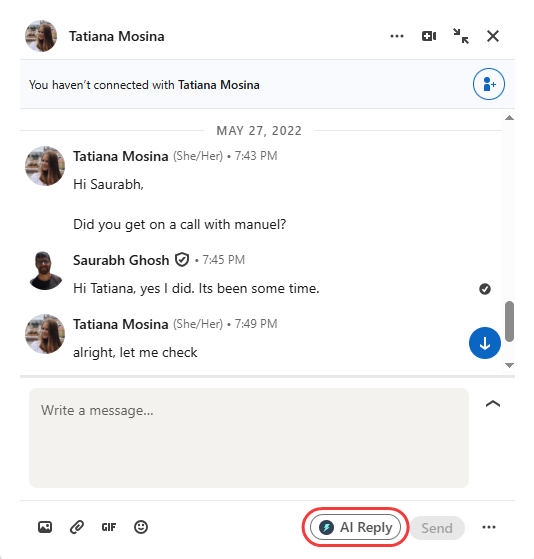
Start by installing the Jetwriter AI extension. If you haven't installed the extension yet, refer to the previous guide on how to do it here. - Locate the Icon in LinkedIn: Navigate to your LinkedIn messages. When you open a conversation, you will see a "AI Reply" icon in the composition box. This is the Jetwriter AI button.
Replying to Messages with Context-Aware AI
Jetwriter AI automatically reads the existing chat history to provide relevant replies without needing to copy or paste any text.
- Initiate a Reply: Open the LinkedIn message you wish to respond to and click the "AI Reply" icon.
- Generate the Response: In the textbox that appears, type a brief instruction describing how you want to reply (e.g., "Write a follow up message").
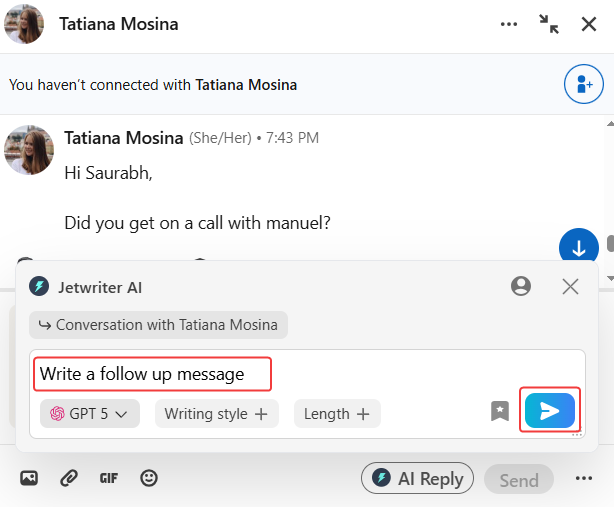
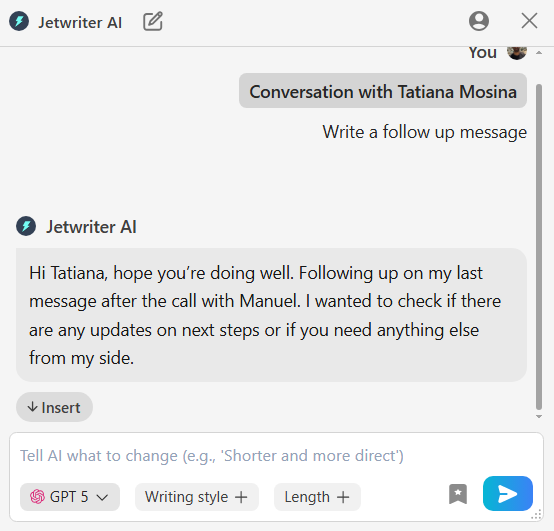
The AI will instantly generate a high-quality draft based on your prompt and the conversation's context.
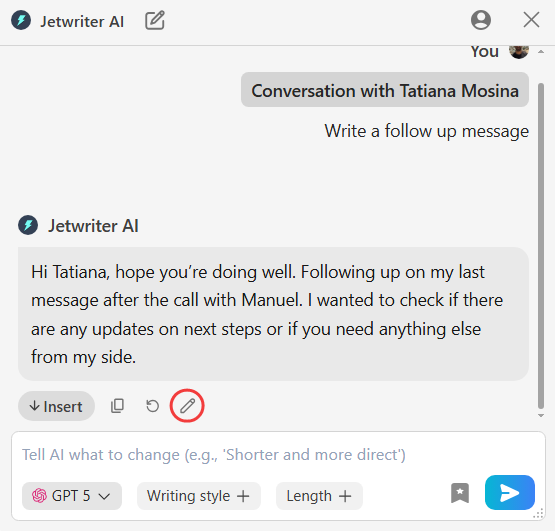
- Refining Your Generated Response: You can regenerate the response if it didn't meet your expectations.
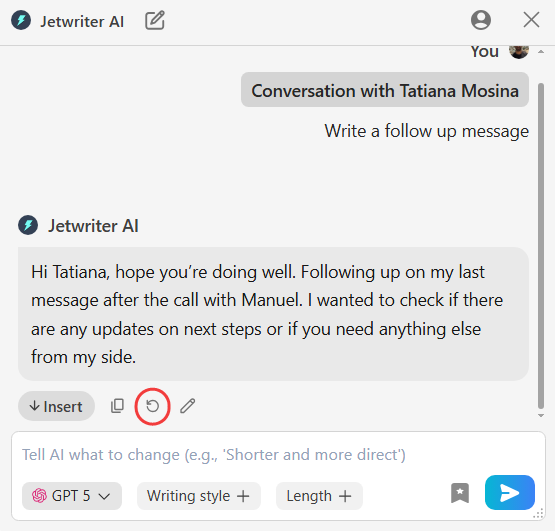
- Edit the Generated Response: You can also "Edit" the response, by writing a fresh prompt along with the generated response.
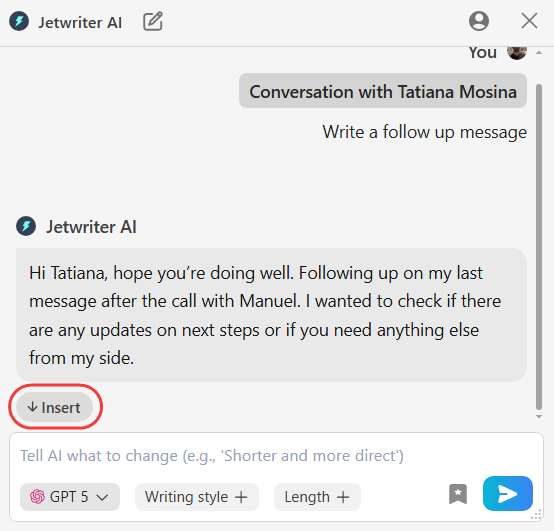
- Insert the Response: Once happy with response, click the "Insert" button. Jetwriter AI will place the response in the message composition box.
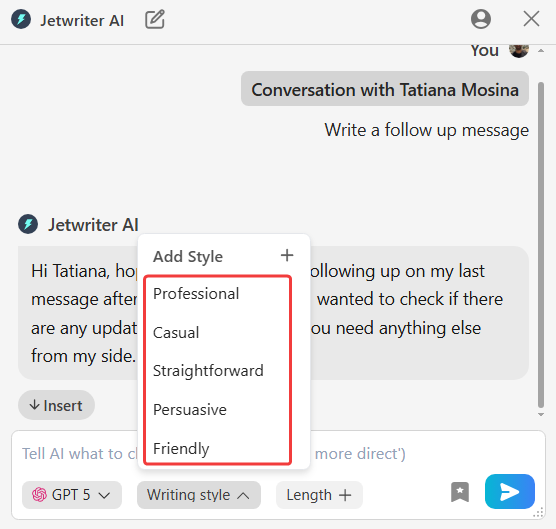
- Adjust the Writing Tone: Use the Writing Tone menu to alter the style of the response. Select options like
Professional,Casual, orStraightforwardto instantly change the feel of the message.
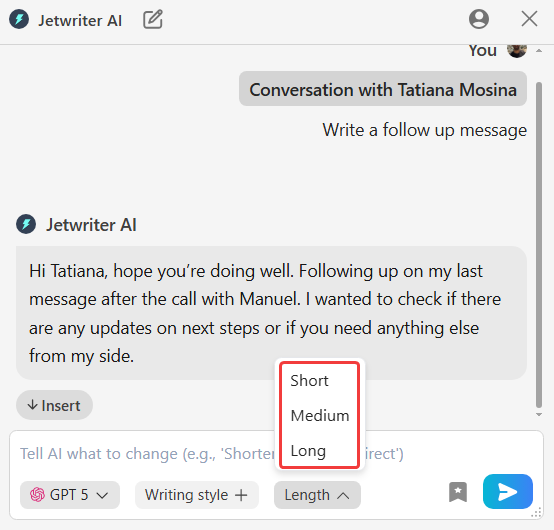
- Control the Response Length: Use the Response Length option to make the message shorter or more detailed. Choose between ‘Short’ for brief replies or ‘Long’ for more thorough explanations.
Conclusion
Jetwriter AI streamlines your LinkedIn communications by providing context-aware message drafts. By integrating these features directly into LinkedIn, the tool saves time and helps you build stronger professional connections with confidence. It is designed to enhance your personal brand by ensuring every interaction is efficient, effective, and impeccably written.
Was this article helpful?
That’s Great!
Thank you for your feedback
Sorry! We couldn't be helpful
Thank you for your feedback
Feedback sent
We appreciate your effort and will try to fix the article