Introduction
Jetwriter AI, when used in Gmail, provides a unique approach to composing new emails and replying to existing ones. This guide explains how to use Jetwriter AI for these purposes, emphasizing its interactive generation of email content.
Composing a New Email with Jetwriter AI
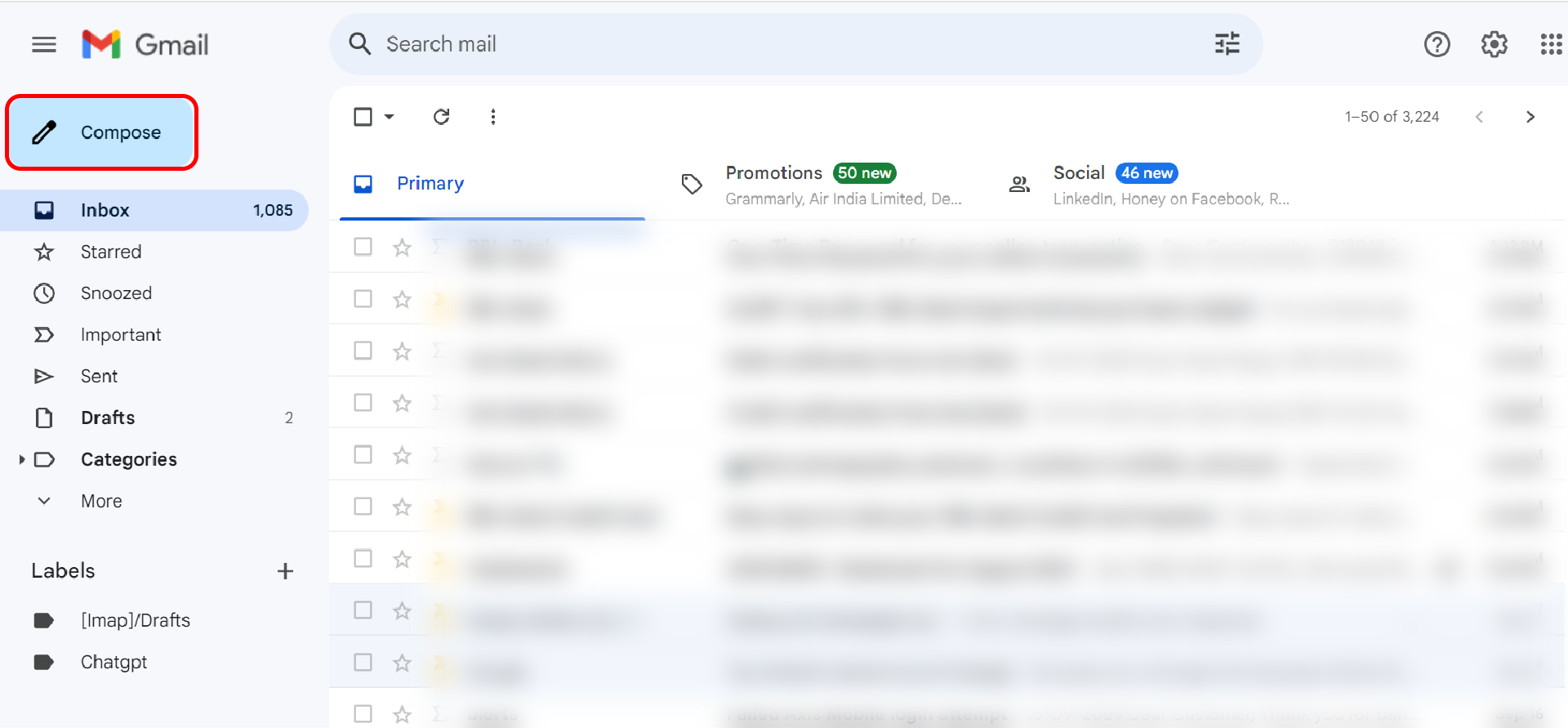
- Starting a New Email: Click the ‘Compose’ button in Gmail to open a new email window.
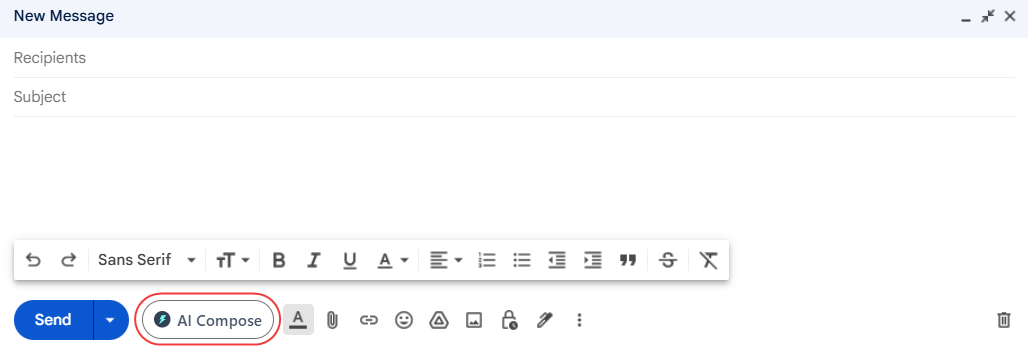
- Launching Jetwriter AI: Click the "AI Compose" button in the email compose toolbar to launch the tool.
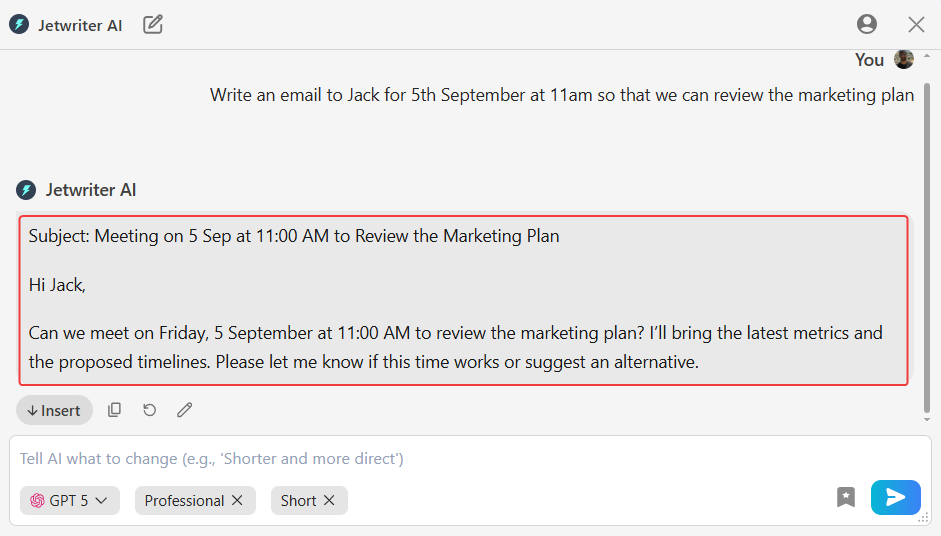
- Generating the Email Content:
- Input Your Email Brief: In the textbox labeled "Tell AI what to write," type in a brief description of what your email should be about.

- Generate the Email: Click the 'Send to AI' button. Jetwriter AI will create an email based on your prompt.
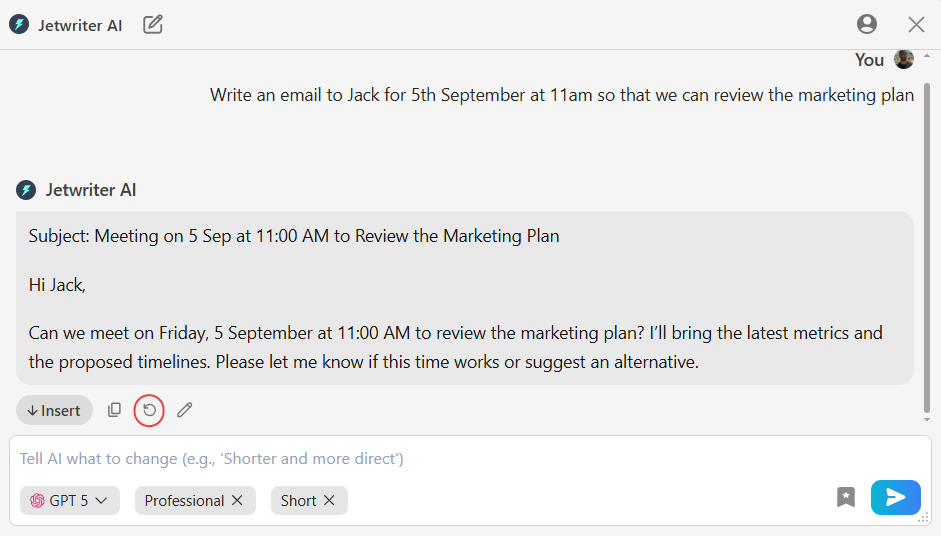
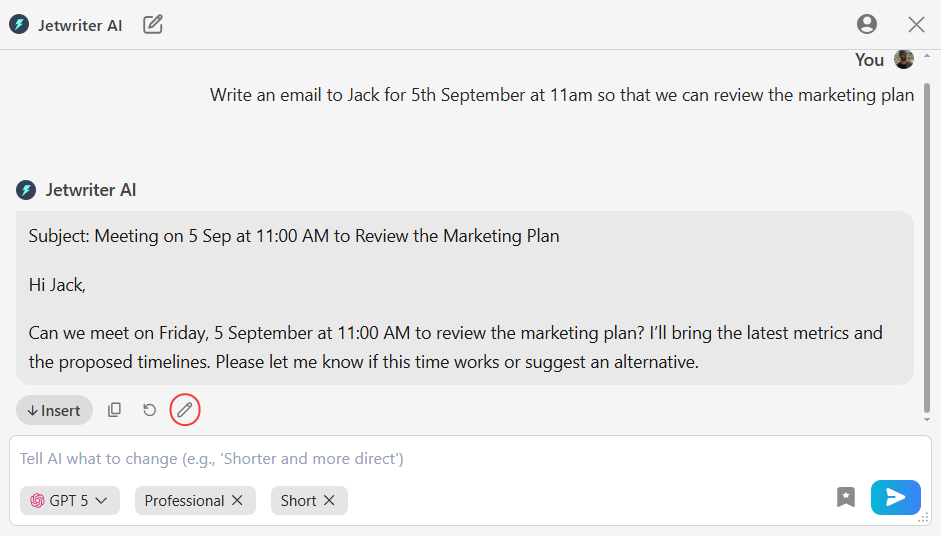
- Regenerate if Necessary: If the generated response doesn't meet your expectations, you can regenerate it.
- Edit the Response: You can also "Edit" the response, by writing a fresh prompt along with the generated response.
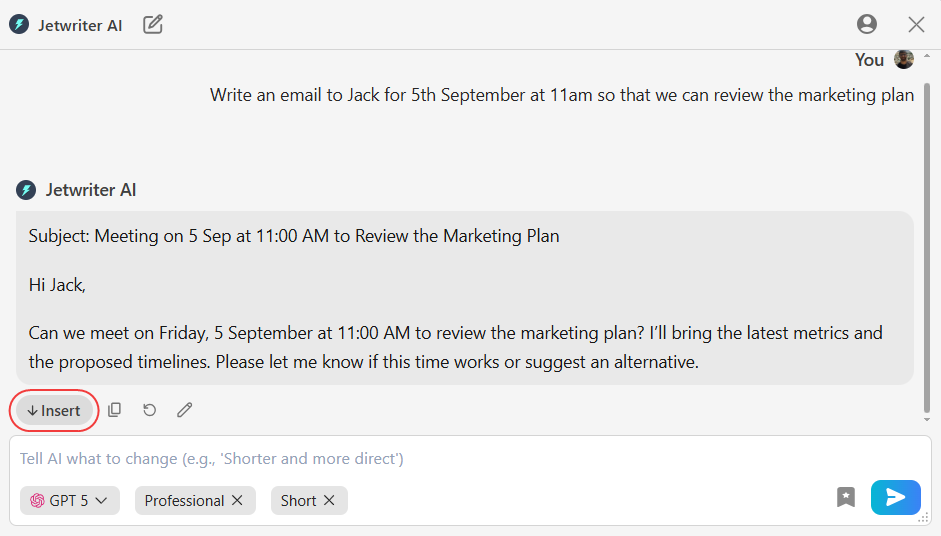
- Insert into Email: Once happy with the response, click the "Insert" button. Jetwriter AI will place the generated response into your email composition box.
Replying to Emails with Jetwriter AI
- Choosing an Email to Reply To: Open the email you want to respond to in Gmail.
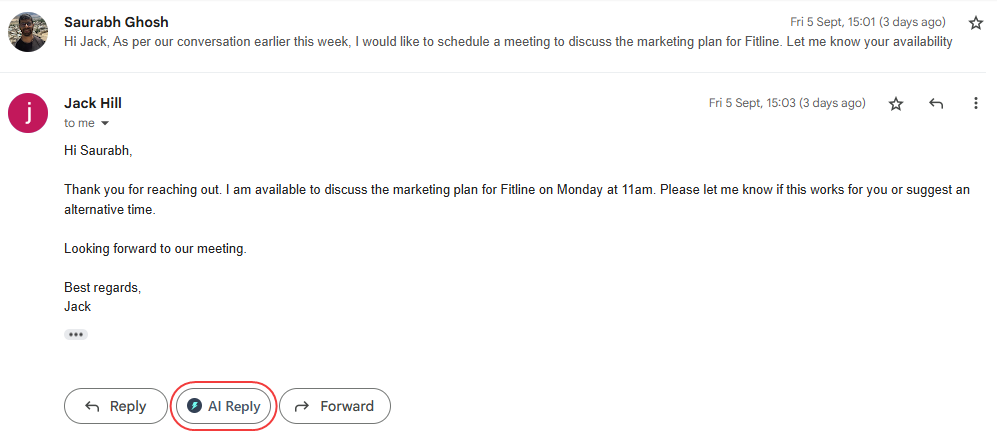
- Initiating a Reply: Click on the "AI Reply" button to open the reply textbox. This will launch the Jetwriter AI tool. The content of the email you're replying to will automatically be inserted into the email context box of the tool.
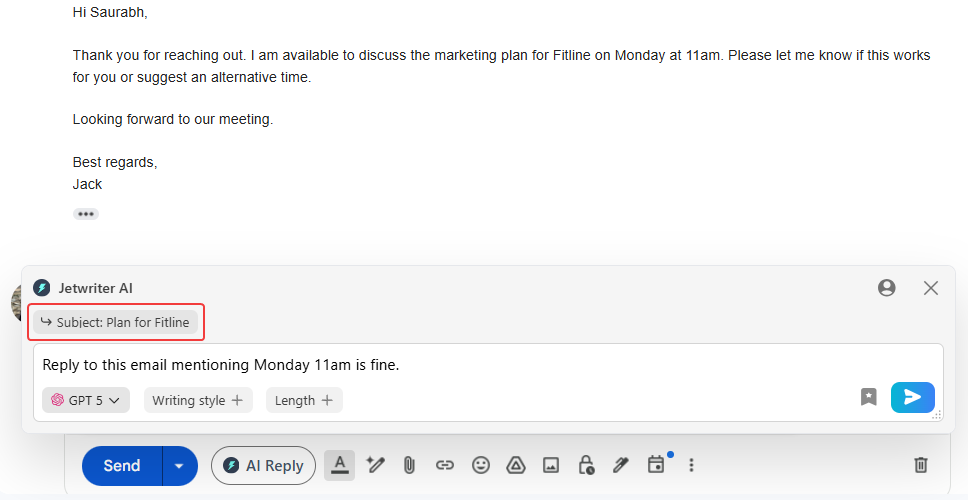
- Generate Your Reply: Briefly describe your intended reply in the tool and click the ‘Send to AI’ button.
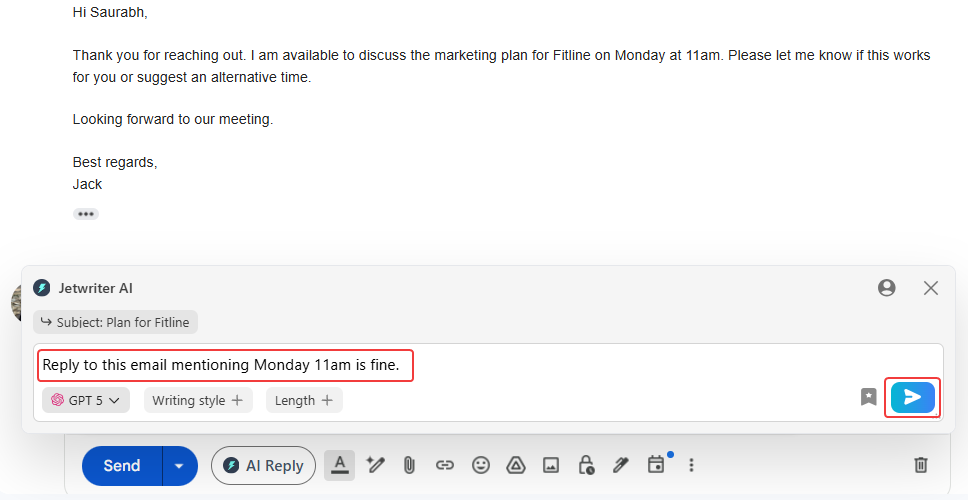
Jetwriter AI will create a response based on your input.
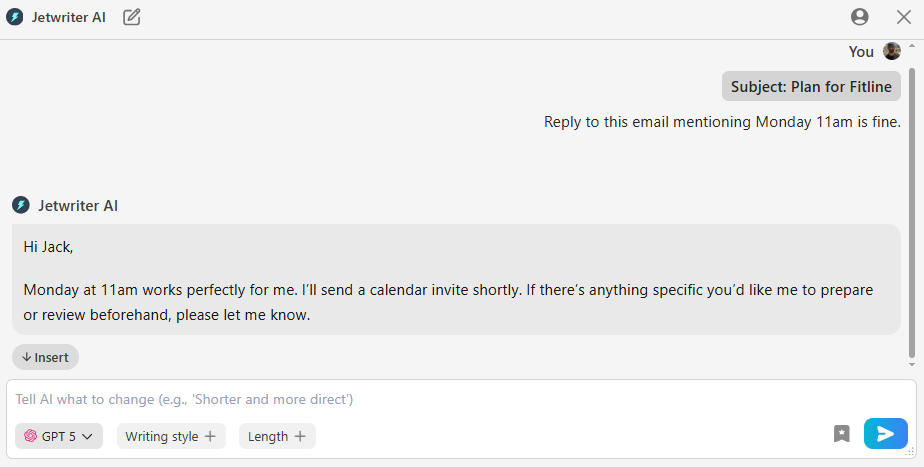
- Finalizing and Sending the Reply:
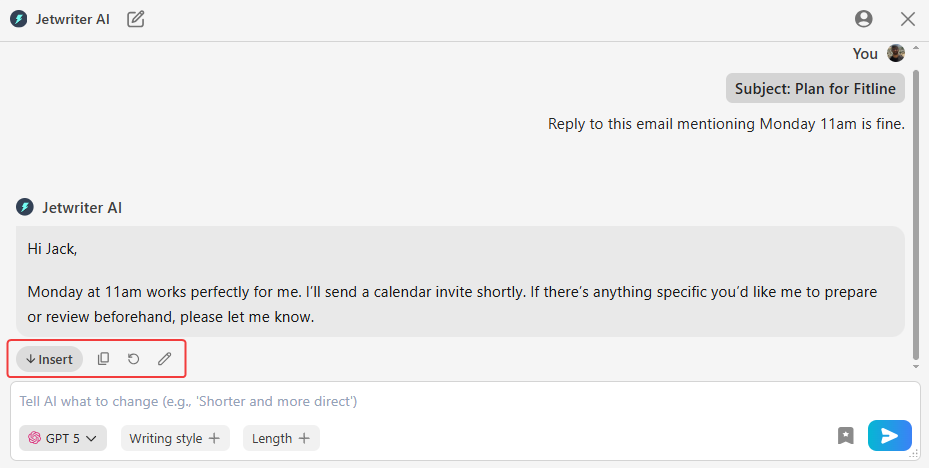
- Insert or Regenerate/Edit the Reply: Once happy with the generated response, click on the "Insert" button. The response will be added to your email reply box.
If the response isn't what you expected, you can regenerate or edit the response as per your requirement.
- Insert or Regenerate/Edit the Reply: Once happy with the generated response, click on the "Insert" button. The response will be added to your email reply box.
Conclusion
Simultaneously, Jetwriter AI's AI-driven email composition capability streamlines the process of creating context-appropriate content. This innovative tool adapts to the nuances of your communication needs, generating relevant and efficient responses. It significantly reduces the time and effort required in drafting emails, making your interactions in Gmail not only more effective but also more efficient.
Together, these features transform the way you manage email communication in Gmail, ensuring that every message you send is both impactful and impeccably written.
Was this article helpful?
That’s Great!
Thank you for your feedback
Sorry! We couldn't be helpful
Thank you for your feedback
Feedback sent
We appreciate your effort and will try to fix the article