Introduction
The "Connect Gmail" feature allows Jetwriter AI to analyze your past sent emails to learn your unique writing style. Instead of manually describing your tone, the tool identifies the words, phrases, and sign-offs you naturally use. This guide explains how to link your account and use this feature to ensure your AI-generated drafts sound authentic.
What is the “Connect Gmail” Feature?
This feature provides a direct link between Jetwriter AI and your Gmail account to automate the personalization process.
Style Analysis: The tool reads your sent folder to see if you prefer short notes or detailed messages.
Vocabulary Matching: It identifies specific words you use frequently so they appear in your AI drafts.
Signature Recognition: It learns your preferred way to say goodbye, whether you use "Thanks," "Best," or "Cheers."
How to Connect Your Gmail to Jetwriter AI
Linking your account is a straightforward process that can be completed directly within the extension.
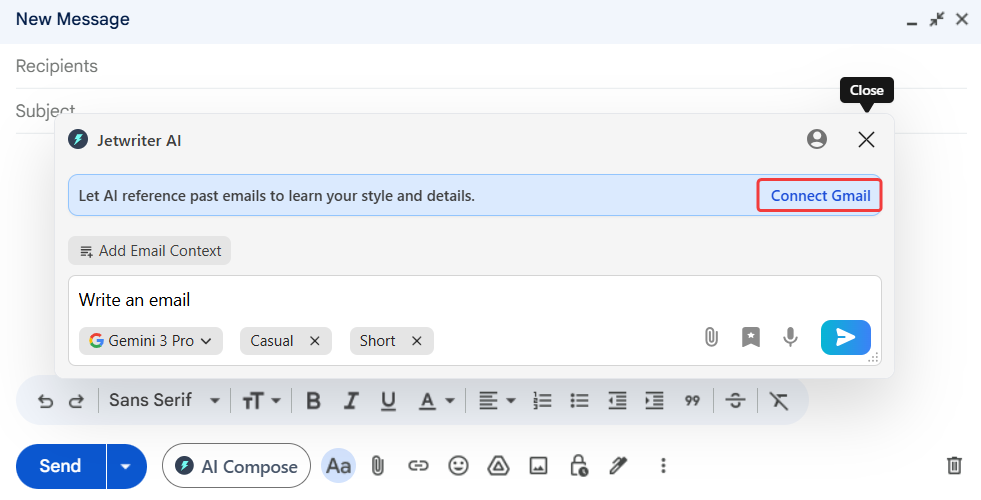
Launch the Extension: Open your Gmail and click the Jetwriter AI icon to launch the tool.
Click "Connect Gmail": Find and click the button labeled "Connect Gmail." This grants the AI read-only access to your past emails to begin the learning process.
Allow the AI to Analyze: Once connected, the AI will automatically scan your previous communications to understand your use of emojis, bullet points, and professional tone.
Generate Personalized Drafts: The next time you ask Jetwriter AI to write an email, it will automatically apply your learned voice. Simply review the draft and hit send.
Why Use Gmail Personalization?
Connecting your Gmail provides several professional advantages beyond standard AI generation.
Eliminate Manual Setup: You do not need to fill out long forms or describe your job title; the tool learns your context automatically.
Audience-Specific Tones: The AI learns how you speak to different people, such as being casual with colleagues while remaining serious with customers.
Consistency: Even when you are busy or tired, the AI ensures every email you send matches your highest writing standard.
Managing Your Connection and Privacy
You maintain full control over your data and can manage the connection at any time.
Disconnecting Gmail: If you wish to stop using the feature, navigate to your Jetwriter AI settings page.
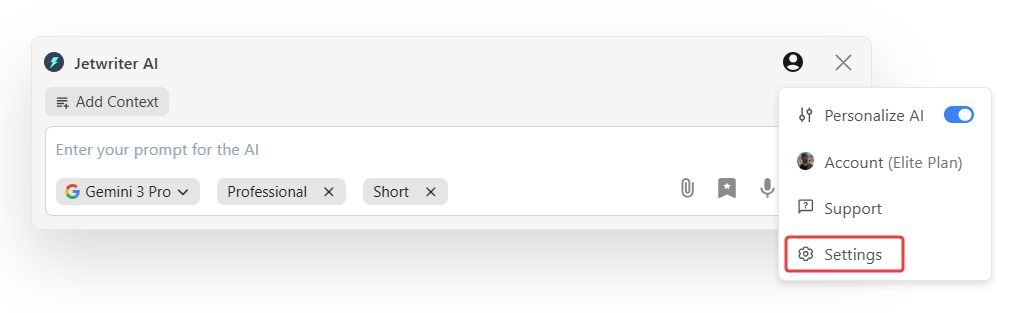
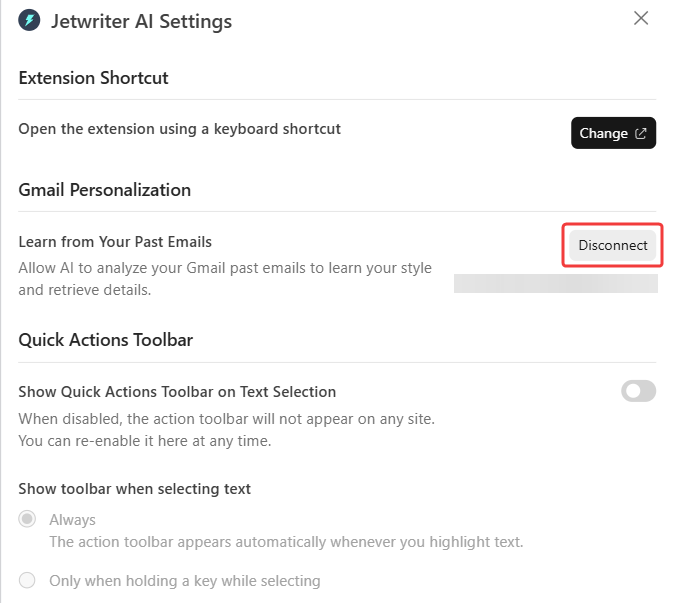
Find the "Gmail Personalization" section, and click "Disconnect." The tool will stop accessing your emails immediately.
Data Privacy and Security: Jetwriter AI uses read-only access to your past emails. Your information is never used to train AI models, and your data is protected with industry-standard encryption. Your private notes remain private.

Conclusion
The "Connect Gmail" feature ensures that your AI assistant sounds like the best version of you, rather than a generic machine. By allowing Jetwriter AI to learn from your real-world communication, you save time on editing and can confidently send emails that reflect your true professional voice.
Was this article helpful?
That’s Great!
Thank you for your feedback
Sorry! We couldn't be helpful
Thank you for your feedback
Feedback sent
We appreciate your effort and will try to fix the article