Introduction
Typing the same company details and policies into an AI prompt over and over is frustrating and time-consuming. Jetwriter AI solves this with its new Memory feature, which automatically recalls your past chats to generate accurate, context-aware responses without requiring repetitive instructions. This guide explains how the Memory feature works.
How the Jetwriter AI Memory Feature Works
When you ask Jetwriter AI to write a message, it quickly scans your past chats to locate facts and details you have already shared.
For example, if you explained a refund policy to a customer last week, the AI remembers it. When a new customer asks about refunds today, you can simply type a short command like "write refund policy." The AI will reference that past chat and draft a perfect, factually correct reply automatically. You do not have to open a new tab or copy and paste old text.
Privacy: Keeping Your Data Safe
Your private chats are always kept secure. Here is how your data is protected:
Read-Only Access: The tool only looks at your past chats to help write better drafts; it cannot change or delete anything.
No AI Training: Your private chats and information are never used to train any AI models.
No Data Selling: Your data is never sold to third parties.
Industry-Standard Encryption: All information is locked up and secured, ensuring your private chats stay private.
How to Disable the Jetwriter AI Memory Feature
The Memory feature is turned on by default to help you save time immediately, but you remain in full control of your data and can turn it off at any time.
Navigate to Settings: Open your Jetwriter AI settings menu.
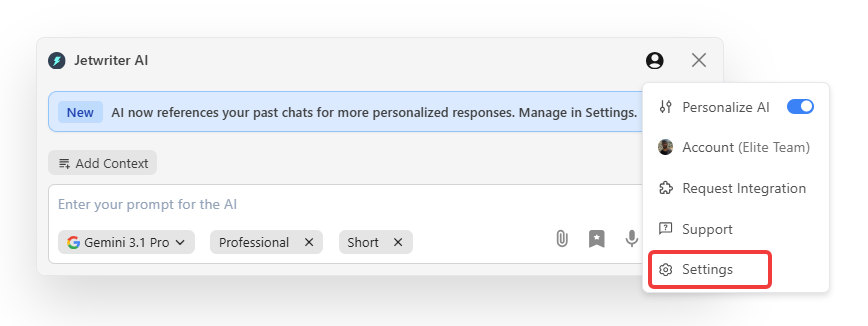
Locate Memory Options: Find the “Reference past conversations” option under the “Memory” section.
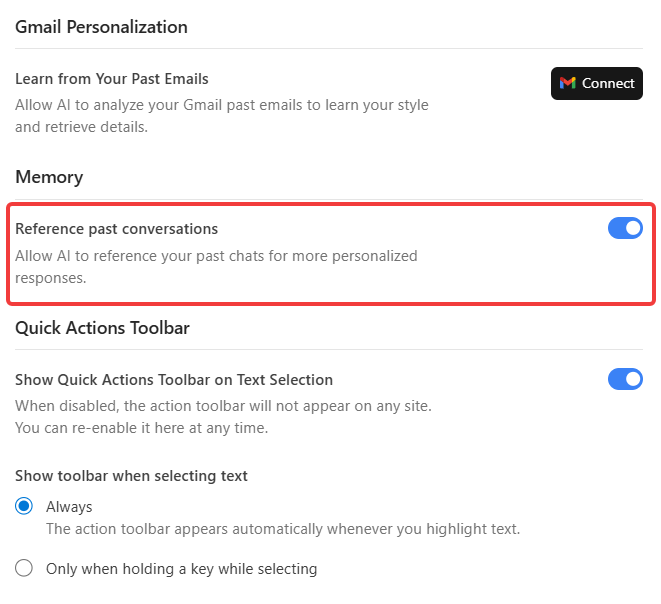
Toggle Off: Click the toggle to turn the feature off. The tool will instantly stop referencing your past chats.
Conclusion
The Jetwriter AI Memory feature eliminates repetitive typing by remembering your business facts. It saves you time, ensures factual accuracy, and requires minimal effort. You simply give a short command, and the AI does the heavy lifting, allowing you to finish your work faster while remaining in control of every word you send.
Was this article helpful?
That’s Great!
Thank you for your feedback
Sorry! We couldn't be helpful
Thank you for your feedback
Feedback sent
We appreciate your effort and will try to fix the article