Introduction
Jetwriter AI for Zendesk is an integrated tool designed to help you write faster, clearer, and more consistent support replies. It works directly inside your ticket window to generate context-aware responses, helping you save time on every ticket. This guide explains how to set up the tool, generate replies, and personalize the AI to your team's voice.
Setting Up Jetwriter AI in Zendesk
You can get started in approximately 60 seconds.
Install the Jetwriter AI Extension: Start by installing the extension. If you haven't installed the extension yet, refer to the previous guide on how to do it here.
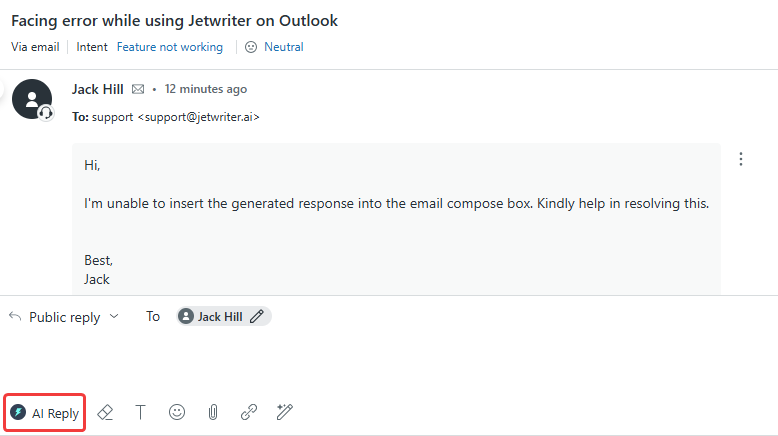
Find the Icon in Zendesk: Once installed, go to your Zendesk account and open any ticket. You will see the Jetwriter AI icon in the reply editor.
Generating an AI-Powered Reply in Zendesk
Jetwriter AI automatically reads the entire ticket conversation to understand the context, so no copy-pasting is required.
Open a Ticket and Launch the Tool: In your Zendesk inbox, click on any ticket you need to answer. Click the Jetwriter AI icon in the reply box to open the assistant.
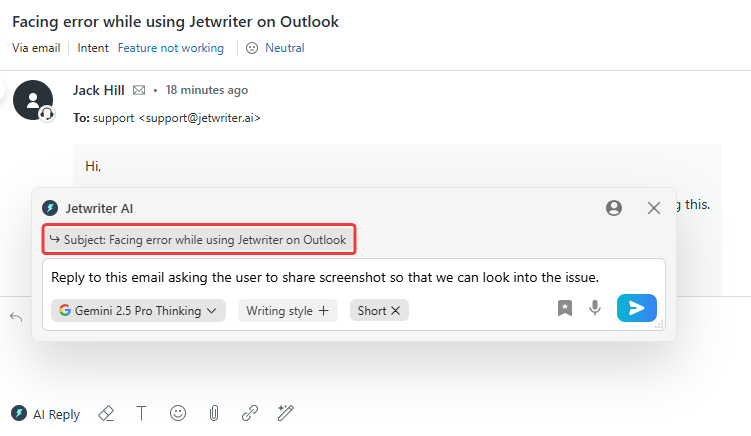
Type a Simple Instruction: In the input text box, tell the AI what you want to say. You can use simple commands like "tell them their refund is processed" or "ask to share the screenshot so that we can look into the issue."
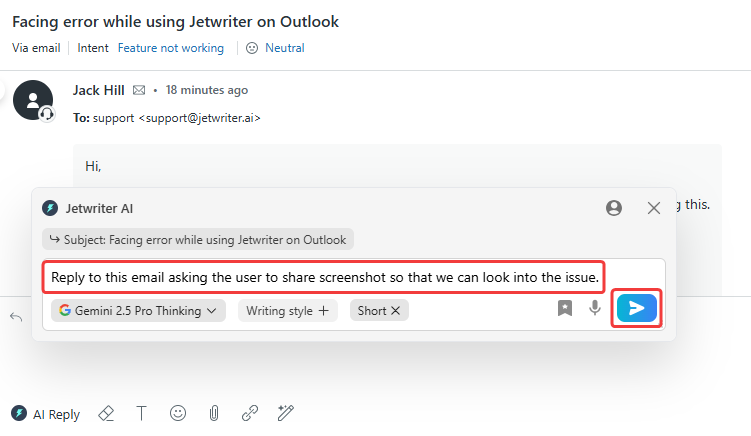
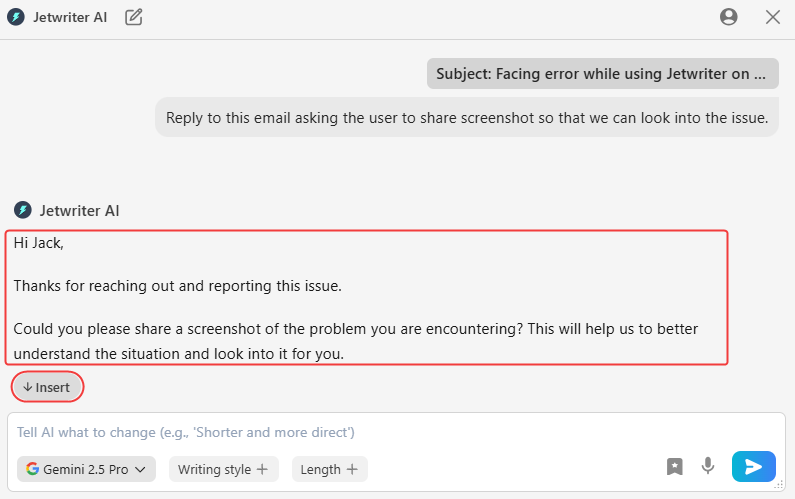
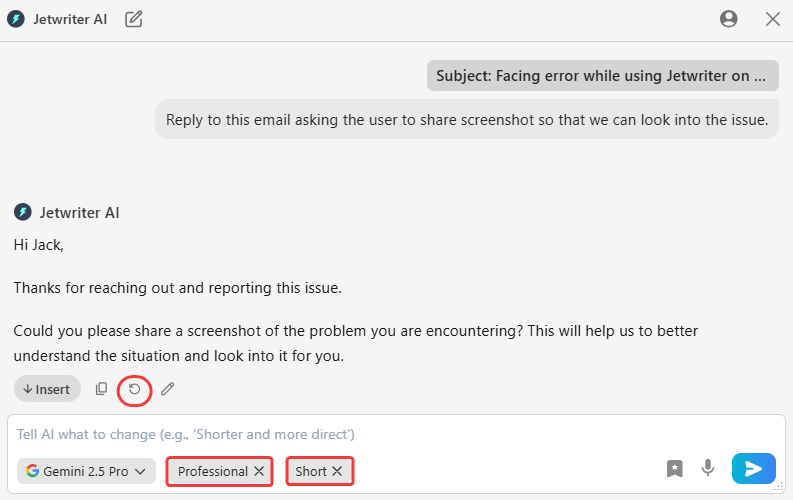
Generate & Insert the Reply: Click the "Generate" button (the blue icon). Jetwriter AI will use the context and your instruction to write a professional reply in a few seconds. If you are happy with the generated reply, click the "Insert" button. The text will be added directly into your Zendesk ticket reply box.
Refining Your Generated Draft
If the first draft is not exactly what you need, you can easily adjust it.
Change the Writing Tone: Use the Writing Tone menu to select a new style, such as Friendly, Professional, or Empathetic, to better match the customer's mood.
Change the Response Length: Use the Response Length options to make the reply shorter for a quick update or longer for a more detailed explanation.
Click "Regenerate": If you want a completely different version, click the "Regenerate" button to have the AI write a new draft.
Personalizing the AI for Your Team
You can train Jetwriter AI to match your brand's voice and speed up common tasks.
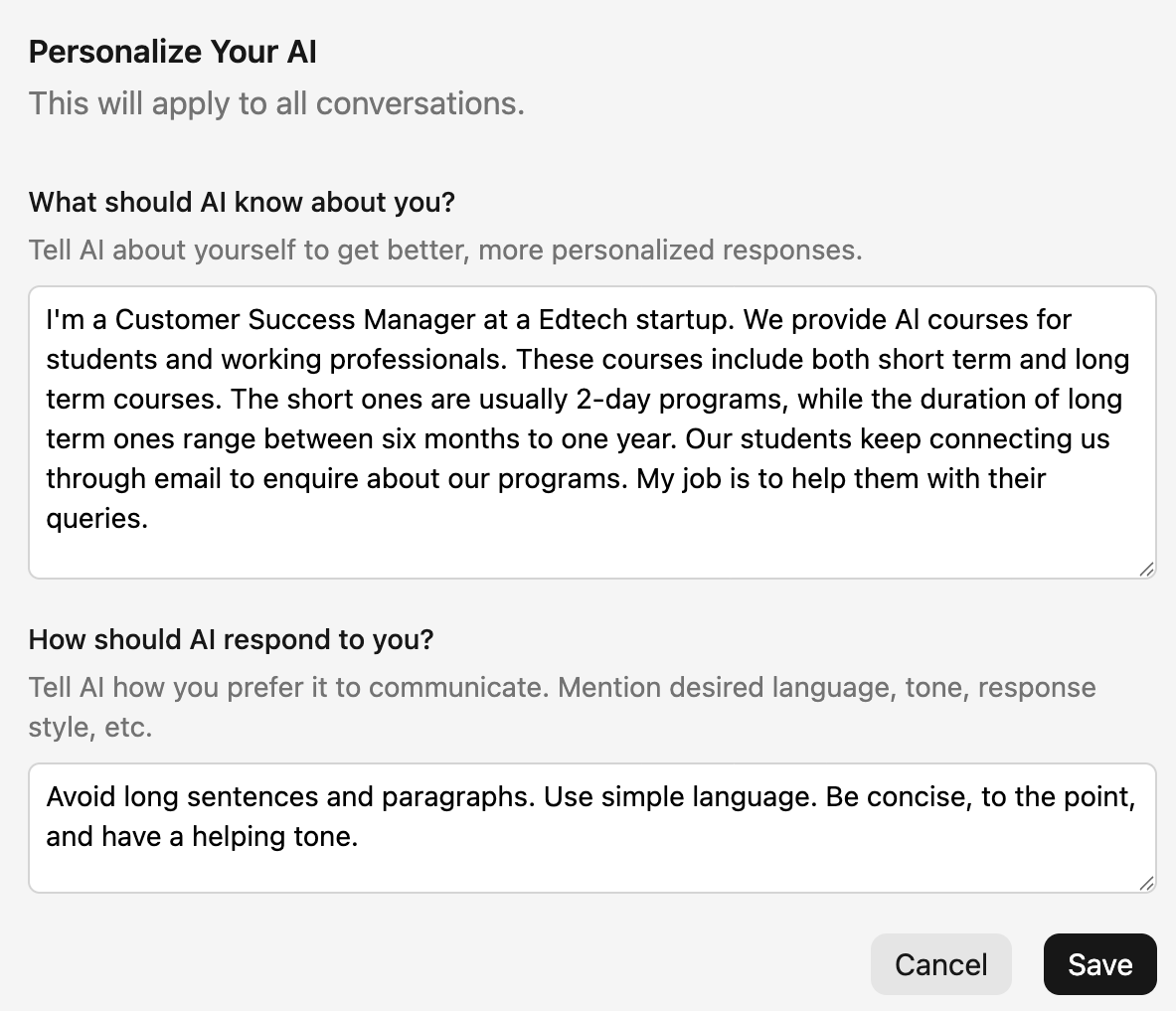
Personalize AI (Your AI Profile): In the settings, set up your AI Profile. You can add details about your company, your role, and your general communication style to make generated replies sound more like you.
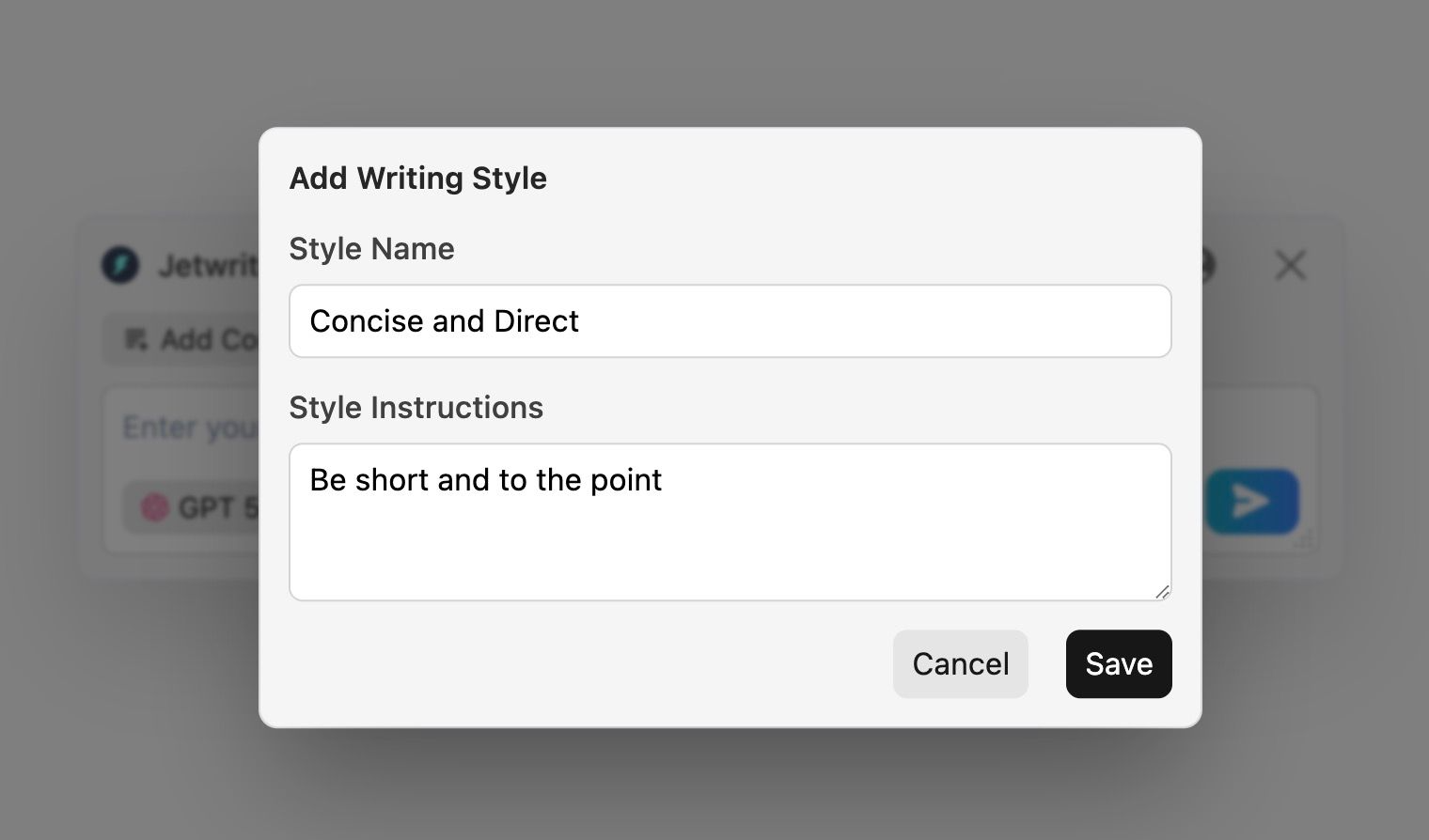
Create Custom Writing Styles: Create and save your own unique writing tones.
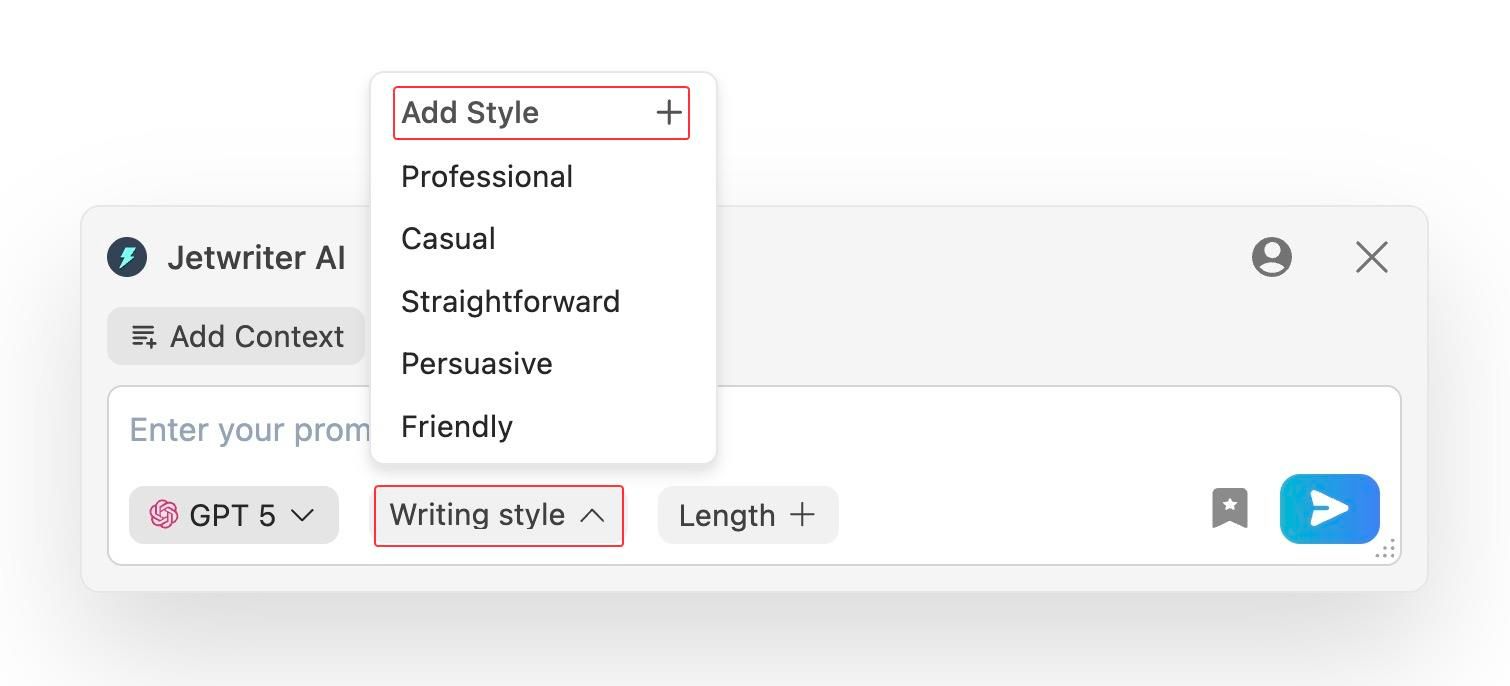
For example, you can create a "Concise & Direct" style for quick status updates or a "Friendly & Inquisitive" style for gathering more information.
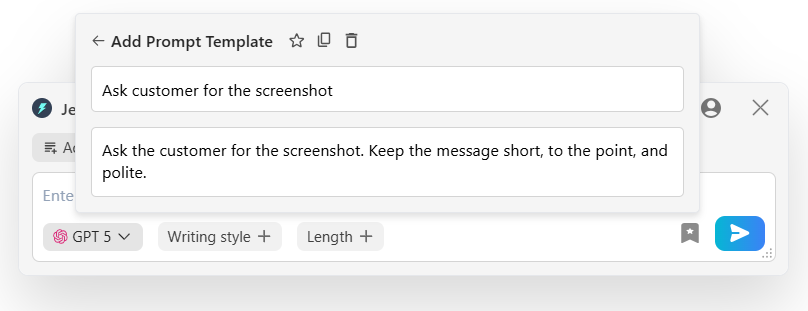
Use Prompt Templates (One-Click Replies): Here, add instructions you use frequently. This allows you to execute common tasks with a single click.
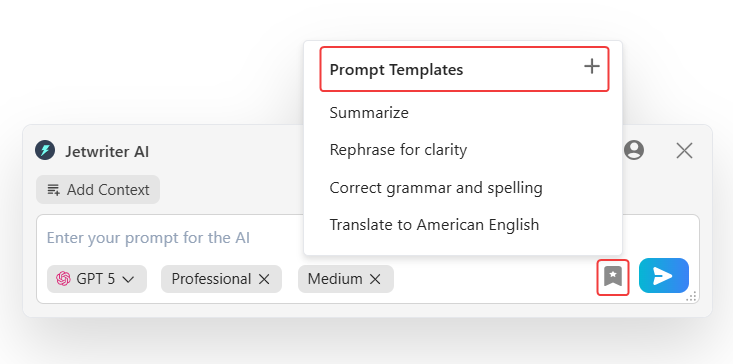
Example "Ask the customer for a screenshot," you can save them as a Prompt Template.
Conclusion
Jetwriter AI integrates into Zendesk to save you time on every support ticket. It helps you write clear, professional, and friendly replies consistently. By handling repetitive typing, it allows you to focus on solving customer problems and providing excellent service.
Was this article helpful?
That’s Great!
Thank you for your feedback
Sorry! We couldn't be helpful
Thank you for your feedback
Feedback sent
We appreciate your effort and will try to fix the article