Introduction
Jetwriter AI for Microsoft Outlook is an integrated tool designed to help you write emails effortlessly. It works directly inside your inbox to generate replies and compose new messages from scratch. This guide explains how to set up the tool and use its features to save time and improve your email communication.
Replying to Emails with Jetwriter AI
Jetwriter AI automatically reads the context of an email thread to generate relevant replies.
Launch AI Reply: Open any email in your Outlook inbox that requires a response and click the "AI Reply" button to begin.

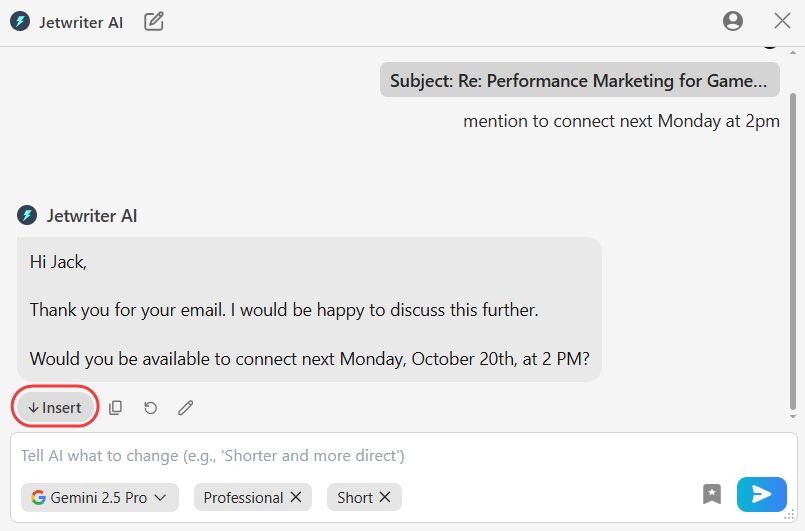
Provide Your Reply Instruction: In the extension's input box, type a simple command for your reply, such as "Say yes to the meeting on Monday at 2pm," and click the "Generate" button.

Jetwriter AI will instantly write a full reply for you.
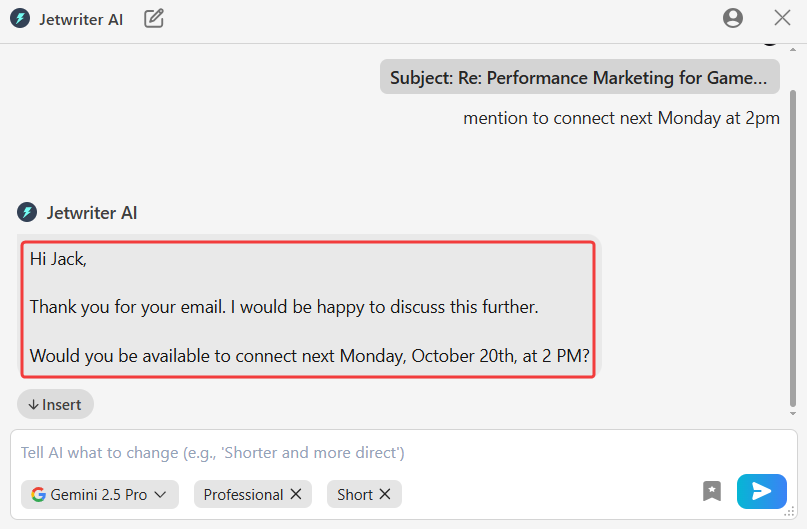
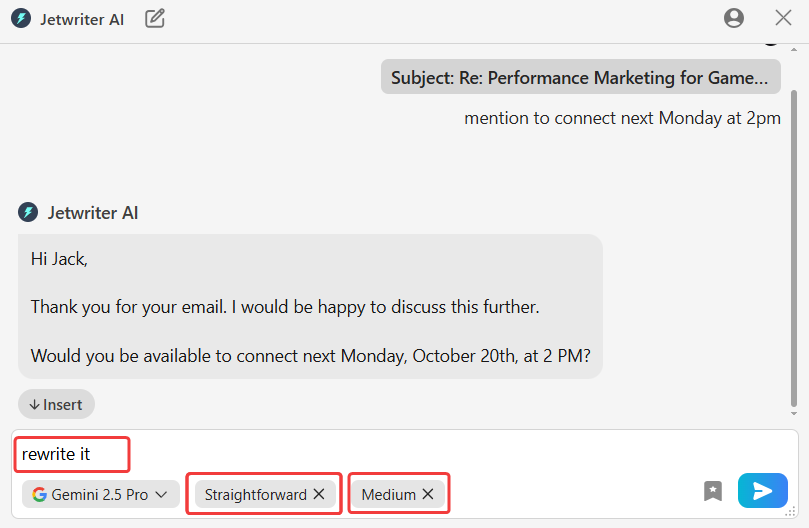
Refine the Generated Response: If the draft is not perfect, you can refine it by changing the tone or length.
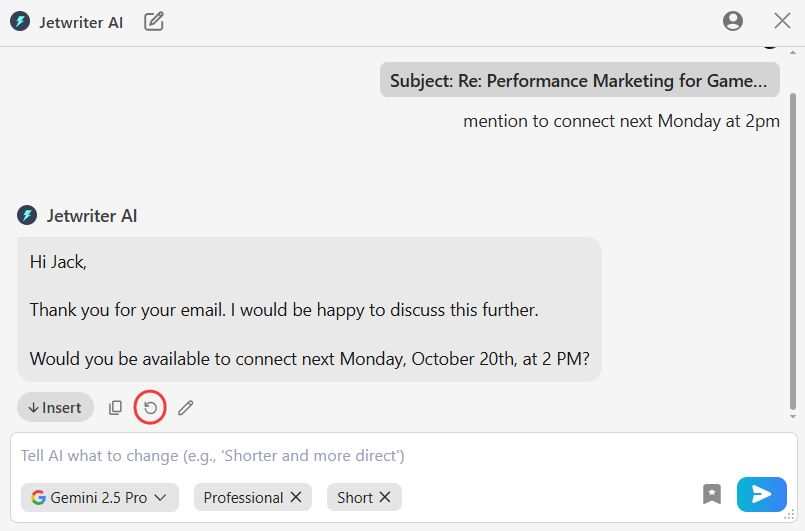
Not a fan of the first draft? Hover over the reply and click “Regenerate” to get a brand new version.
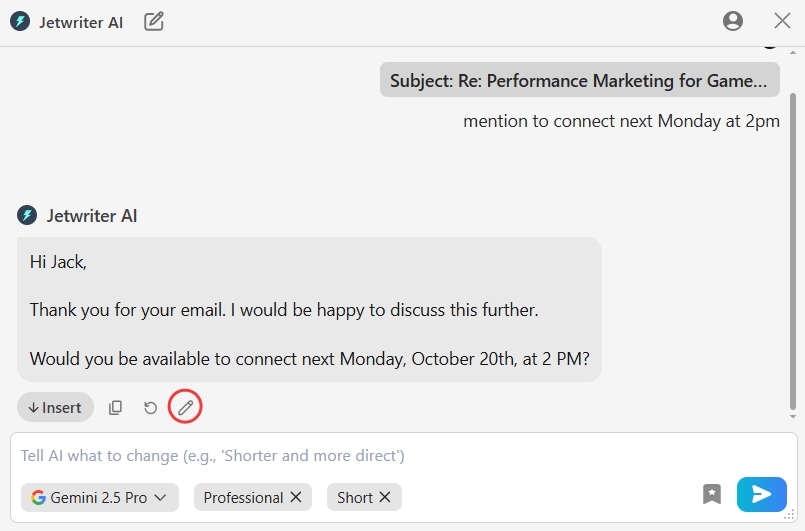
Like the reply but want to change one small thing? Hover over it and click “Edit” to make your own tweaks.
Insert the Response: Once you are satisfied with the text, click the "Insert" button. The response will be placed into your Outlook email, and you are ready to send.
Composing New Emails with Jetwriter AI
Use Jetwriter AI to overcome writer's block and create new emails from scratch.
Open a New Email and Launch AI: In Outlook, click the "New email" button to open a composition window, then click the Jetwriter AI button to launch the tool.

Describe the Email Content: In the input box, tell Jetwriter AI what the email should be about. For example, "Write an email to my team about the new project deadline this Friday."
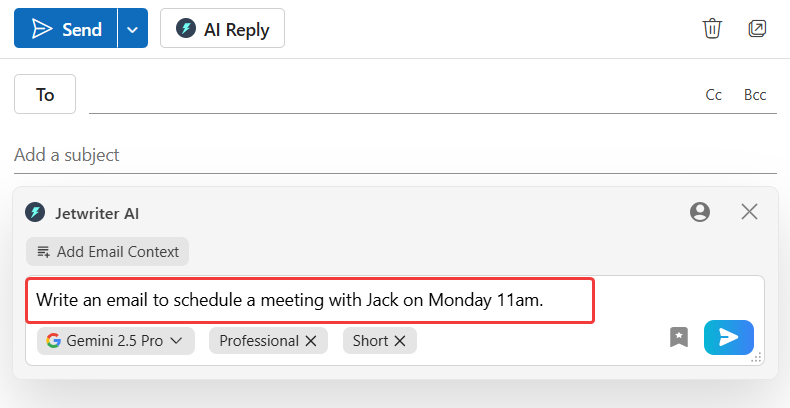
Generate and Refine the Draft: Click the "Generate" button to create a full email draft.
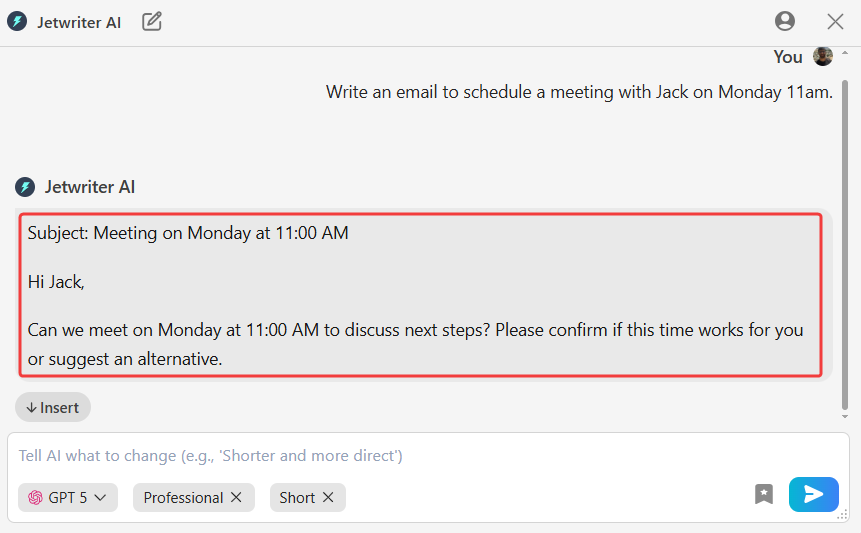
If the draft is not perfect, you can refine it by changing the tone or length.
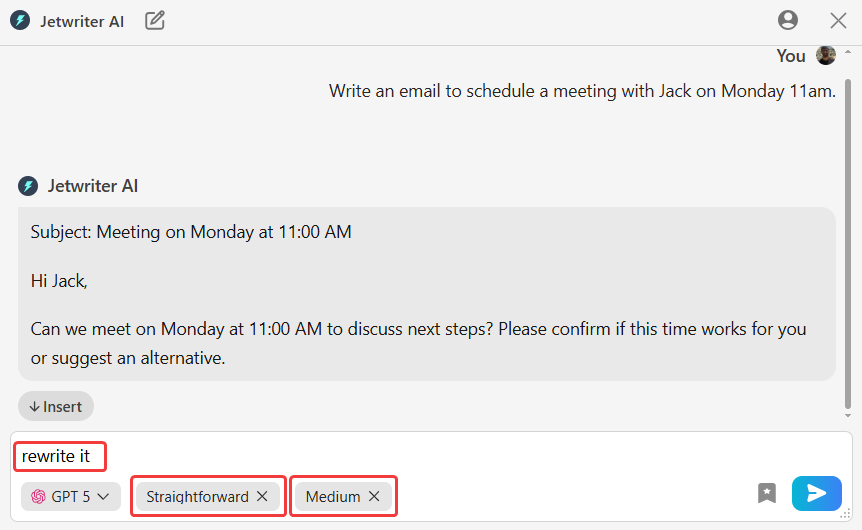
Didn't like the first draft? Click “Regenerate” to get a brand new version.
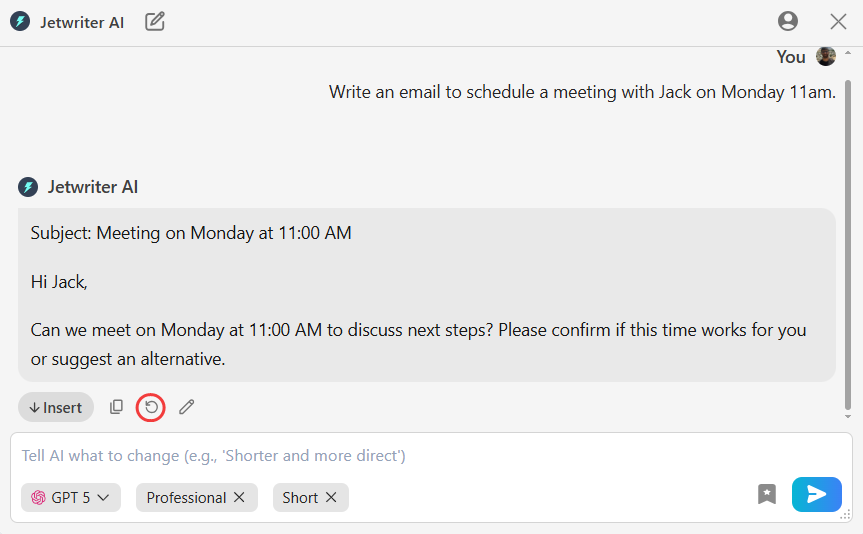
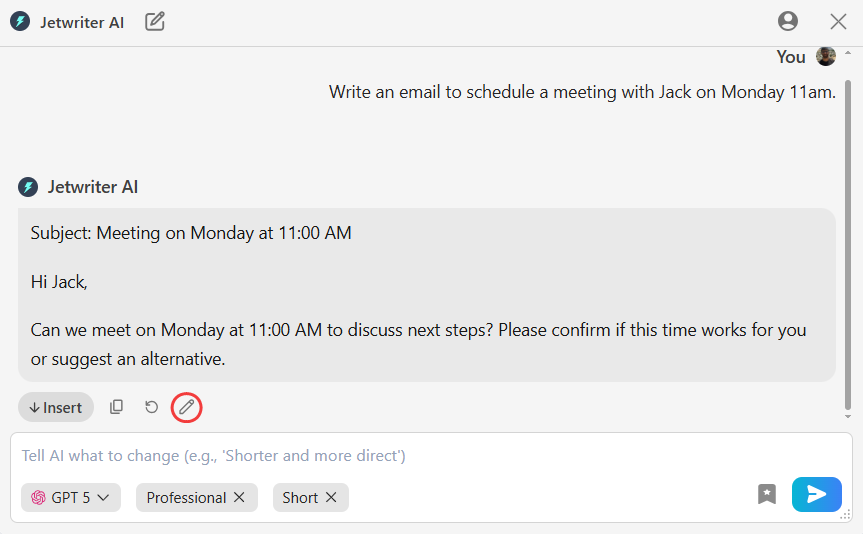
Want to change one small thing? Click “Edit” to make your own tweaks.
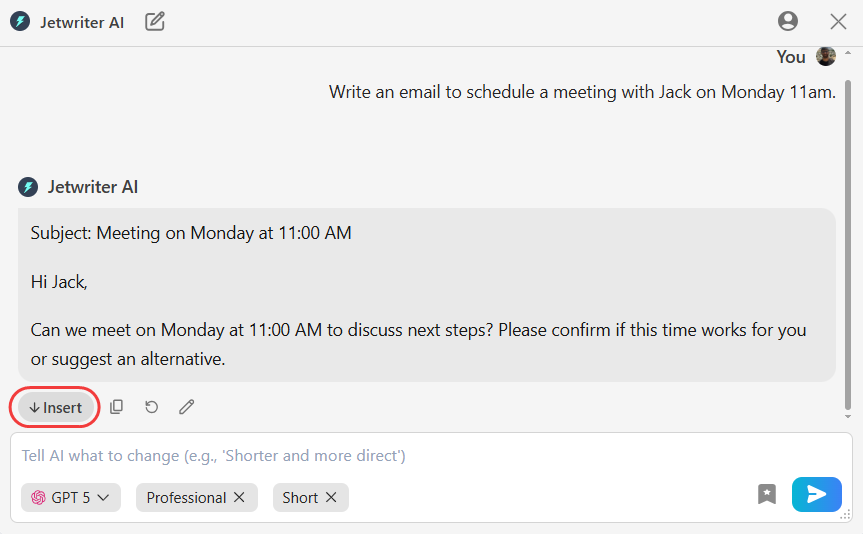
Insert the Final Text: When the draft is ready, click "Insert" to move it into your email window. Add the recipient and subject line, then send.
Personalizing Jetwriter AI to Match Your Voice
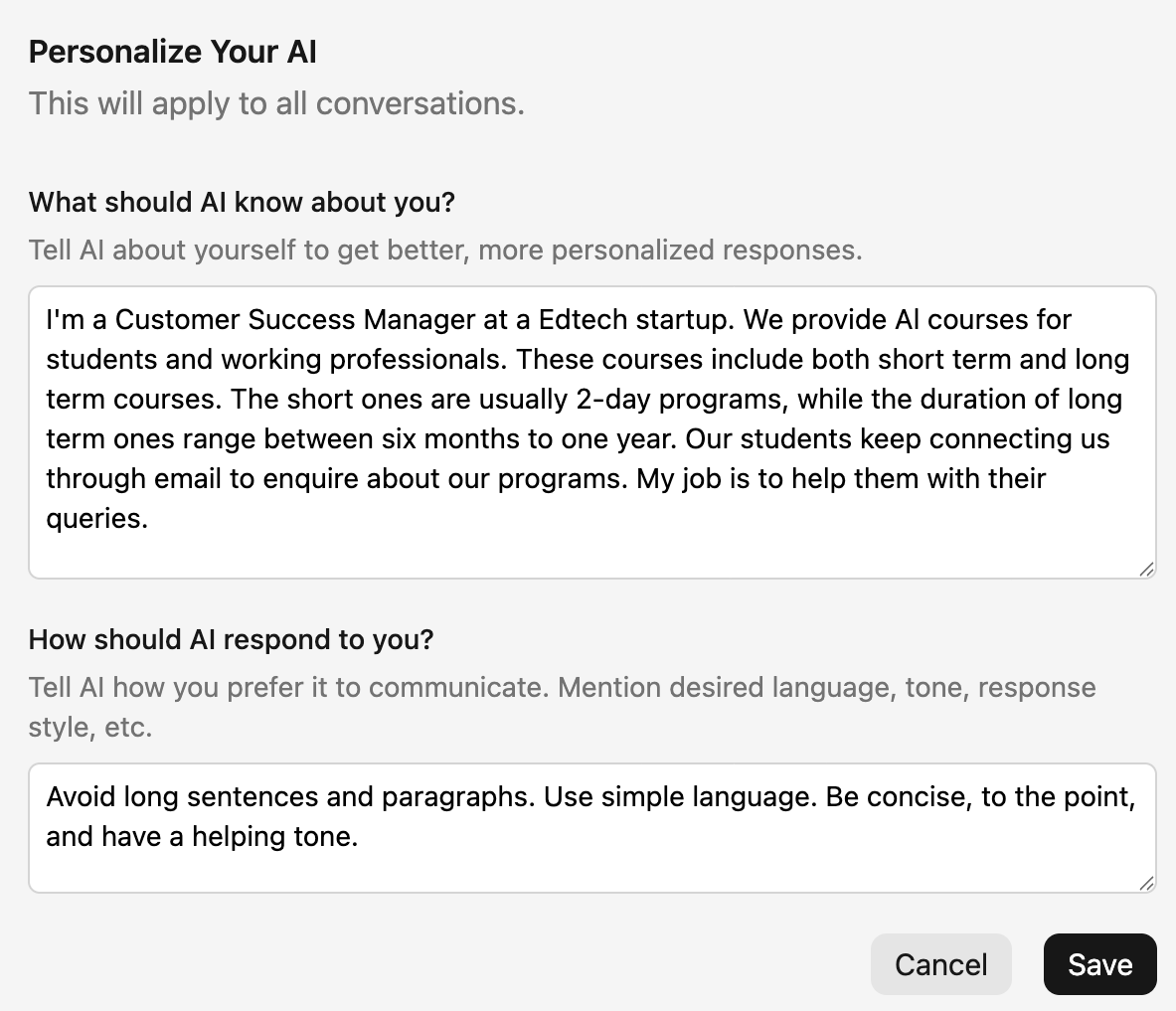
Configure the AI to learn your personal communication style for more authentic responses.
Teach It About You (Personalized Profile): In the settings, provide the AI with details about your job and typical writing style to ensure its suggestions sound more like you.
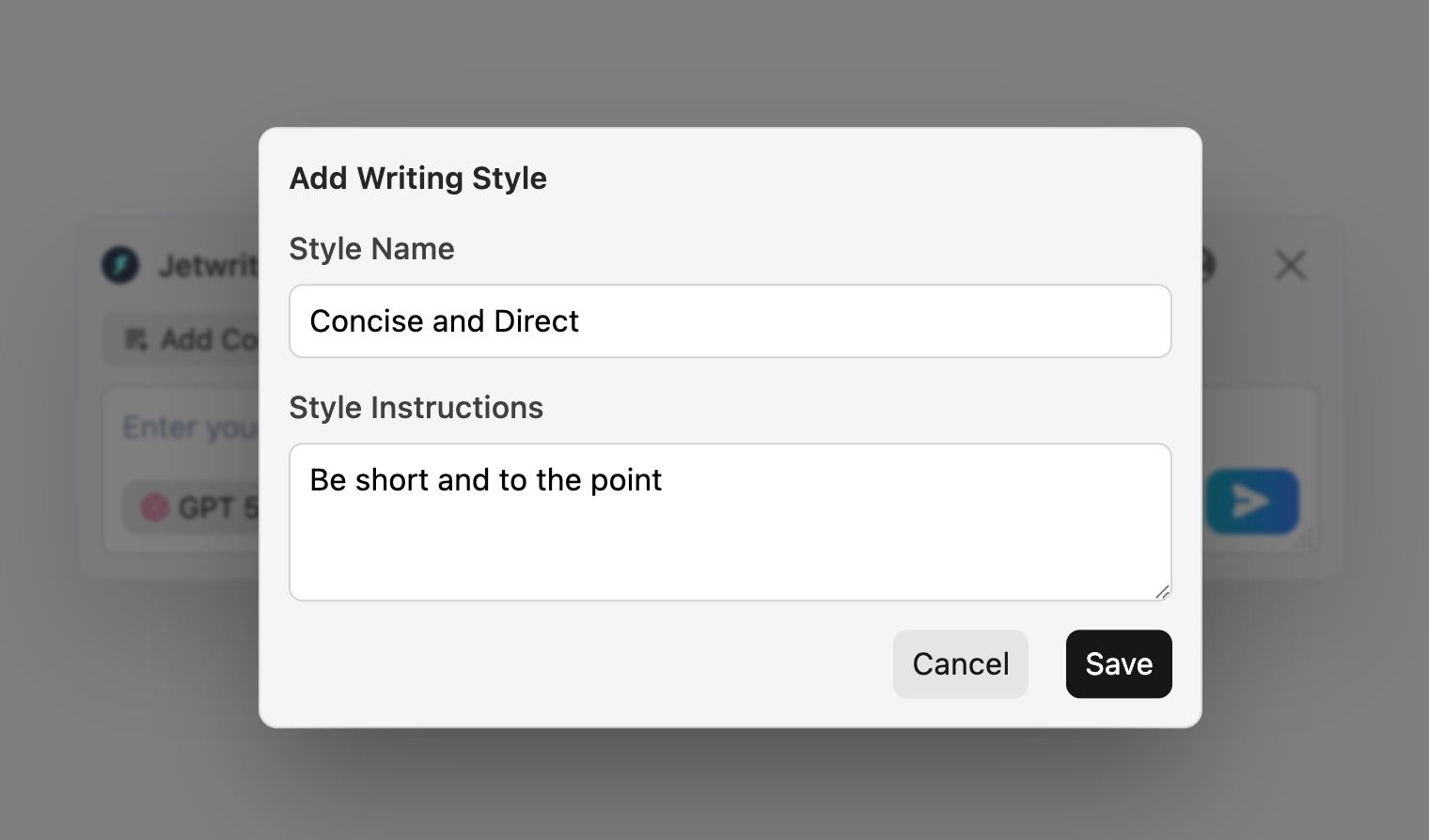
Create Your Own Writing Styles: Create and save different writing tones to apply the perfect voice for any situation with one click.

Example: Create a "Concise and Direct" style for work related communications, or a "Friendly Team" style for friendly team communications.
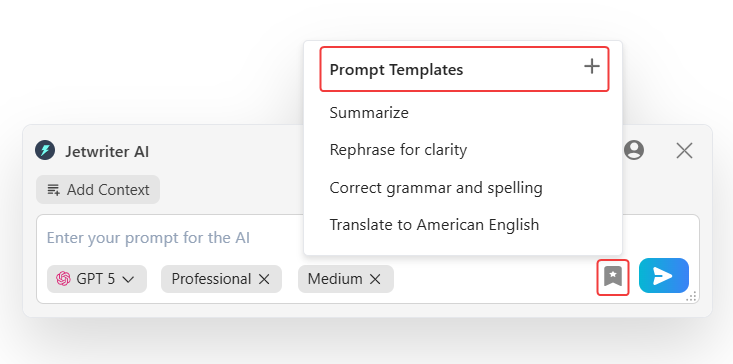
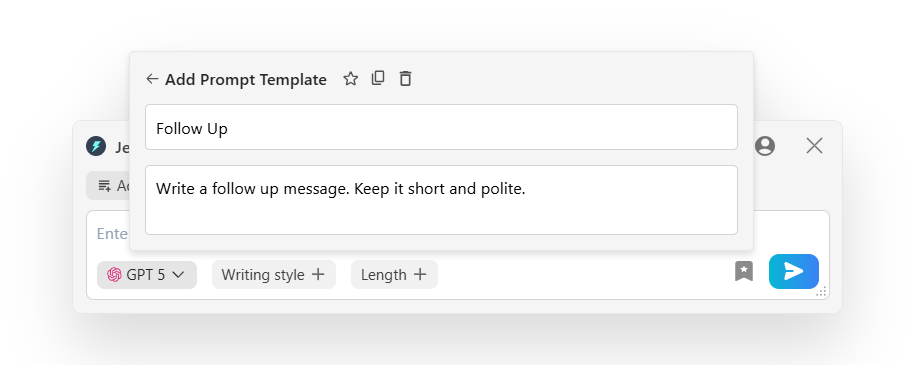
Save Your Favorite Prompts (Prompt Templates): For recurring emails like weekly reports, save your instructions as a Prompt Template. This allows you to draft common messages instantly.
Example: Create a "Follow Up" template, for following up with your teams.
Conclusion
Jetwriter AI integrates directly into Microsoft Outlook to help you reply to emails in seconds and write new messages from a blank page. The tool saves time, ensures a professional tone, and allows you to create clear emails that sound authentic. It is a fast, secure, and smart assistant for your inbox.
Was this article helpful?
That’s Great!
Thank you for your feedback
Sorry! We couldn't be helpful
Thank you for your feedback
Feedback sent
We appreciate your effort and will try to fix the article