Introduction
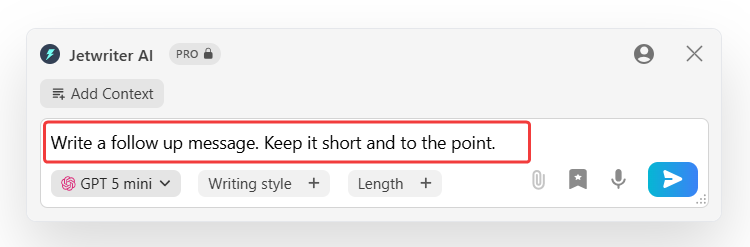
When you launch Jetwriter AI, a starting instruction pops up in the text box right away. This is your default prompt template. For example, it might say, "Reply to this email."
This feature is very useful. It saves you from typing the exact same words over and over. This guide shows you how to set your own default template so you can write even faster.
Setting Your Default Template
You can easily choose which prompt shows up first when you launch the extension.
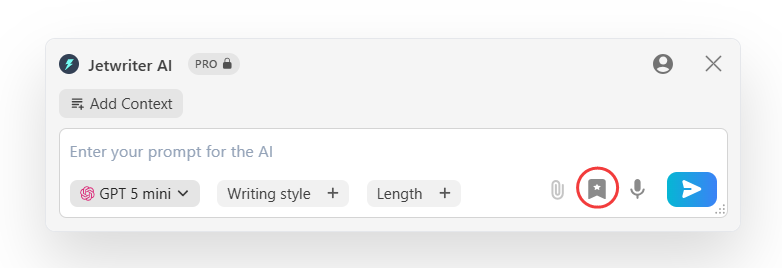
Navigate to Prompt Templates: Launch Jetwriter AI. Go to the section where you add your prompt templates.
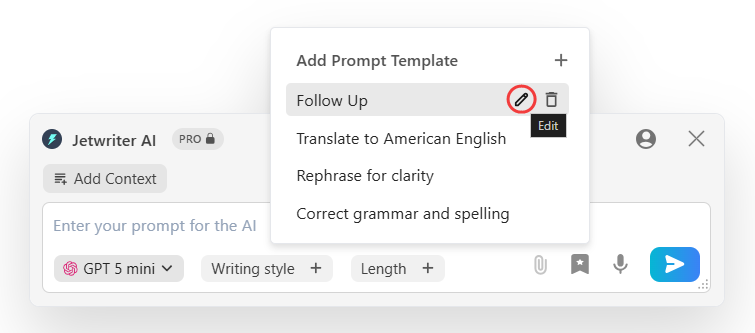
Edit the Prompt: Look at your list of prompts. Find the one you use the most and would want to set as default. Click the "Edit" option.
Next, click the "star" symbol. Hit Save.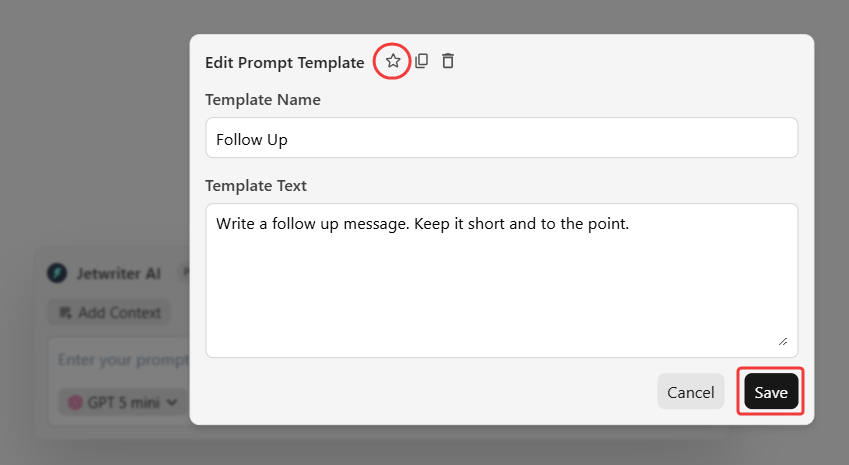
That is it! Now, that prompt will be set as your default. It will pop up every time you launch the extension.
Conclusion
Setting a default prompt template gives you a great head start. It cuts out the boring typing so you can finish your work fast. It is a very quick and easy setup that will save you a lot of time every single day.
Was this article helpful?
That’s Great!
Thank you for your feedback
Sorry! We couldn't be helpful
Thank you for your feedback
Feedback sent
We appreciate your effort and will try to fix the article