Introduction
Typing the same AI instructions, like "summarize this email" or "write a short reply," slows down your workflow. Jetwriter AI's Prompt Templates solve this by letting you save your most frequently used commands. You write the full instruction once, and execute it with a single click in platforms like Gmail, LinkedIn, or Slack. This guide explains how to set up, use, and optimize your templates.
How to Set Up a Prompt Template
Creating a template is a quick process that you only have to do once.
Launch the Tool: Open the Jetwriter AI browser extension or log into the Web App.
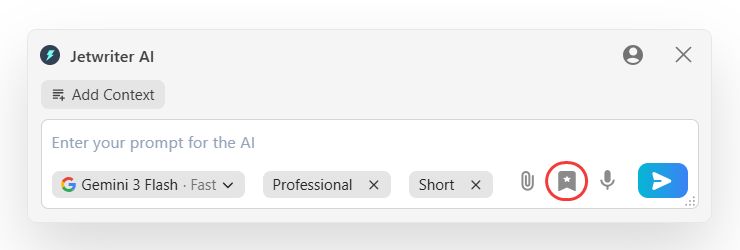
Open Prompt Templates: Locate and click on the prompt templates symbol, which looks like a bookmark icon.
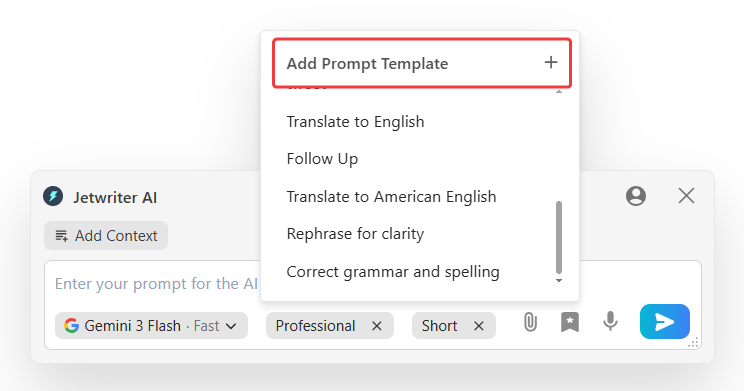
Add a New Template: Click on the "Add Prompt Template" button to create a new entry.
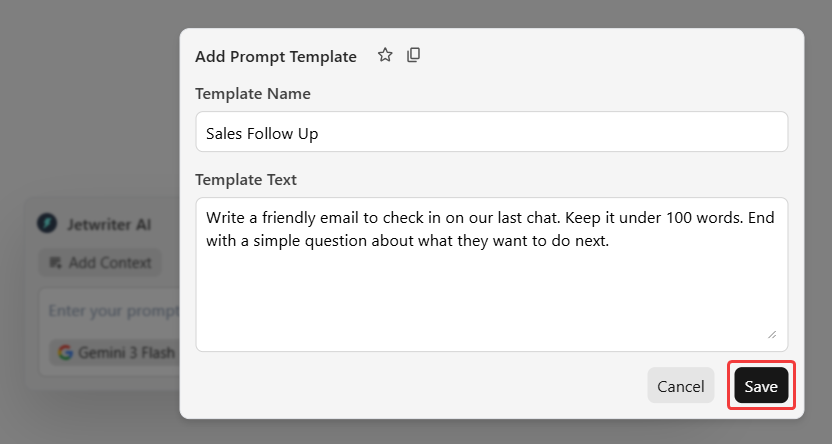
Enter Your Details: Give your template a simple title in the "Template Name" field (for example, "Summarize"). Then, type your exact, detailed instructions into the "Template Text" field. Click "Save."
Use Your Template: Your template is now ready. The next time you want to use this command, simply go to your list of prompt templates and click the template name. The AI will instantly apply your saved instructions to your current task.
Tips for Writing the Best Templates
The AI performs best when you provide highly specific rules.
Give Exact Details: Do not let the AI guess. Instead of saying "Make a list of things to do," write exactly what you want: "Make a list with three bullet points."
Define Your Tone: The AI does not know what a vague word like "professional" means to you. Be specific about your habits: "Use formal words. Do not use exclamation marks. Always start the message with 'Good morning'."
State What to Avoid: Sometimes the AI uses formatting or words you dislike. Explicitly tell it what to avoid: "Do not use jokes. Do not use long sentences. Do not use emojis."
Conclusion
Prompt Templates eliminate the need to type the same instructions multiple times a day. By taking a minute to save your most common commands, you can quickly apply your exact rules to any task with a single click, saving you from typing them out again. Open Jetwriter AI today to set up your first template and see how much time you save.
Was this article helpful?
That’s Great!
Thank you for your feedback
Sorry! We couldn't be helpful
Thank you for your feedback
Feedback sent
We appreciate your effort and will try to fix the article