Introduction
Jetwriter AI for Slack is a smart assistant designed to help you communicate with your team quickly and clearly. It integrates directly into your Slack chat box, reading the context of your conversations to generate perfect, instant replies without needing to switch tabs. This guide explains how to set up the tool, generate responses, and personalize the AI to match your unique voice.
Setting Up Jetwriter AI in Slack
Getting your new AI teammate ready takes less than a minute.
Install the Jetwriter AI Extension: Go to the Jetwriter AI website and install the free browser extension. It works on Chrome, Edge, Brave, and most other browsers.
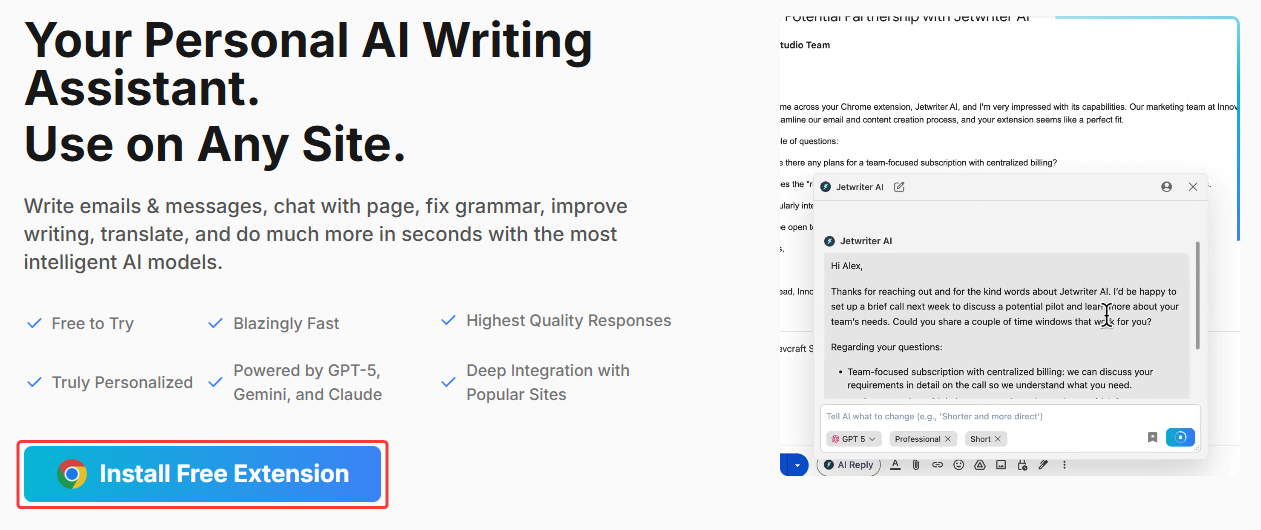
Create a Free Account: After installation, follow the prompts to create a free account. No credit card is required.
Locate the Icon in Slack: Open Slack in your web browser. Look at the text box where you normally type a message, and you will see the Jetwriter AI icon waiting to help you.
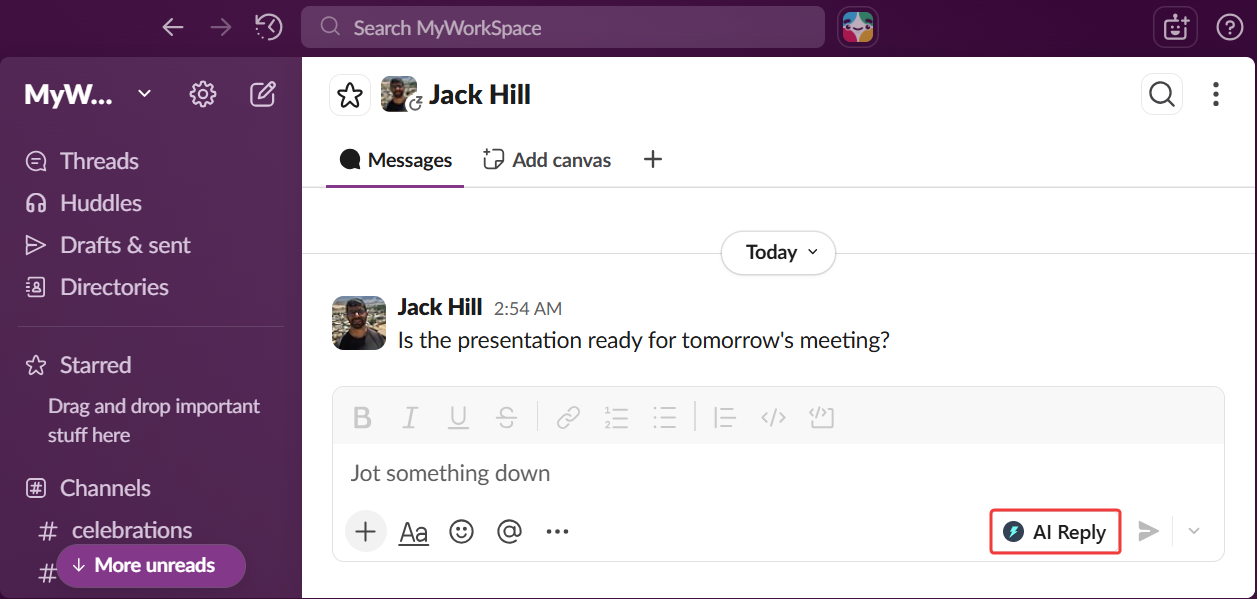
Generating an AI-Powered Reply
Jetwriter AI automatically reads the Slack chat you are looking at to understand the context, so it knows exactly how to respond.
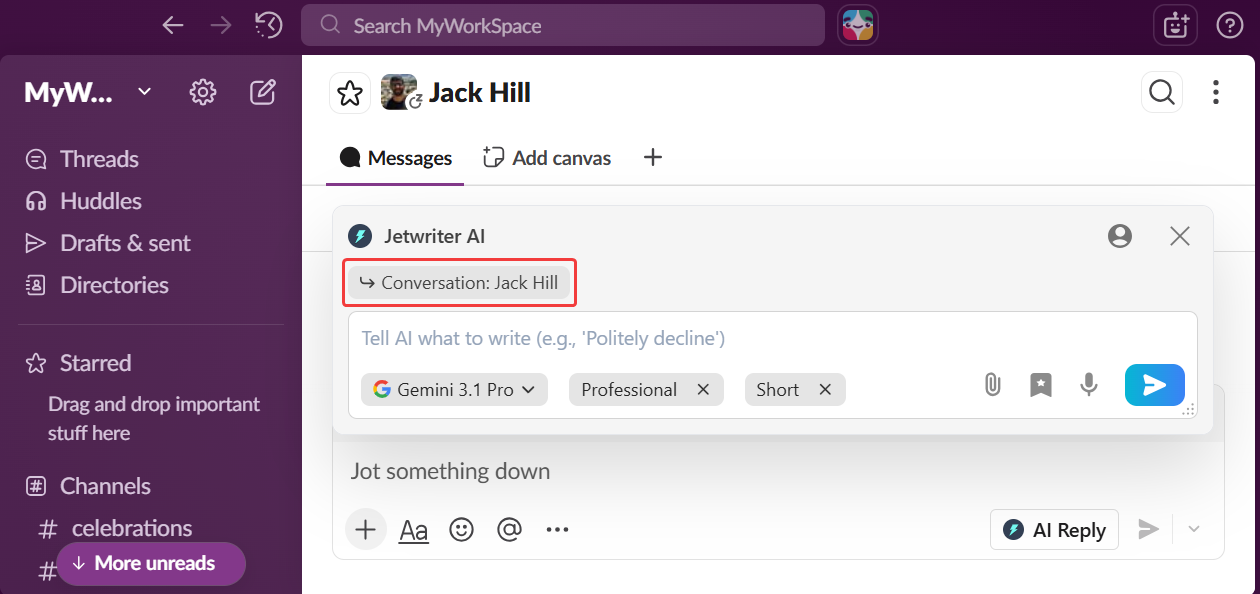
Launch the Helper: When a message pops up that you need to answer, click the little Jetwriter AI icon right inside your Slack chat text box.
Provide Your Instruction: In the input box, type a short and simple instruction. For example, you can type "tell them yes, the slides are ready."
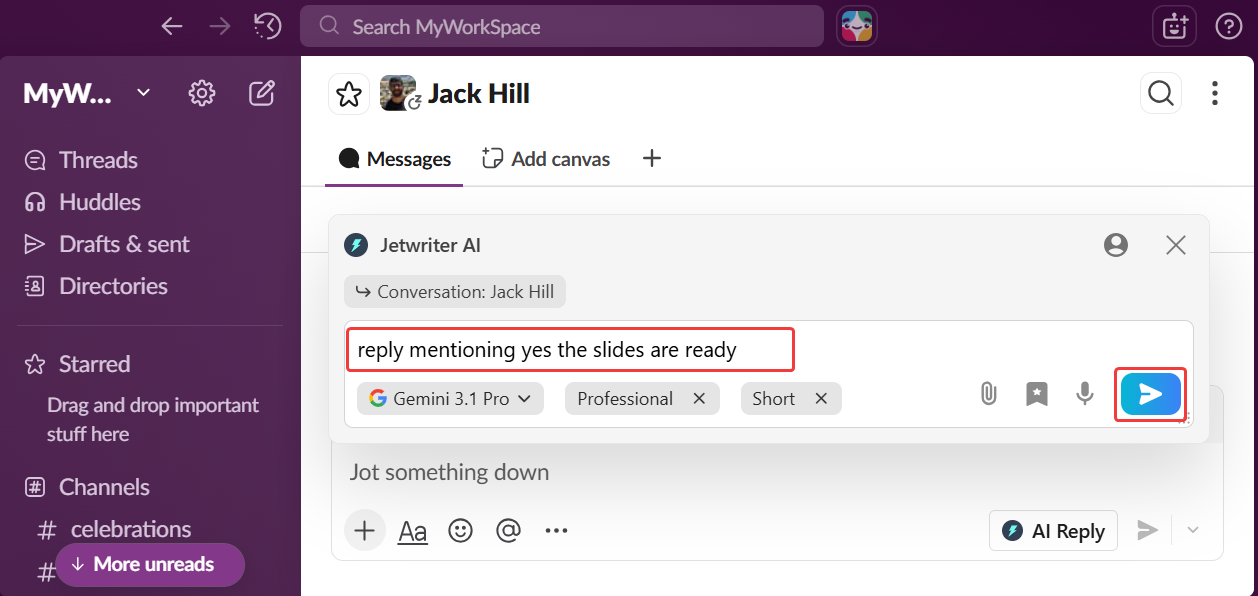
Generate the Reply: Click the blue "Generate" button. In seconds, a complete, professional message will appear.
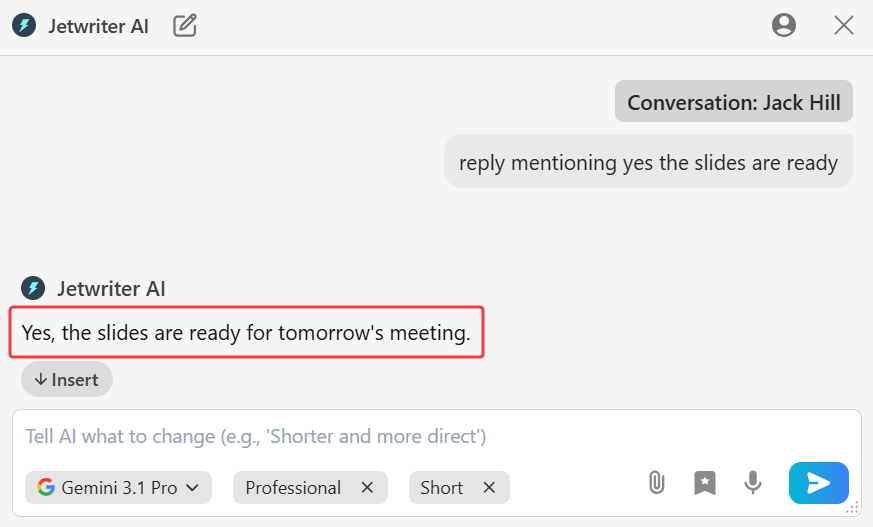
Refining Your Generated Draft
If the first draft needs a quick tweak, you have full control to adjust it before sending.
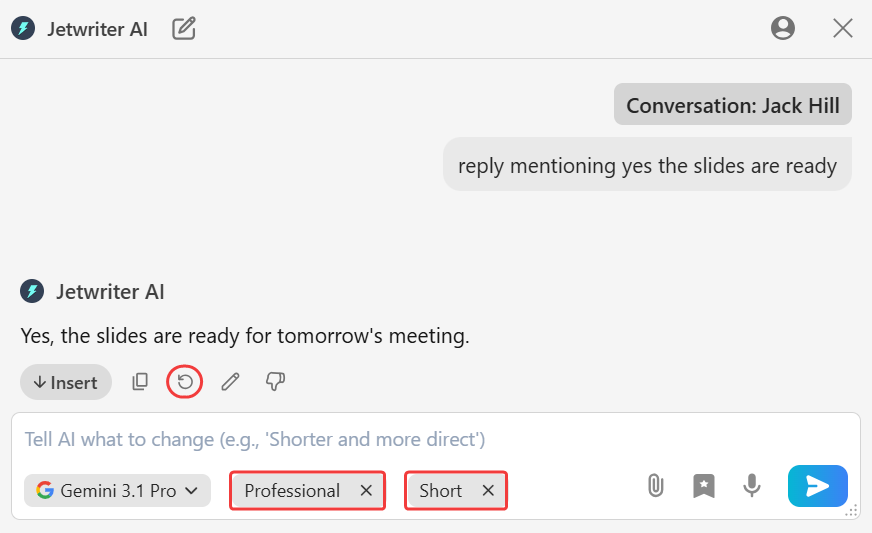
Adjust the Writing Tone: Use the tone options to change the vibe of the message. Make it sound Casual for your work friends or Professional for your boss with a single click.
Control the Response Length: Use the length options to make the reply shorter for a quick acknowledgment or longer if you need to explain more details.
Regenerate for a New Version: If you do not like the first answer, click "Regenerate." The AI will write a completely brand new reply for you based on your original instruction.
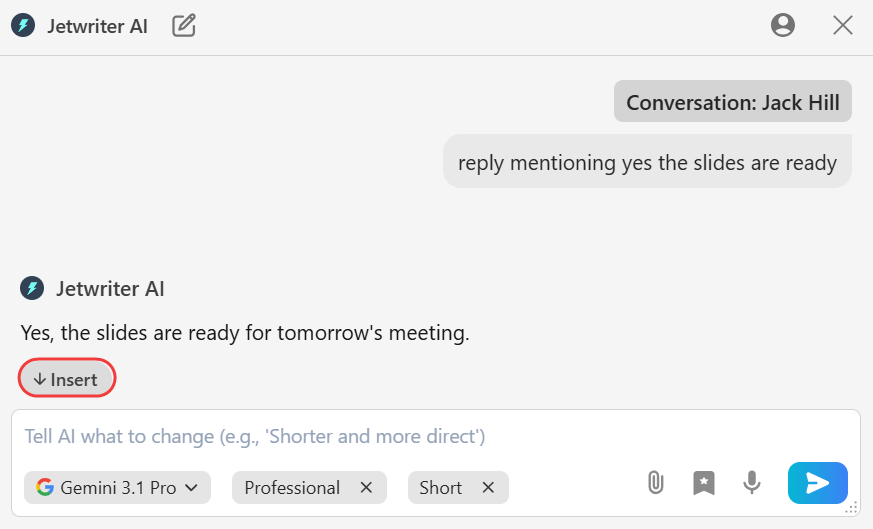
Insert the Response: Once you are completely satisfied with the drafted message, click "Insert" to place the text into your Slack chat, and hit send.
Personalizing the AI for Better Slack Replies
Teach Jetwriter AI how you naturally speak so your messages never sound like a robot.
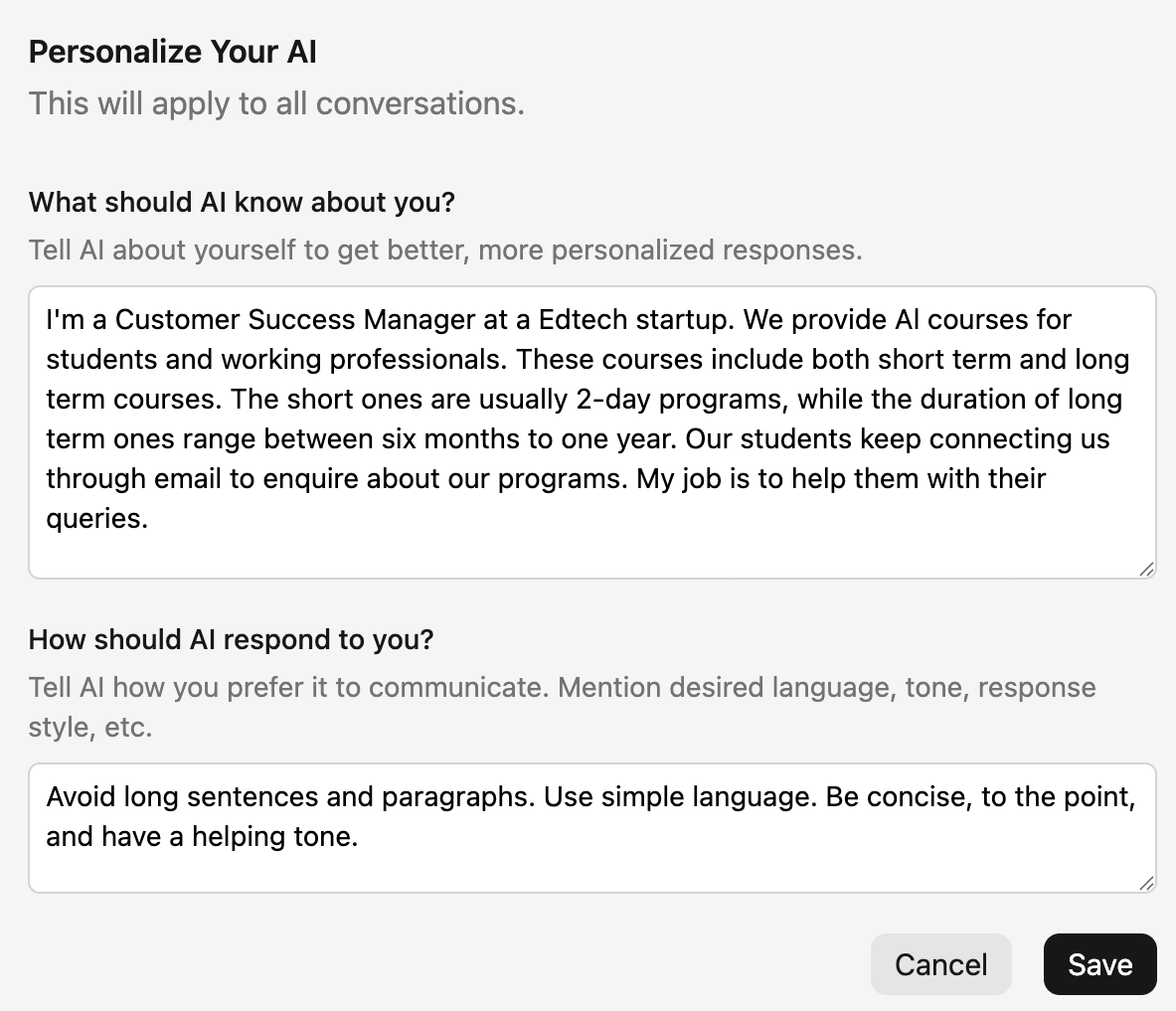
Create Your Personal AI Profile: Open the settings page and tell the AI about yourself. Add details about where you work, your job role, and how you usually write. The more it knows, the more its writing will sound exactly like you.
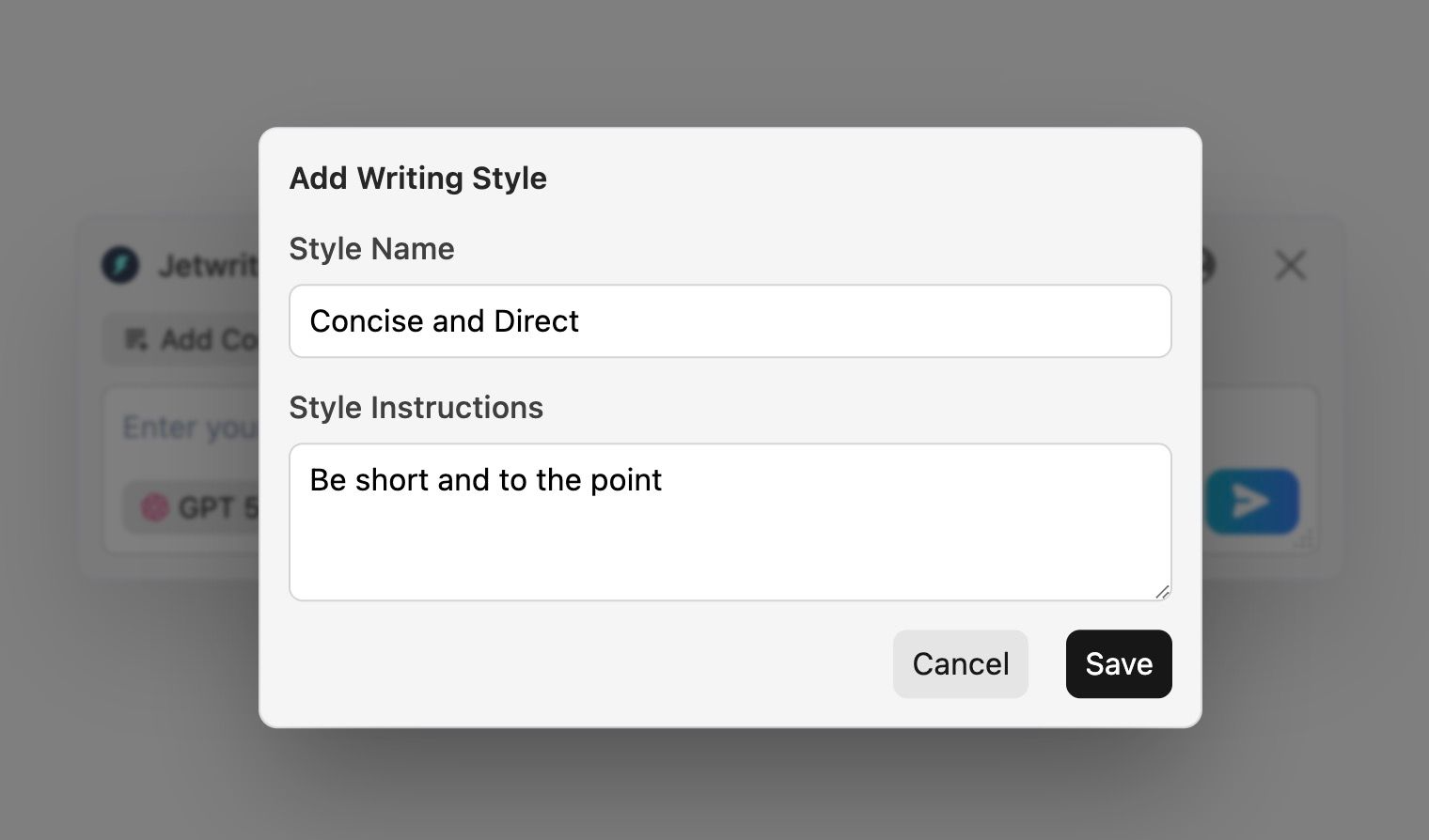
Develop Custom Writing Styles: Create and save your own writing styles for different types of chats.
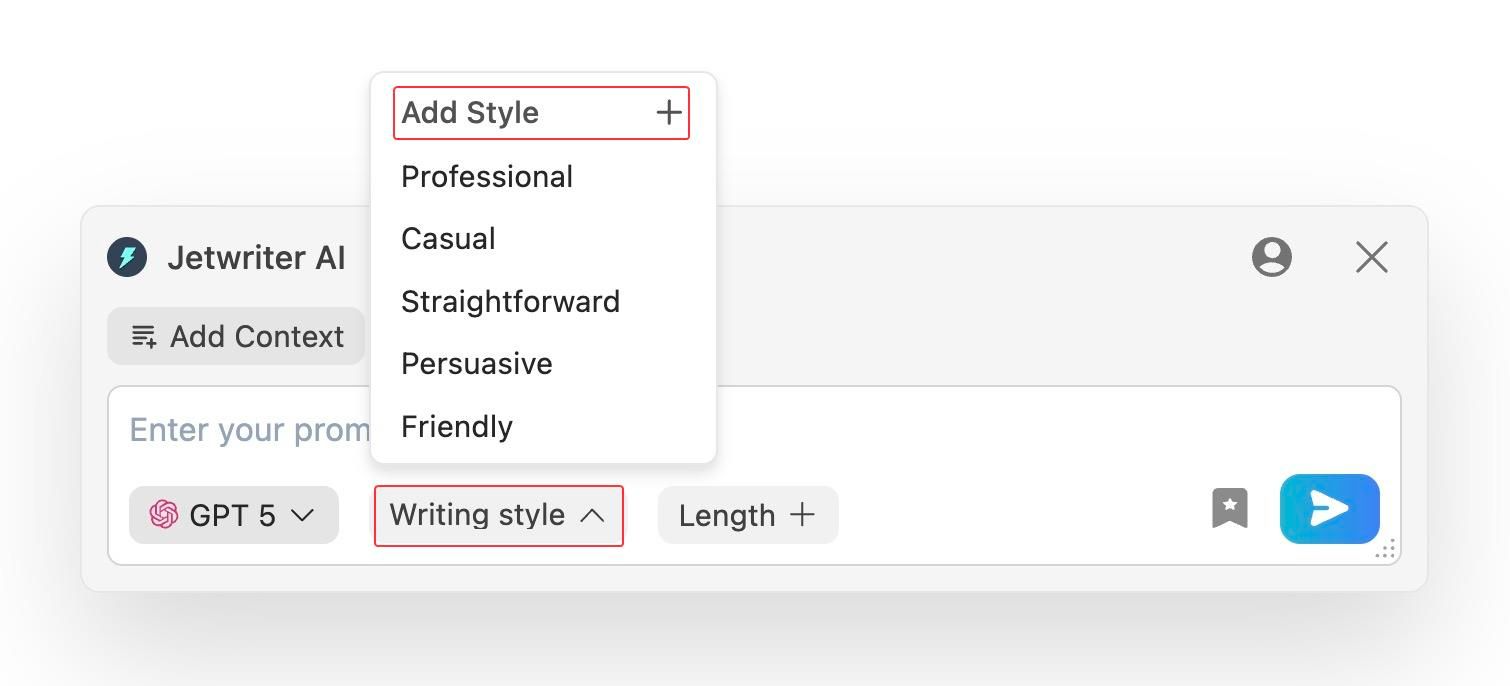
For example, save a "Concise & Direct" vibe for work related updates, and a "Chill & Fun" vibe for your daily team channel.
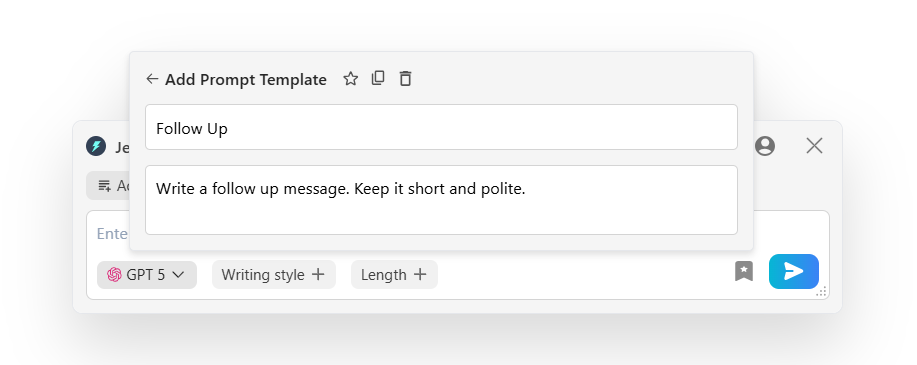
Save Time with Prompt Templates: Stop typing the same instructions over and over.
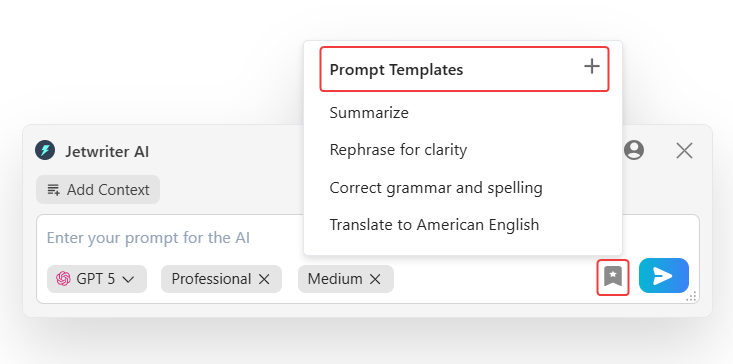
Save your frequent commands (like "Checking in" or "Follow Up") as Prompt Templates so you can write recurring updates with a single click.
Conclusion
Jetwriter AI makes communicating on Slack effortless by helping you send the perfect reply in seconds. By handling the typing and ensuring your tone is always right, the tool saves you time, eliminates writer's block, and keeps your team's work moving smoothly.
Was this article helpful?
That’s Great!
Thank you for your feedback
Sorry! We couldn't be helpful
Thank you for your feedback
Feedback sent
We appreciate your effort and will try to fix the article