Introduction
Jetwriter AI for WhatsApp is a smart assistant designed to help you quickly answer customer messages directly from your web browser. It automatically reads your chat to understand questions like "Where is my order?" and generates perfect replies. This guide explains how to set up the tool and personalize it to handle your WhatsApp messages efficiently.
Setting Up Jetwriter AI on WhatsApp
Getting your new assistant ready takes less than a minute.
Install the Jetwriter AI Extension:
Go to the Jetwriter AI website and install the free browser extension. It is compatible with Chrome, Edge, Brave, and other popular browsers.
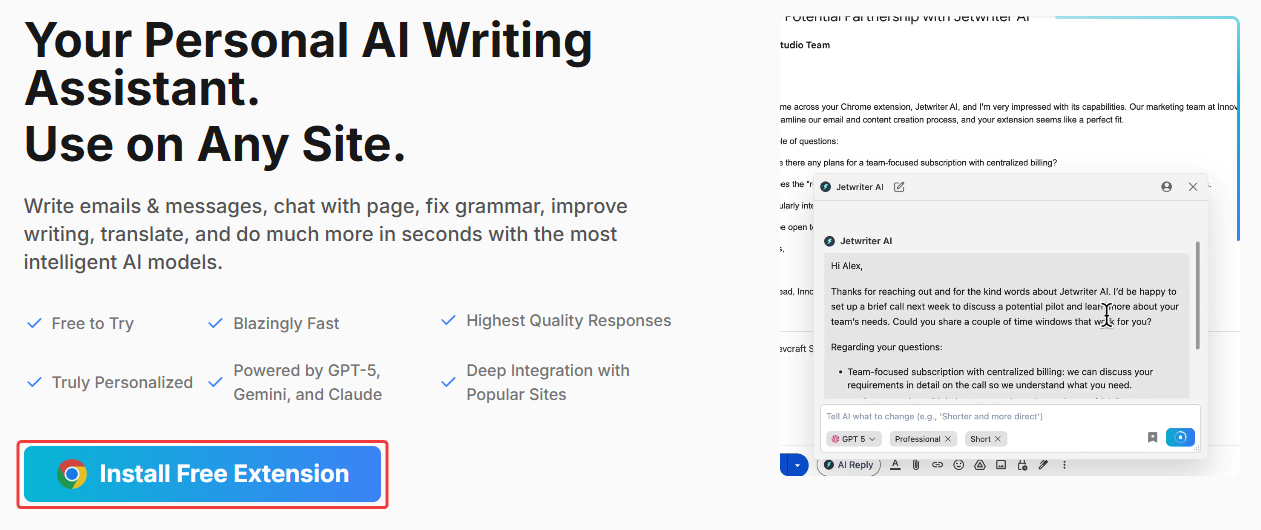
Create a Free Account: After installation, you will be prompted to create a free account. No credit card is required.
Locate the Icon in WhatsApp: Launch WhatsApp on your computer and open any chat. You will see a small Jetwriter AI icon inside the typing box, indicating the tool is ready to use.
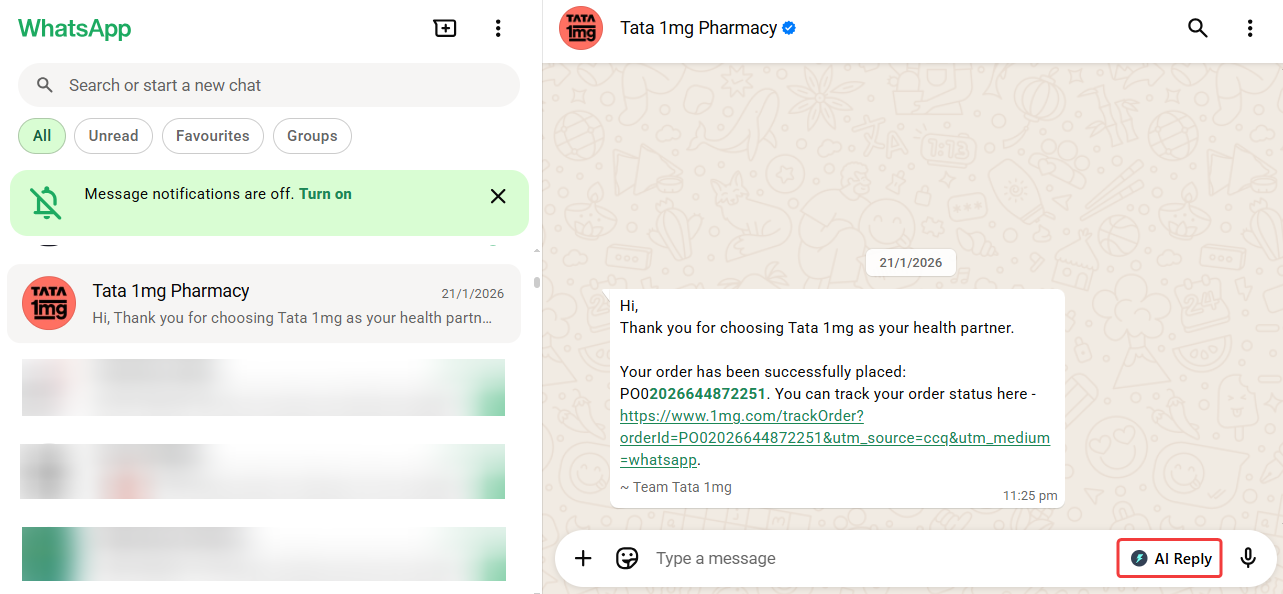
Generating Your First AI-Powered Reply
Jetwriter AI automatically reads the entire WhatsApp chat context, eliminating the need to copy and paste messages.
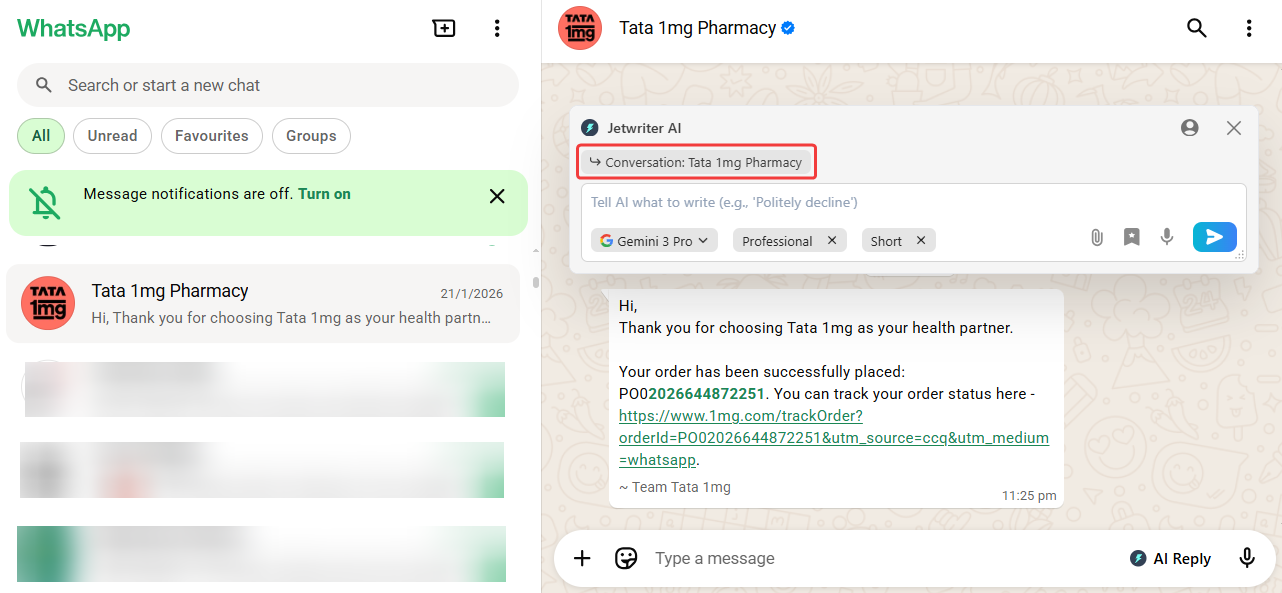
Open a WhatsApp Chat: Go to your WhatsApp and click on any customer chat you need to answer.
Launch the Helper: Click the Jetwriter AI icon in the typing box to open the assistant.
Type a Simple Instruction: In the text box, give the AI a brief command, such as "tell that the order is shipped today" or "ask for order number."
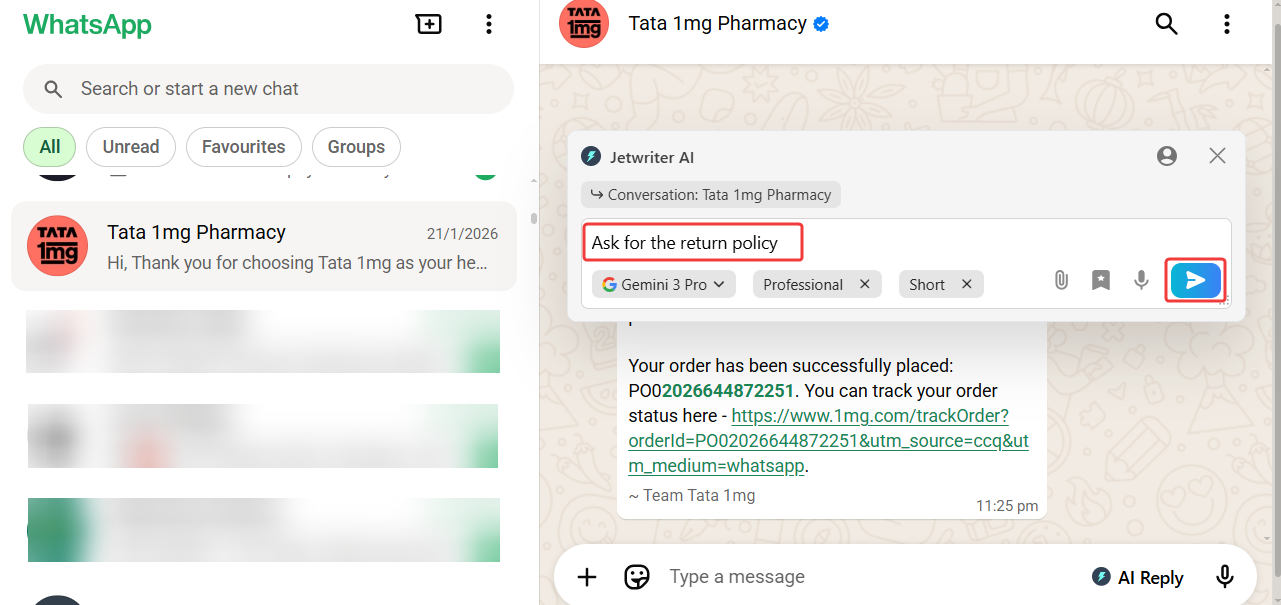
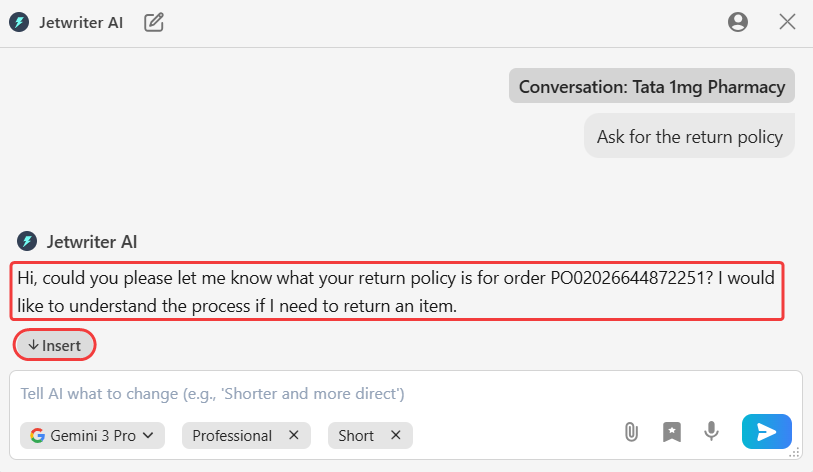
Generate the Reply: Click the "Generate" button. In a second, the AI will write a polite, professional reply based on your instruction.
Insert the Response: If you are satisfied with the draft, click the "Insert" button to place the text directly into your WhatsApp typing box. You are now ready to send.
Refining Your Generated Draft
If the first draft is not exactly what you need, you have full control to adjust it.
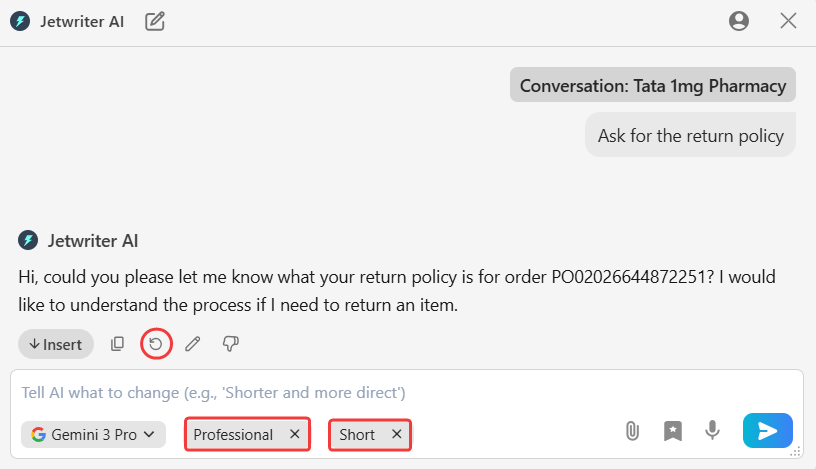
Change the Writing Tone: Use the Writing Tone menu to adjust the style. Select options like Casual or Professional to better match the customer's mood or the situation.
Change the Response Length: Use the Response Length options to make your message shorter for a quick update or longer if you need to explain more details.
Regenerate for a New Version: Click the "Regenerate" button to have the AI write a completely new draft based on your original instruction. You can do this until you find the perfect reply.
Personalizing the AI for Your Business
Train Jetwriter AI to understand your business so it never sounds like a robot.
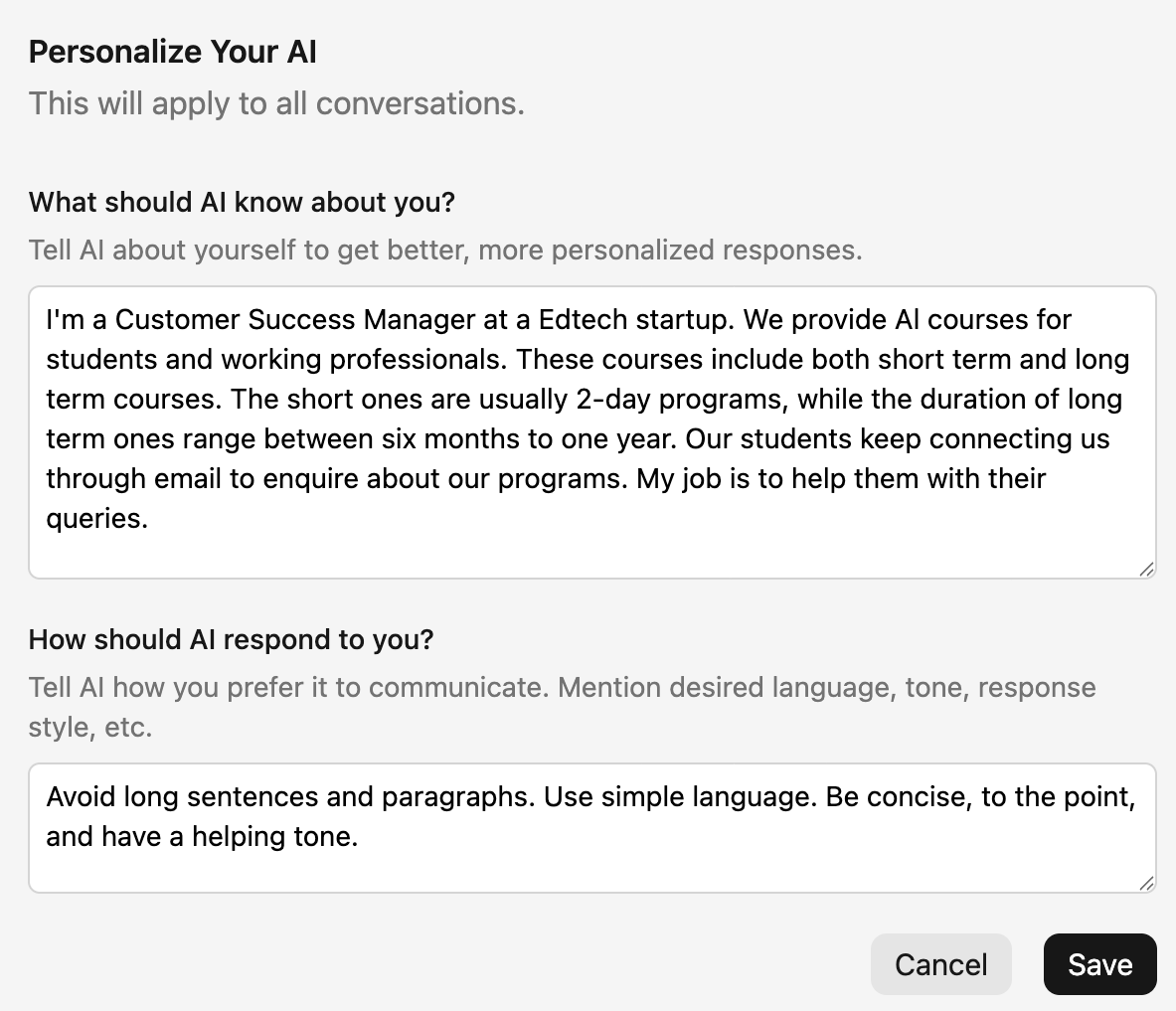
Set Up Your Personalized Profile: In the settings, provide the AI with details about your business name, what you sell, and how you prefer to communicate. This context helps the tool generate answers that fit your company perfectly.
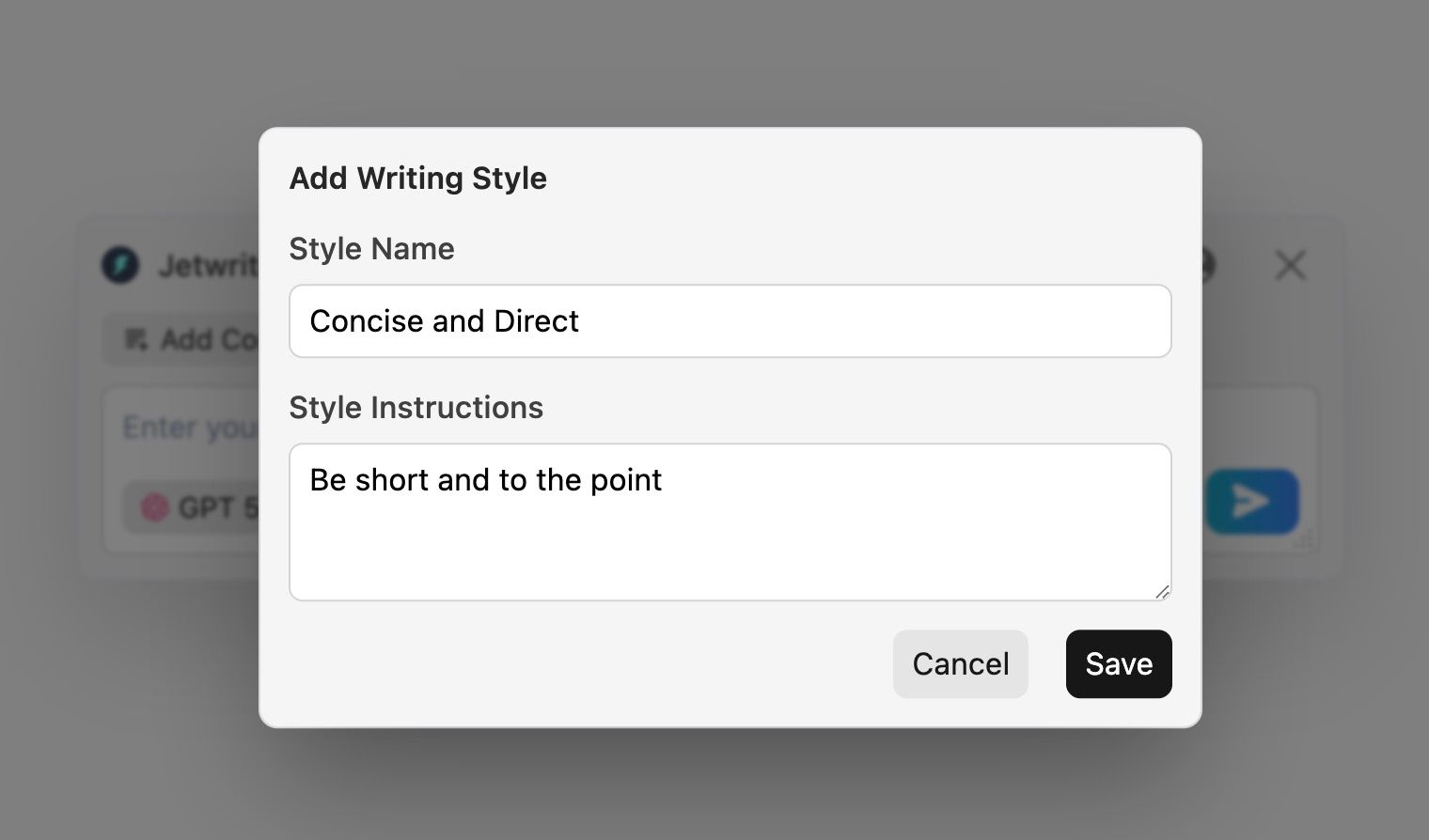
Create Custom Writing Styles: Create and save unique tones for different situations.
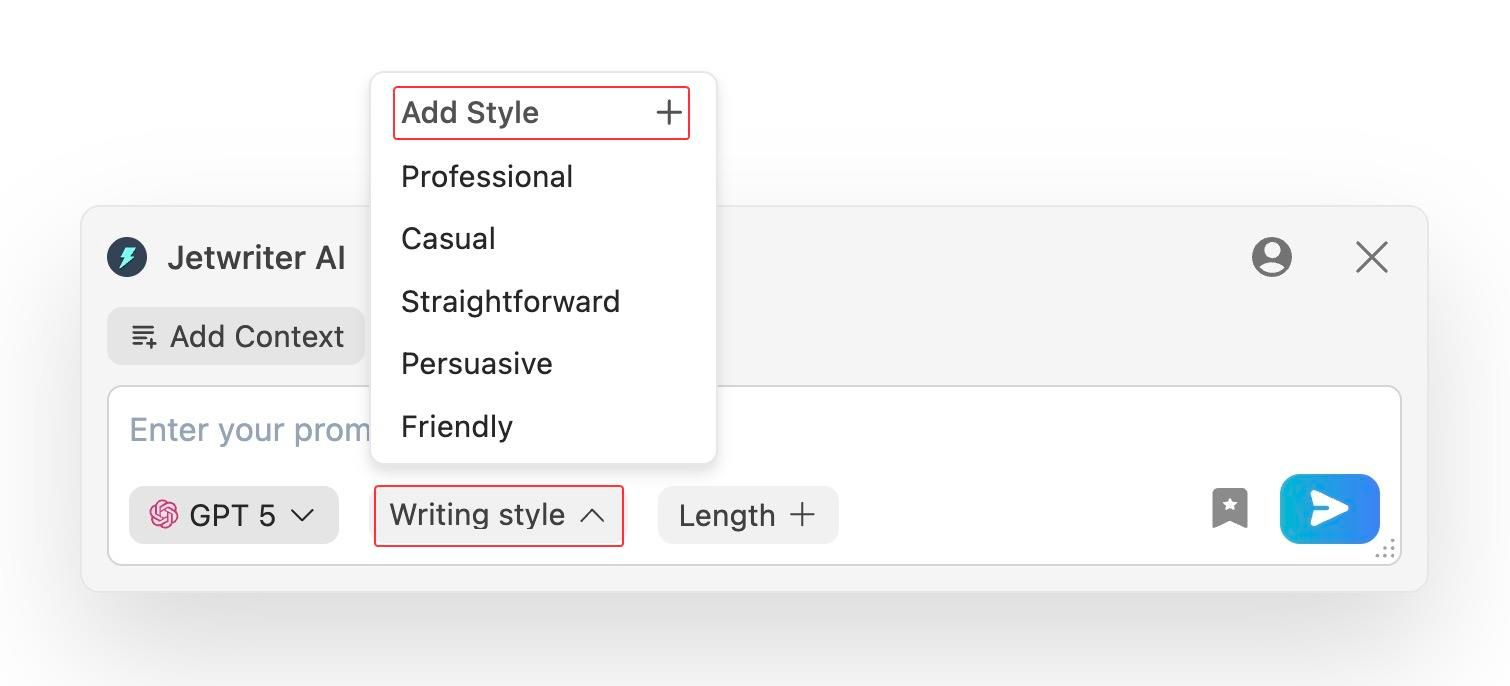
For example, save a "Polite Support" style for calming upset customers or a "Concise & Direct" style for quick shipping updates.
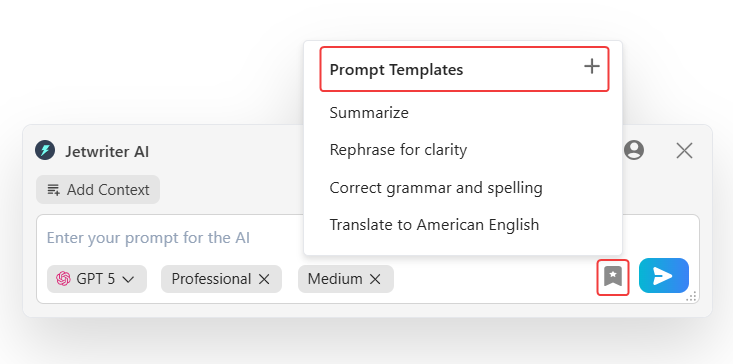
Save Prompt Templates for Fast Replies: Save frequently used instructions. This allows you to generate full answers to common questions with a single click, saving hours of typing.
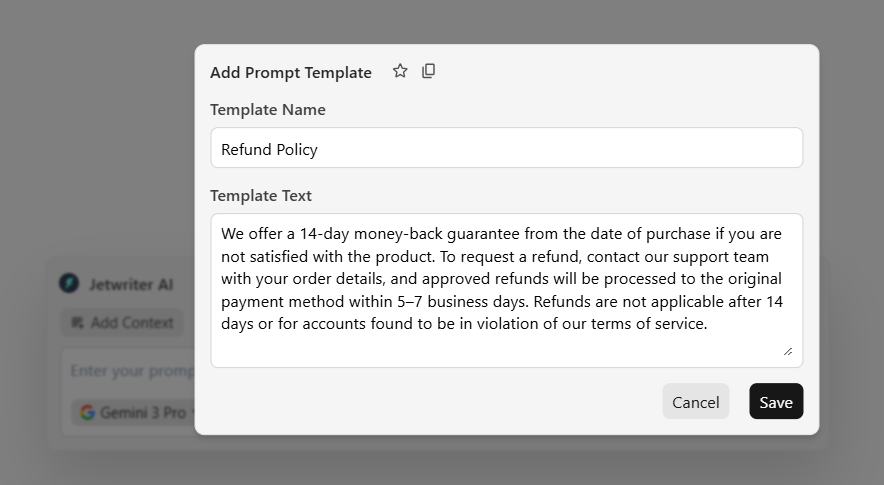
Example: Create one as "Refund Policy" which answers "What is your refund policy?" as Prompt Template.
Conclusion
Jetwriter AI helps you manage your WhatsApp customer messages quickly and efficiently without leaving the chat. By generating fast, personalized replies, the tool saves you hours of repetitive typing while ensuring your customers receive polite, accurate, and human-sounding answers.
Was this article helpful?
That’s Great!
Thank you for your feedback
Sorry! We couldn't be helpful
Thank you for your feedback
Feedback sent
We appreciate your effort and will try to fix the article