Introduction
Jetwriter AI allows you to connect your own API key from providers like OpenAI, Google Gemini, or Anthropic Claude. When you use your own key, you are billed directly by the provider based on your usage while still accessing all of Jetwriter's features. This guide explains how to set up and manage this connection.
Setting Up Your Own API Key
Follow these steps to connect your personal API key to the Jetwriter extension.
Install the Jetwriter AI Extension: If you have not already, download the free extension from the official Jetwriter AI website.
Create a Free Account: Activate the extension by signing up for a free account. No credit card is required for this step.
Navigate to Extension Settings: Open the Jetwriter AI extension from your browser toolbar and go to the settings menu.
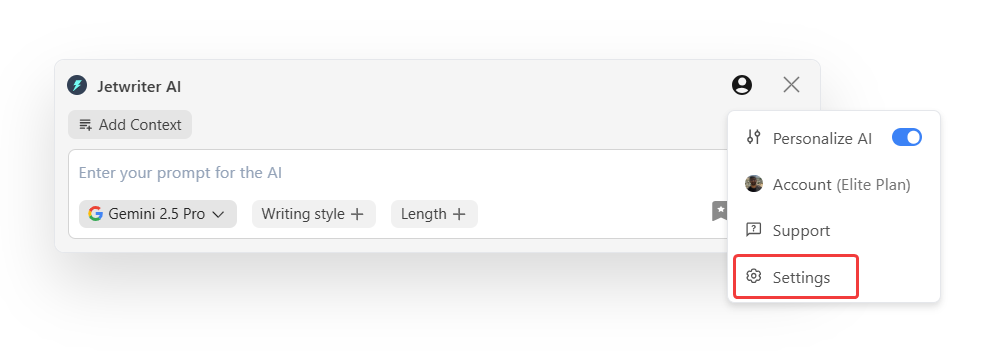
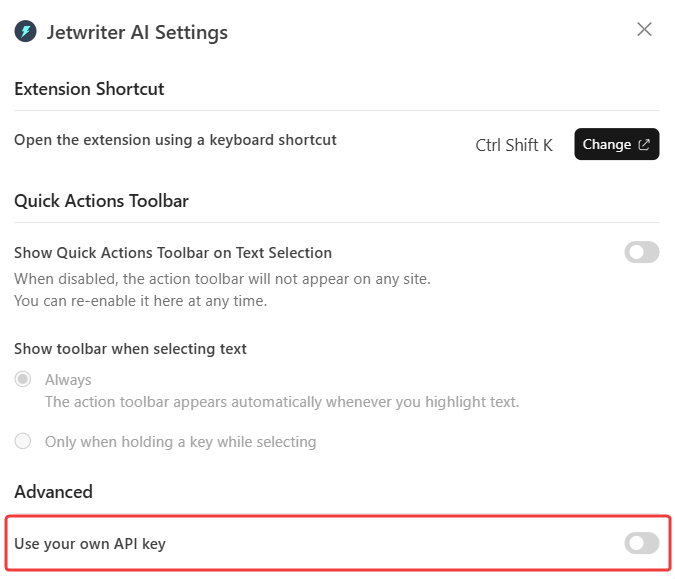
Enable the API Key Option: Locate the toggle for "Use your own API key" and turn it on.
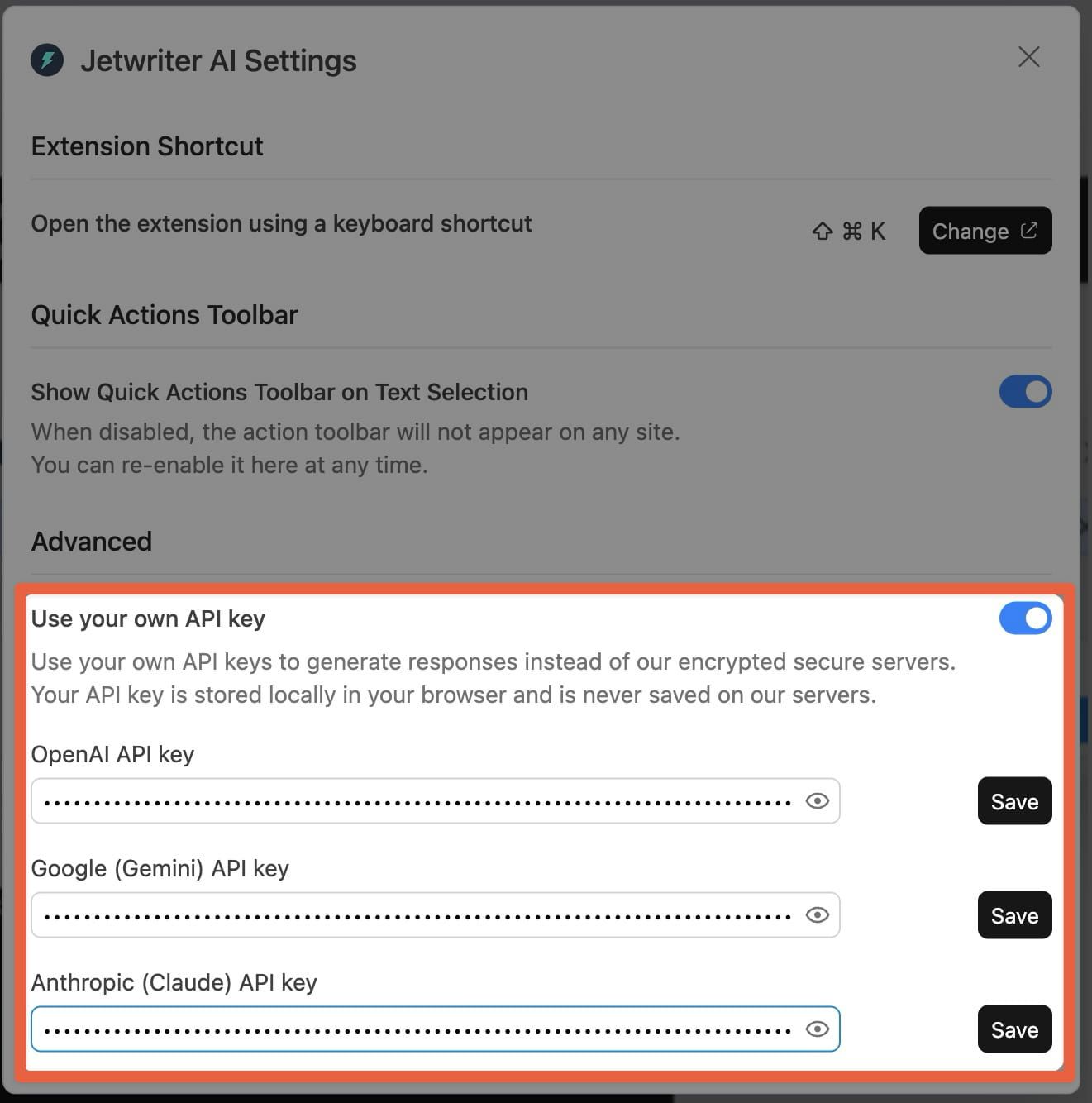
Enter and Save Your API Key: In the appropriate fields, enter your API keys for the desired models (OpenAI, Gemini, Claude) and save your changes.
Where to Get Your API Key
You can obtain an API key directly from the AI model providers.
For OpenAI (GPT Models): Visit platform.openai.com/api-keys
For Google (Gemini Models): Visit aistudio.google.com/app/api-keys
For Anthropic (Claude Models): Visit console.anthropic.com/settings/keys
Important Note on Billing:
You will need to enter your credit card details on the AI model provider's website to obtain an API key. Your card will be charged by the provider based on your usage.
Billing and Security Information
Here is how billing and data privacy are handled when using your own key.
Billing and Usage: All model costs are charged directly by the provider (OpenAI, Google, or Anthropic) to the payment method on your provider account. The provider's rate limits and usage quotas will apply.
Privacy and Security: Your API key is stored locally in your browser and is never saved on Jetwriter’s servers. It is only used to generate responses from the AI provider.
Quick Tips
Use these tips to manage your API key connection.
Switching Back to Jetwriter Usage: To switch back to Jetwriter's included usage, navigate to Settings and turn off the "Use your own API key" option.
Removing Your API Key: To remove a key, simply clear the text field in the settings and save your changes.
Testing Your Setup: To confirm the connection is working, select a short piece of text on any webpage and use a simple command like "Fix grammar."
Conclusion
By following these steps, you can now use all the features of the Jetwriter AI extension, such as one-click replies and text summarization, powered directly by your own API provider account.
Was this article helpful?
That’s Great!
Thank you for your feedback
Sorry! We couldn't be helpful
Thank you for your feedback
Feedback sent
We appreciate your effort and will try to fix the article