Introduction
The Jetwriter AI Quick Actions feature is a smart toolbar that appears when you select text on any website, providing one-click access to AI tools without switching tabs. It is designed to make your writing process faster and more efficient by bringing AI assistance directly into your workflow. This guide explains how to customize the toolbar, manage its visibility, and apply it to your daily tasks.
How to Launch the Quick Actions Toolbar
Navigate to any website and use your mouse to highlight a word, sentence, or paragraph. The Quick Actions toolbar will instantly appear next to the selected text, providing immediate access to your tools.
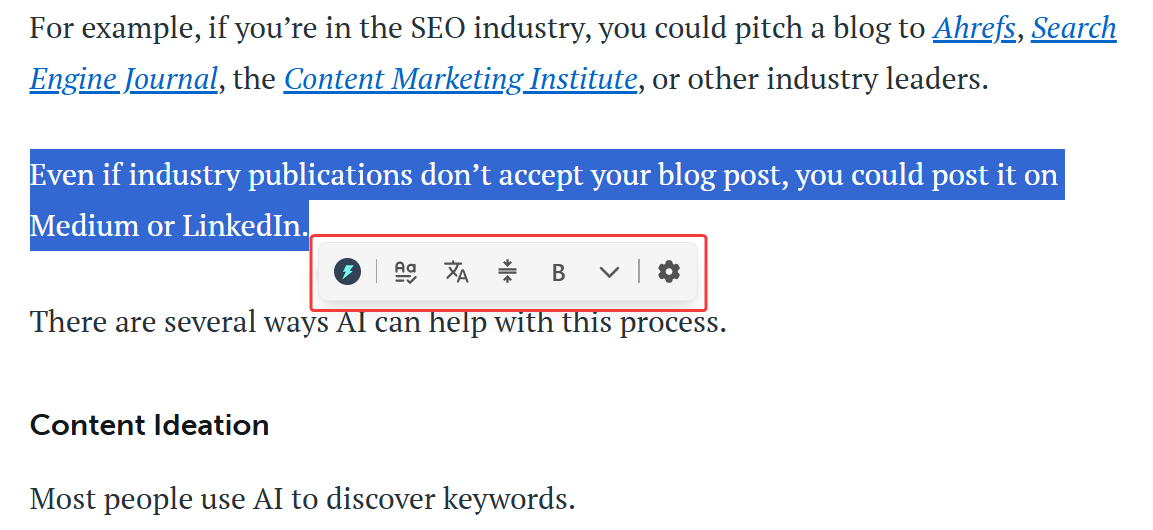
Personalizing Your Quick Actions Toolbar
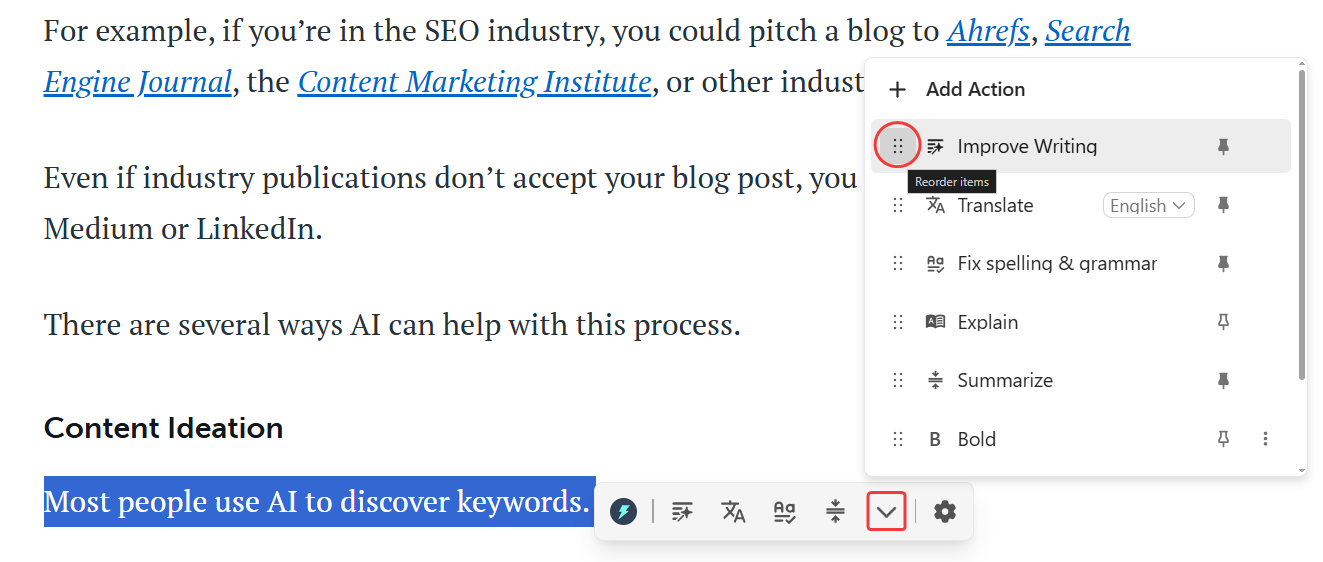
You can modify the toolbar to fit your specific needs by creating custom actions and organizing the layout.
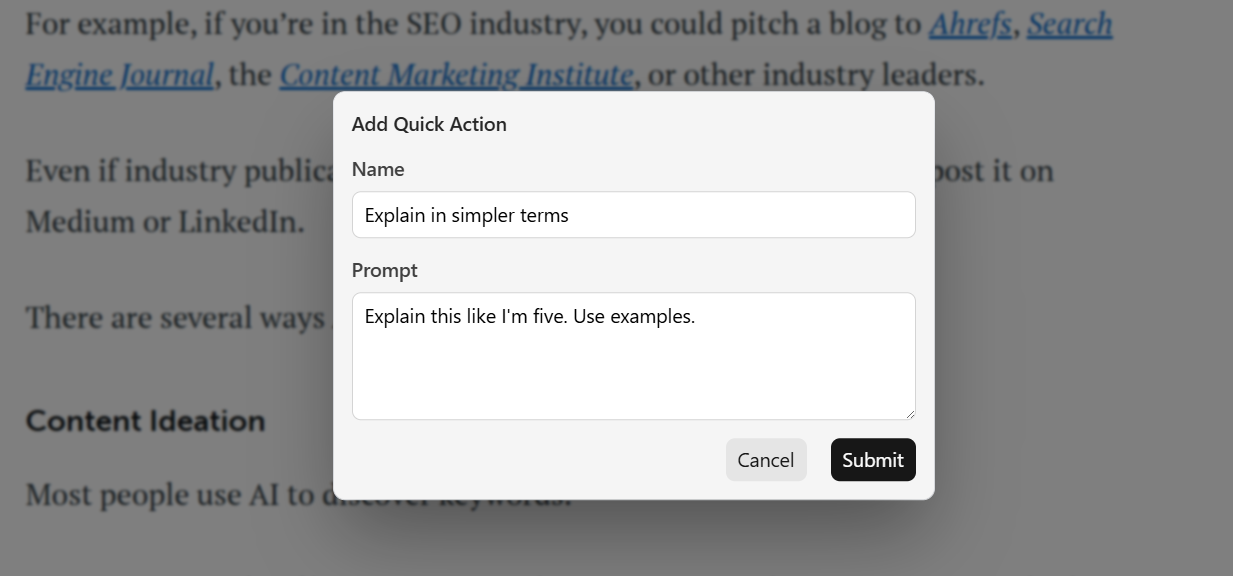
- Create a Custom Action: Save your frequently used commands as custom buttons.
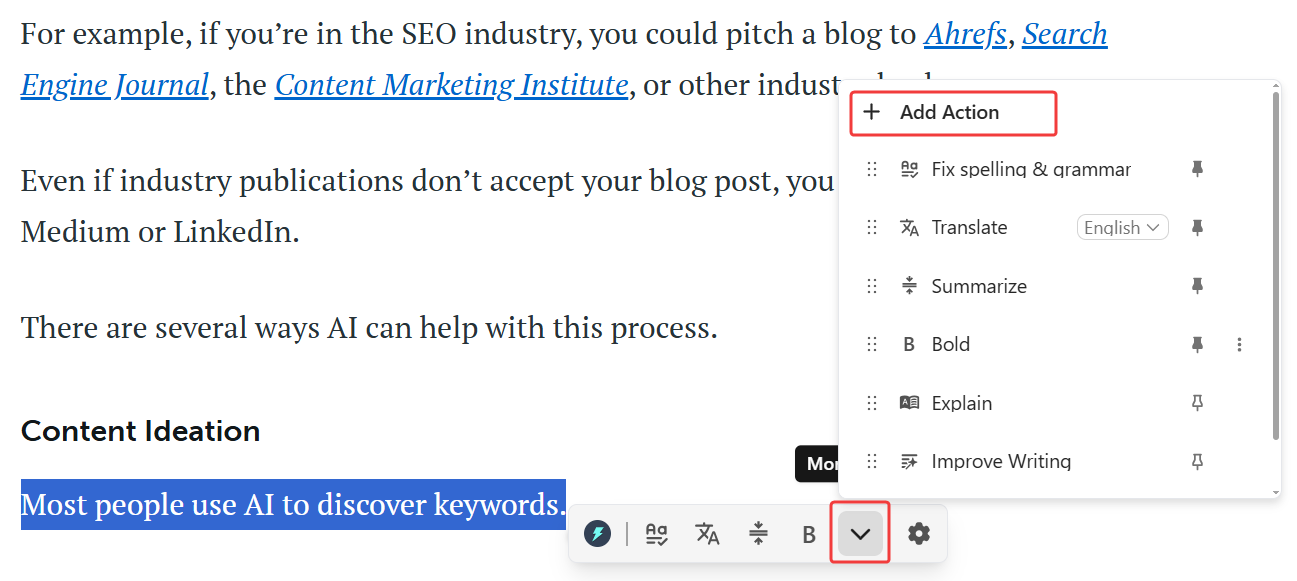
Example: You can create new actions like "Convert to bullet points" or "Explain this like I'm five" for instant, one-click access.
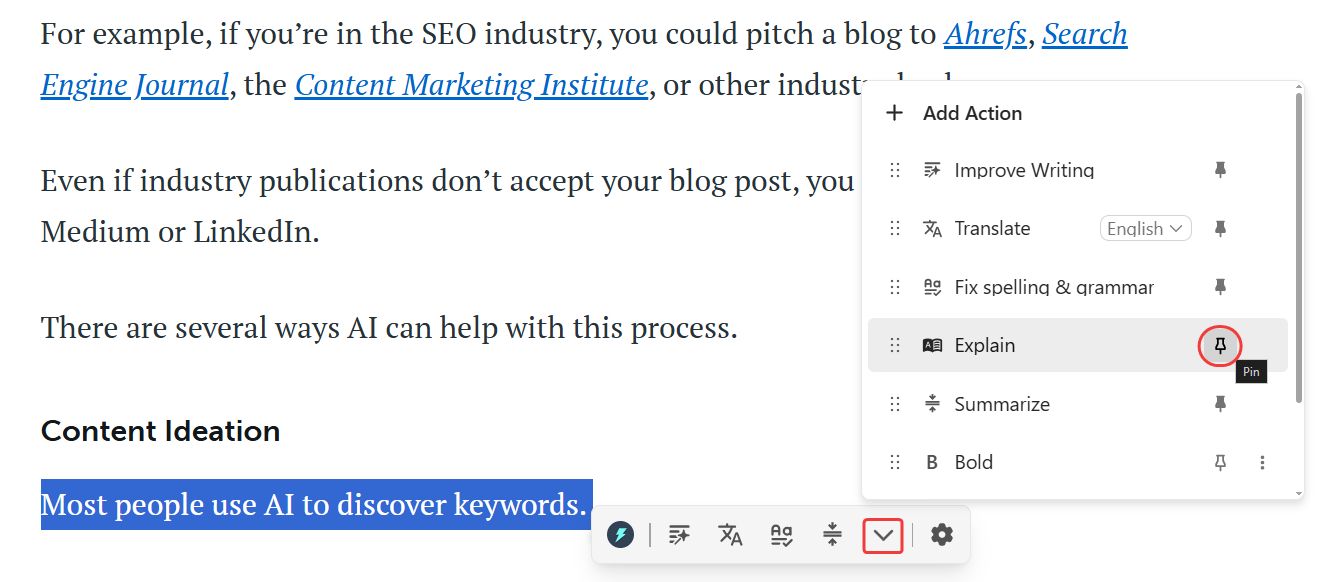
- Pin Your Favorite Actions: Pin your most-used tools, such as "Check Grammar" or "Translate," to the top of the toolbar. Pinned actions will always appear first for easy access.
- Re-arrange the Toolbar Order: Drag and drop the action buttons to arrange them in your preferred order. Place your most important tools at the top for maximum efficiency.
Controlling Toolbar Visibility
You have complete control over when and where the Quick Actions toolbar appears.
- Set When the Toolbar Appears: In the settings, you can set when the toolbar appears. This way, it only shows up when you actually want it to.
 You can choose to have the toolbar appear every time you select text, or only when you hold down a specific key (e.g.,
 Alt,Ctrl, orShift) while selecting text.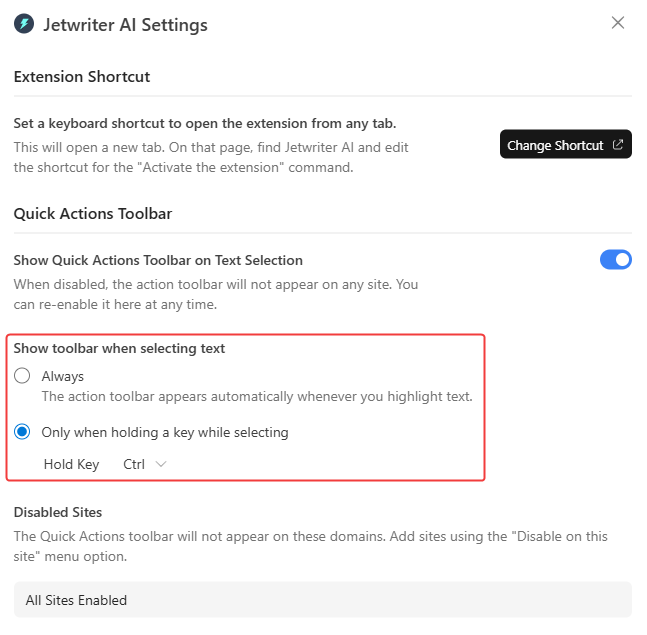
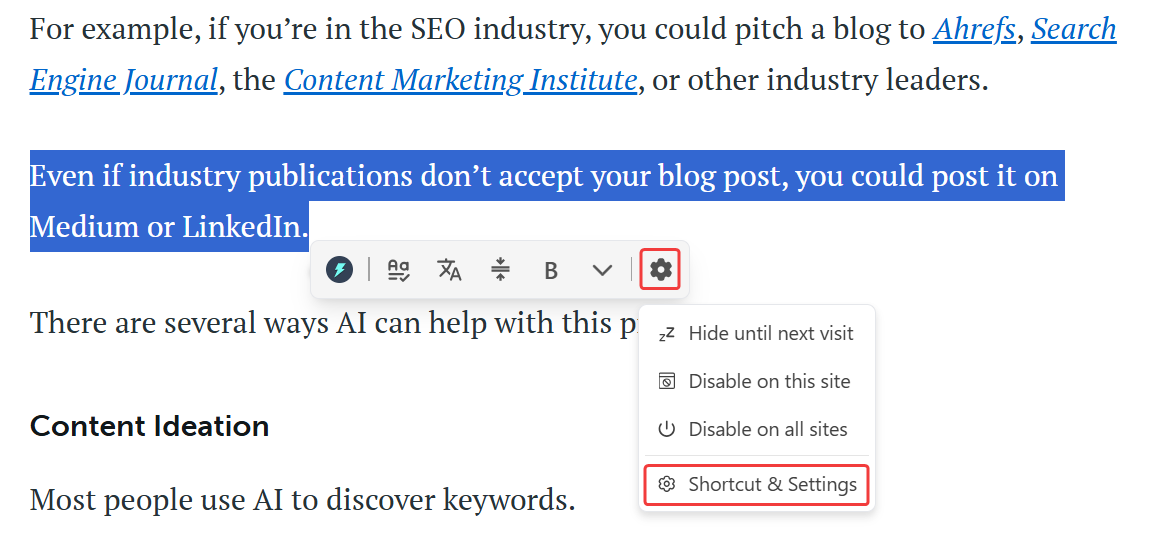
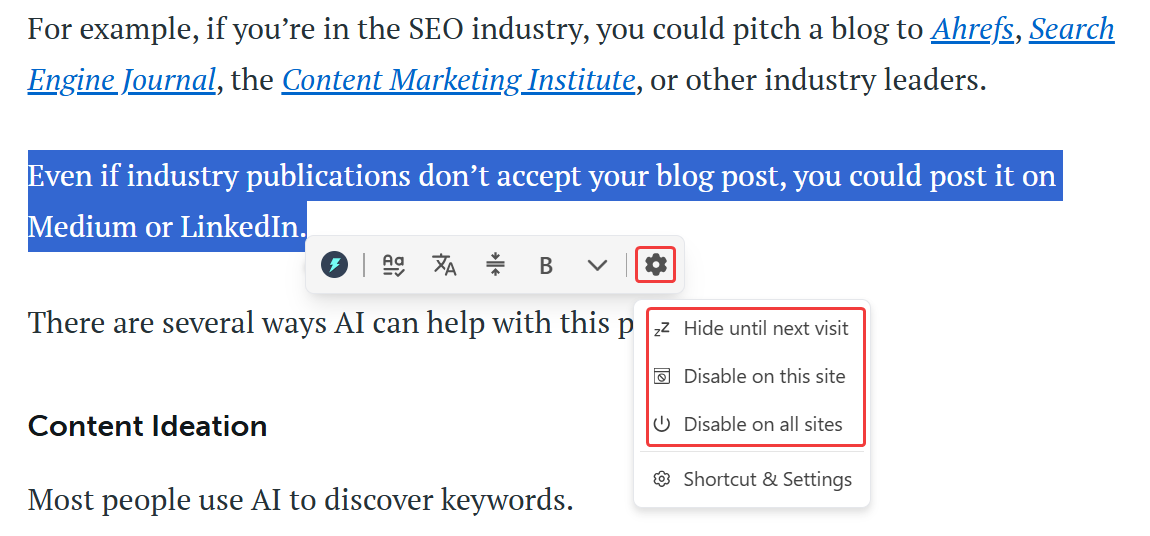
- Hide the Toolbar on Specific Websites: Create a list of websites where the Quick Actions toolbar should be permanently disabled. This is useful for sites where you do not need writing assistance. If you don't want the toolbar during your current visit to a website, you can also hide the toolbar temporarily.
- Set a Custom Keyboard Shortcut: This is for those who love using keyboard shortcuts.
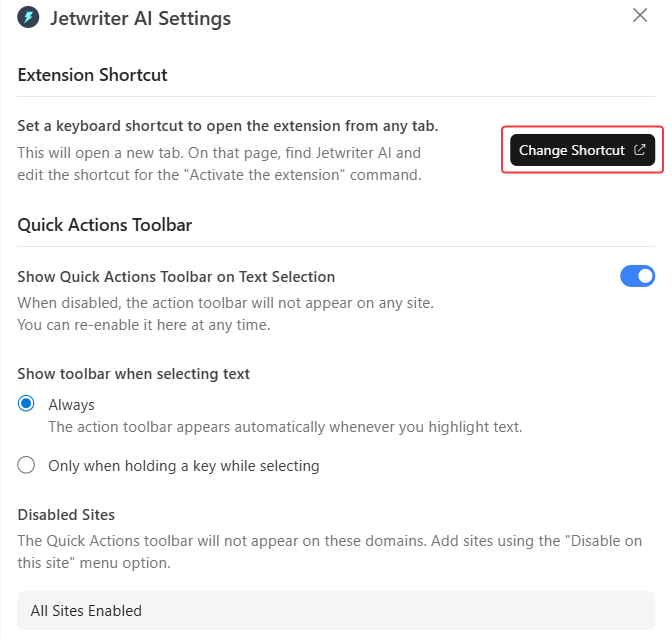
You can assign a custom keyboard shortcut to open the main Jetwriter AI extension window.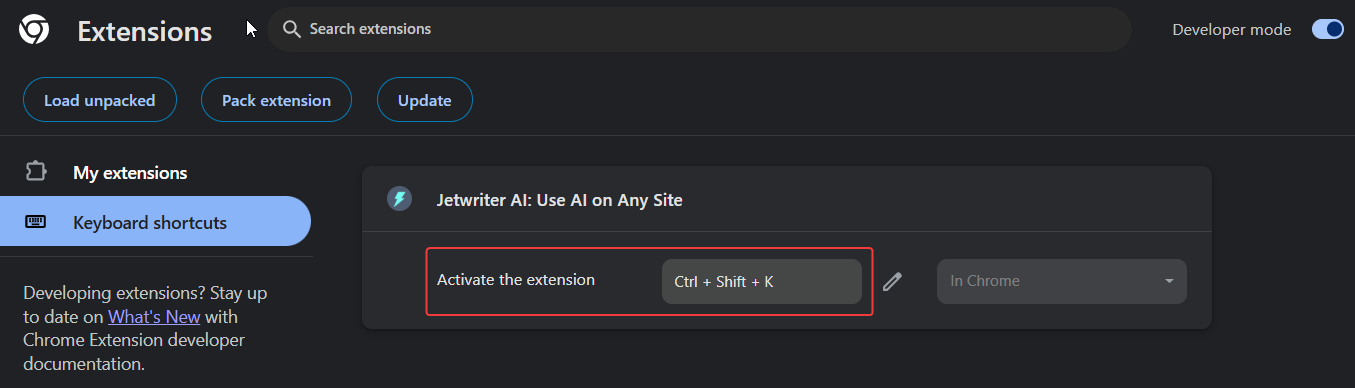
Conclusion
The Quick Actions feature streamlines your writing process by bringing AI assistance directly to you, eliminating the need to switch tabs and break focus. By personalizing the toolbar and its behavior, you can create an efficient workflow that saves time and makes writing feel effortless. It is a tool designed to work right when you need it, making your interaction with AI seamless.
Was this article helpful?
That’s Great!
Thank you for your feedback
Sorry! We couldn't be helpful
Thank you for your feedback
Feedback sent
We appreciate your effort and will try to fix the article