Introduction
Need to make changes to your team subscription? Whether you want to remove a single user or cancel your entire team plan, Jetwriter AI makes it simple to manage your workspace. This guide explains how to navigate your settings to remove individual members or completely delete and unsubscribe from a team plan.
Managing Your Team Plan
Updating your team roster or cancelling your plan takes just a few clicks inside your account settings.
Access Your Account Settings: Open your web browser and log into the Jetwriter AI Web App at https://jetwriter.ai/app. Once logged in, go to the "Account" section.
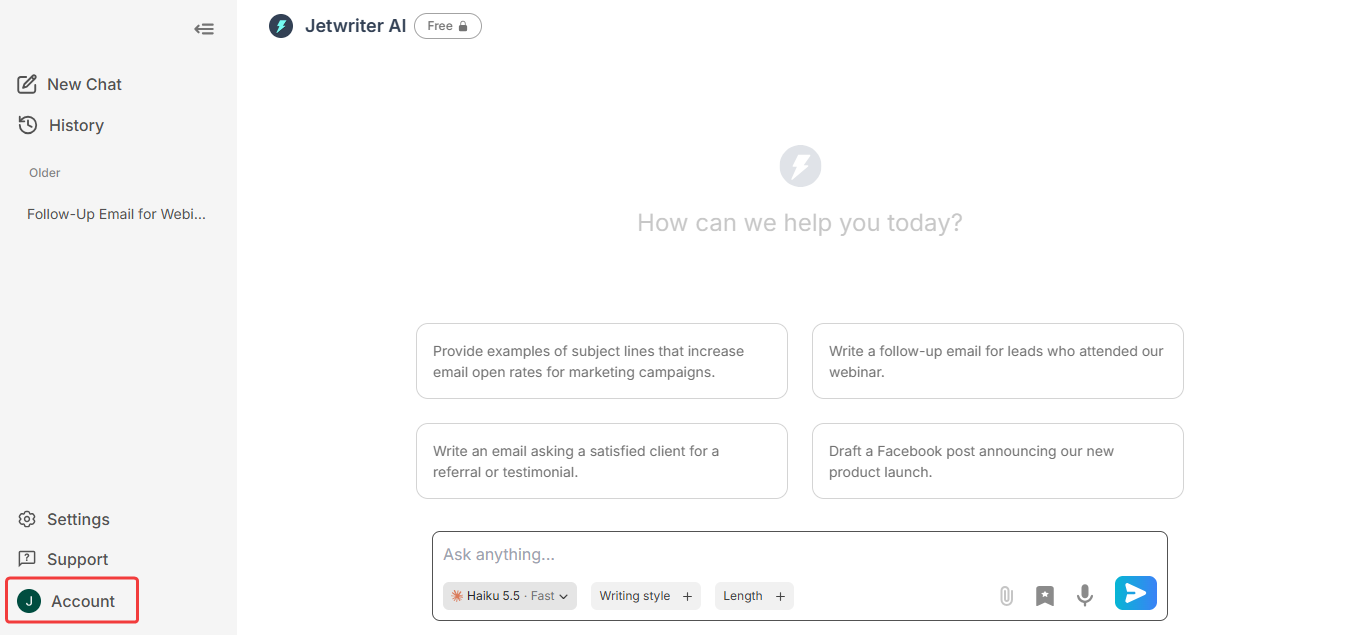
Navigate to Team Management: Find and click on the "Team Management" option. Here, you will see your existing team workspace and a complete list of all current members.
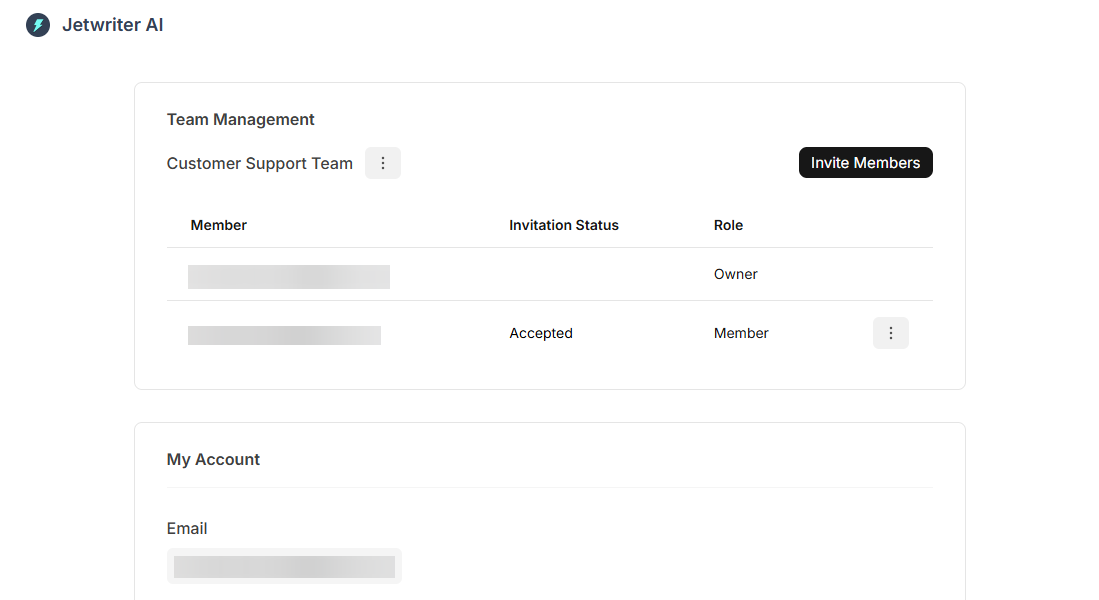
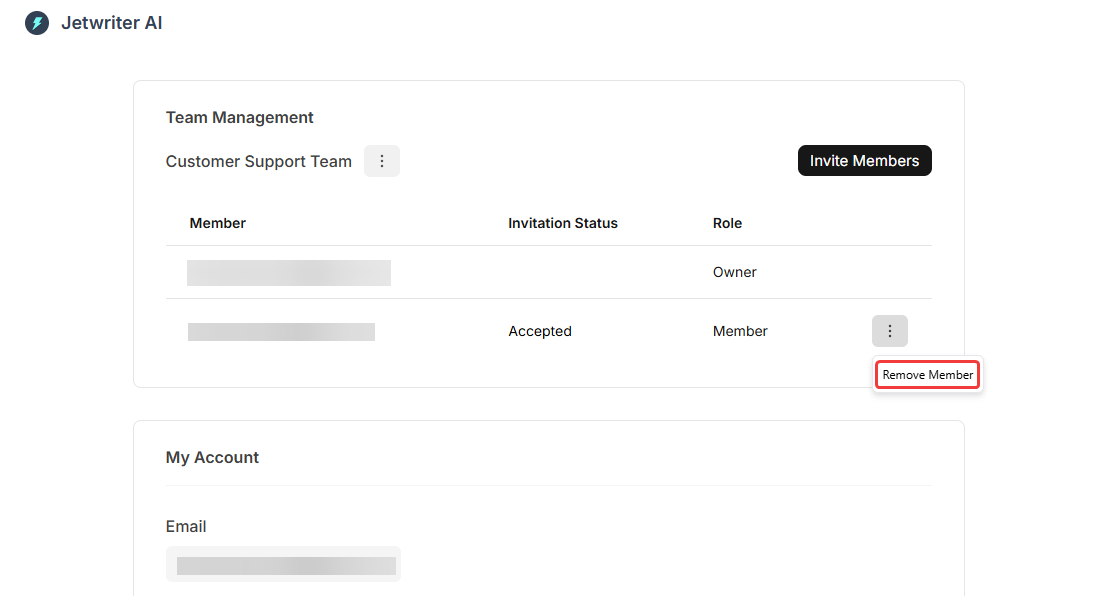
Remove Individual Members: If you only need to remove specific people from the plan, locate the user on your list. Click the drop-down menu next to that individual team member's email address and select "Remove member."
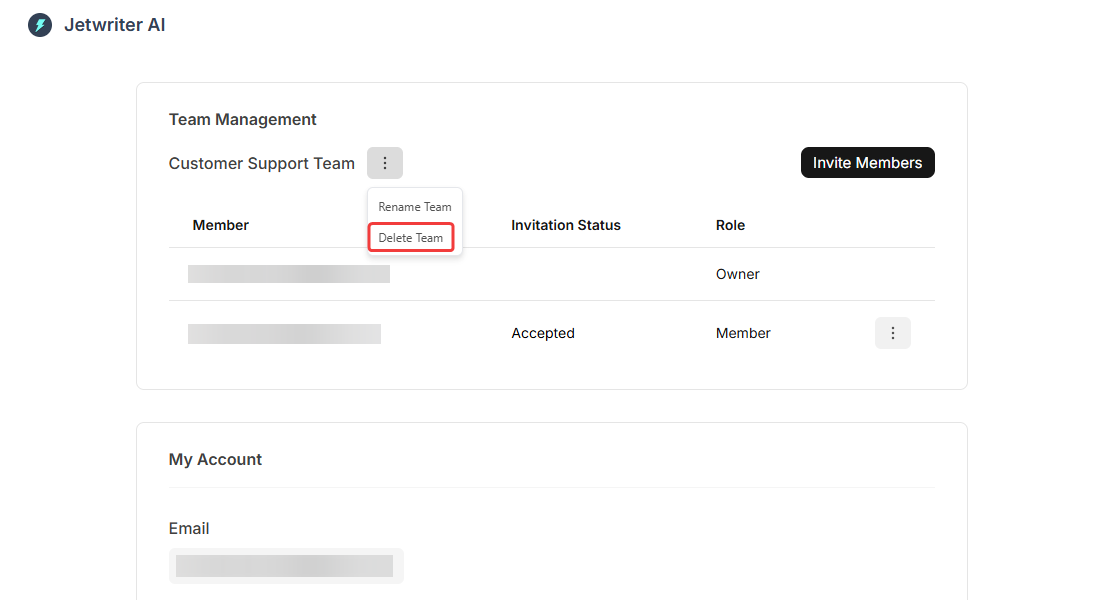
Delete the Entire Team: To completely unsubscribe all members and cancel the team plan, locate the drop-down menu next to your "Team Name" at the top of the section. Click on "Delete Team." This action will delete the entire workspace and immediately unsubscribe all its members from the team plan.
Conclusion
Managing your team subscription is designed to be quick and flexible. Whether you are freeing up a seat by removing a single member or completely unsubscribing by deleting the workspace, you maintain full control over your account directly from the web app.
Was this article helpful?
That’s Great!
Thank you for your feedback
Sorry! We couldn't be helpful
Thank you for your feedback
Feedback sent
We appreciate your effort and will try to fix the article