Introduction
Upgrading to a team plan allows you to bring your entire workspace together under one Jetwriter AI account. Setting up a team is quick and ensures all your colleagues have access to the AI tools they need to write faster and communicate better. This guide will walk you through how to create a team, invite your members, and get everyone set up.
Setting Up Your Team Plan
Creating a team and inviting your colleagues only takes a few clicks.
Access Your Account Settings: Open your browser and log into the Jetwriter AI Web App at https://jetwriter.ai/app. Once logged in, navigate to the "Account" section.
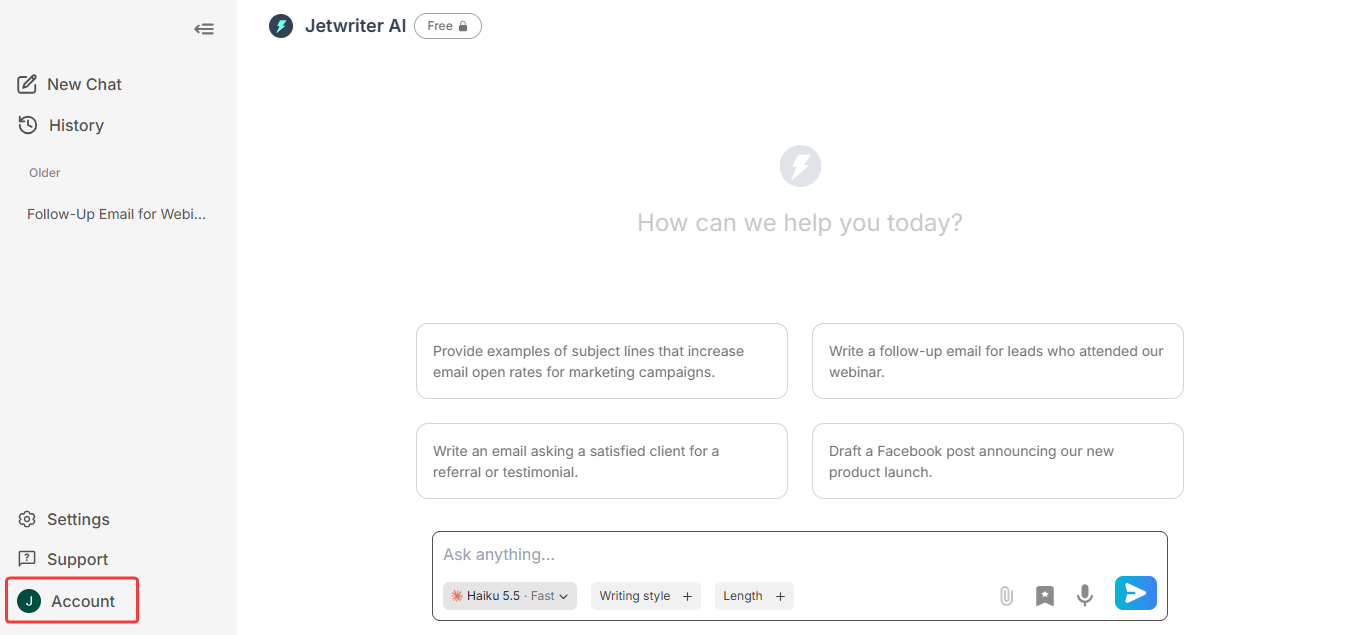
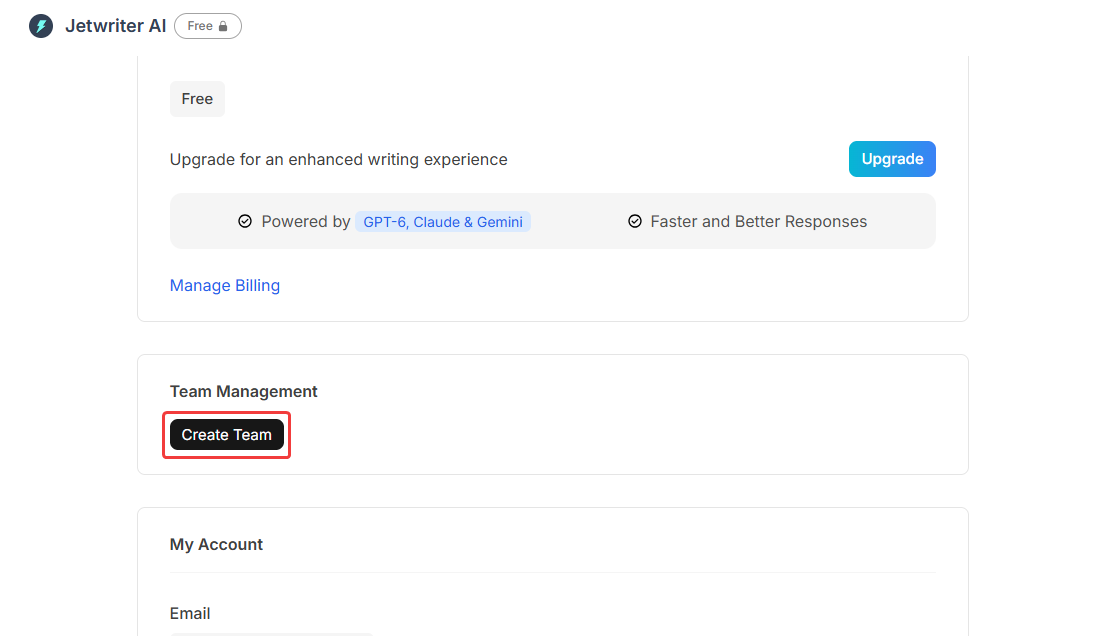
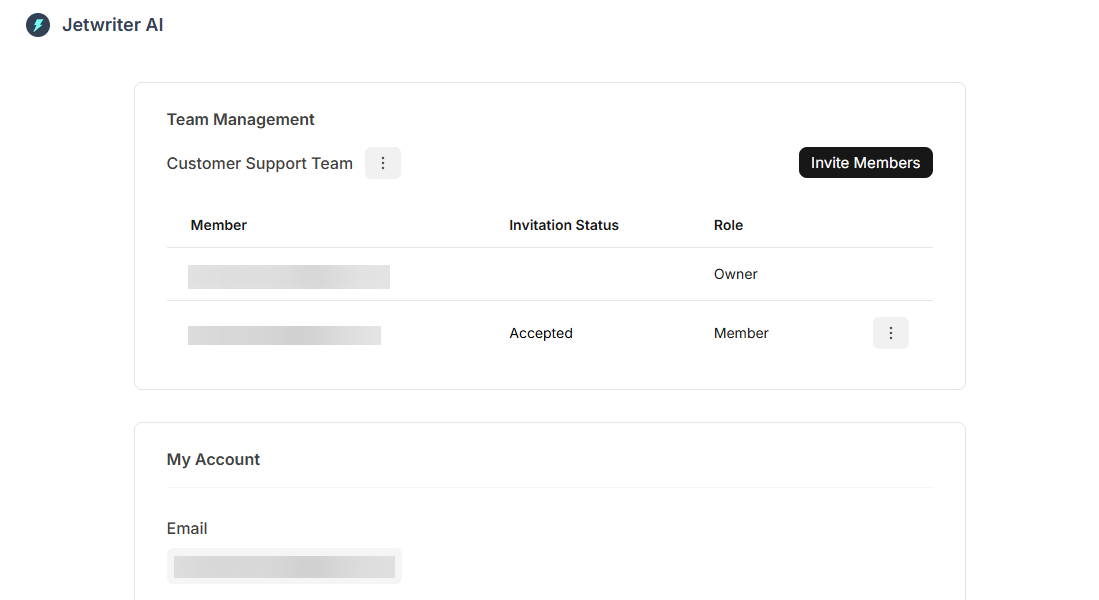
Create a New Team: Inside your account settings, find the "Team Management" option and click on the "Create Team" button.
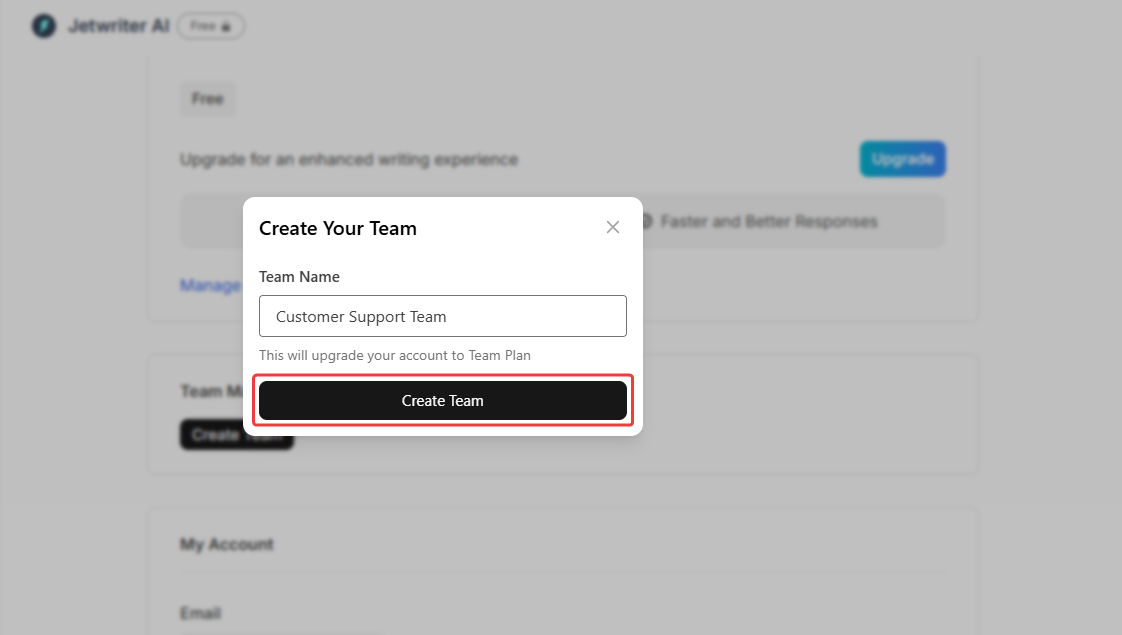
Name Your Team: Give your new workspace a clear identity by typing a name into the "Team Name" field (for example, your company or department name). Click "Create Team".
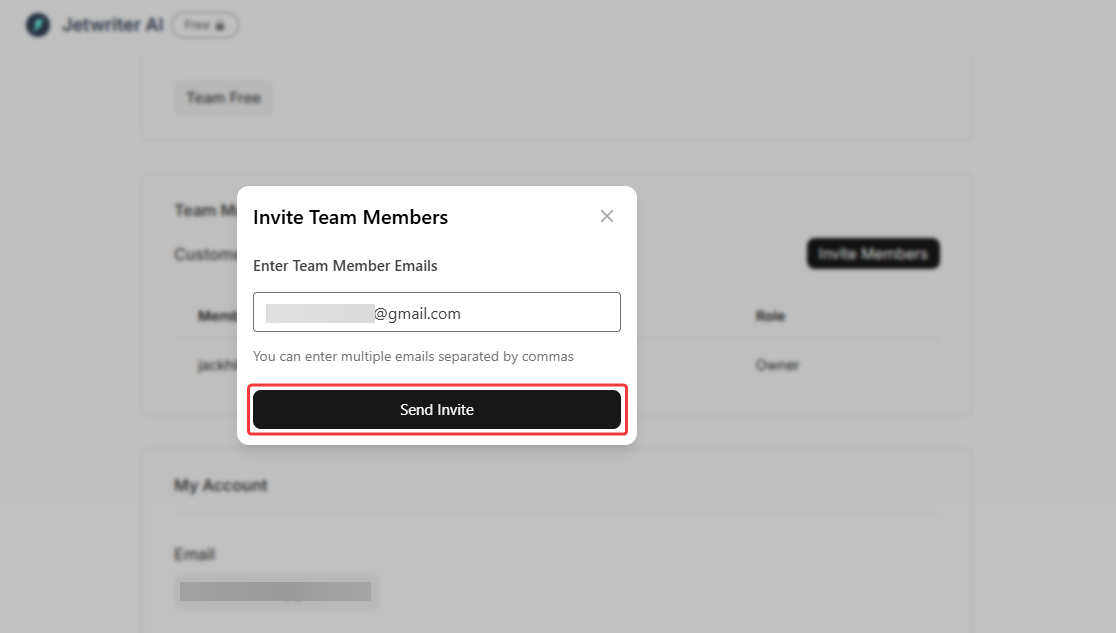
Invite Team Members: Add your colleagues by entering their email IDs into the provided field. If you are inviting multiple people at once, simply separate their email addresses with commas. Click "Send Invite".
Accept Invitations: Once you send the invites, your colleagues will receive an email. They need to go to their respective email inboxes and click to accept the invitation. Once accepted, the members are officially approved and added to your team plan.
Conclusion
Setting up a team plan in Jetwriter AI is a simple process that takes just a few minutes. By creating a centralized workspace and inviting your colleagues, you can ensure everyone on your team has access to the same powerful writing tools, making collaboration smoother and much more efficient.
Was this article helpful?
That’s Great!
Thank you for your feedback
Sorry! We couldn't be helpful
Thank you for your feedback
Feedback sent
We appreciate your effort and will try to fix the article