Introduction
Jetwriter AI Chrome extension usually checks for updates every few hours and then updates on its own. Most users get updates this way. New features just appear without any action. But sometimes, the update does not happen right away. If you are not seeing new features or fixes, you can follow this guide to update the extension yourself.
How to Check if an Update is Available
If you are not sure whether a new update is available, you can check it yourself.
Steps:
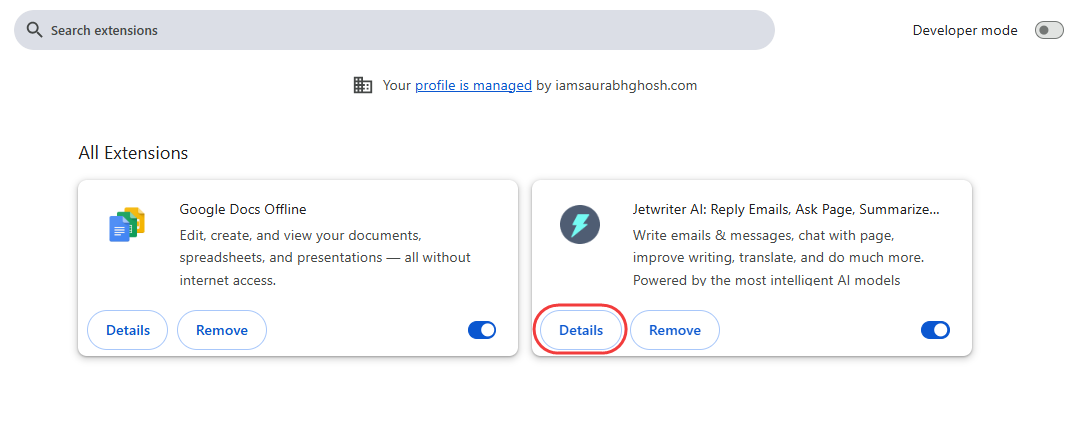
1. Open chrome://extensions/
2. Find the Jetwriter AI extension in the list. Click on "Details".
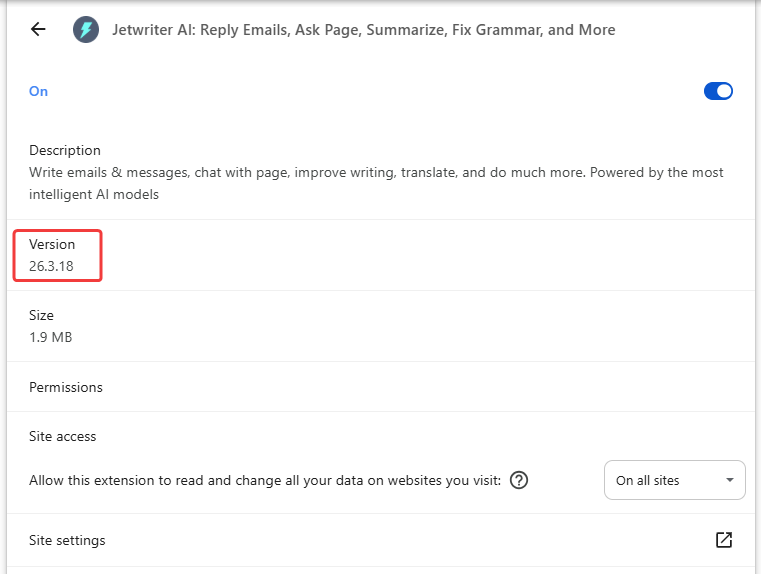
Check for the "Version". In this case, it is "26.3.18".
3. Next, go to the Chrome Extension page. Find the "Version". Here it is "26.3.19".
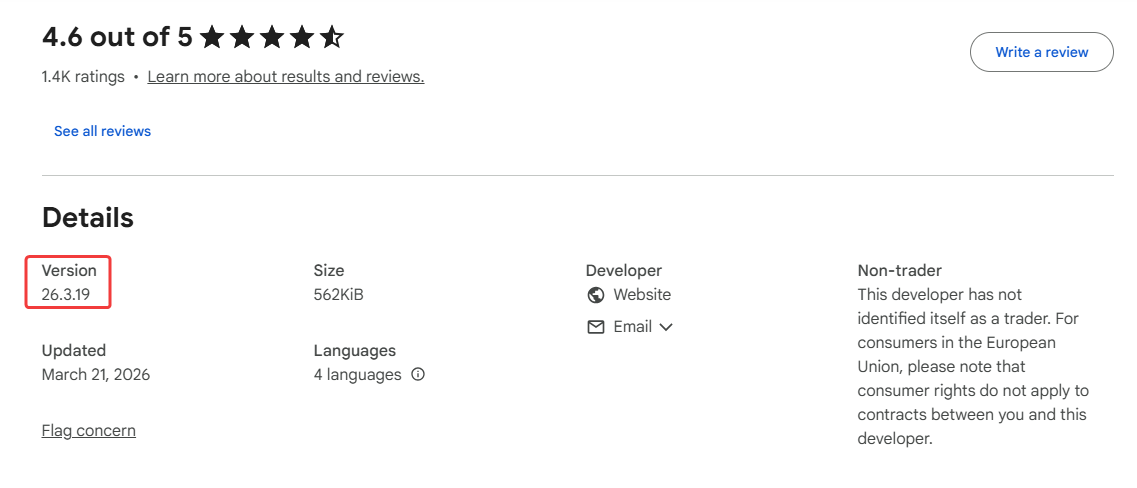
4. In an updated extension, both versions should match. If they do not match, the extension needs an update. In this case, an update is available.
Methods to Update Your Extension
Restart the Browser
Sometimes, extensions update when you restart your browser.
1. Close all Chrome windows
2. Open Chrome again
This helps Chrome check for updates and install the latest version.
Force Update Manually
If you want the latest version right now, you can update it yourself.
Steps:
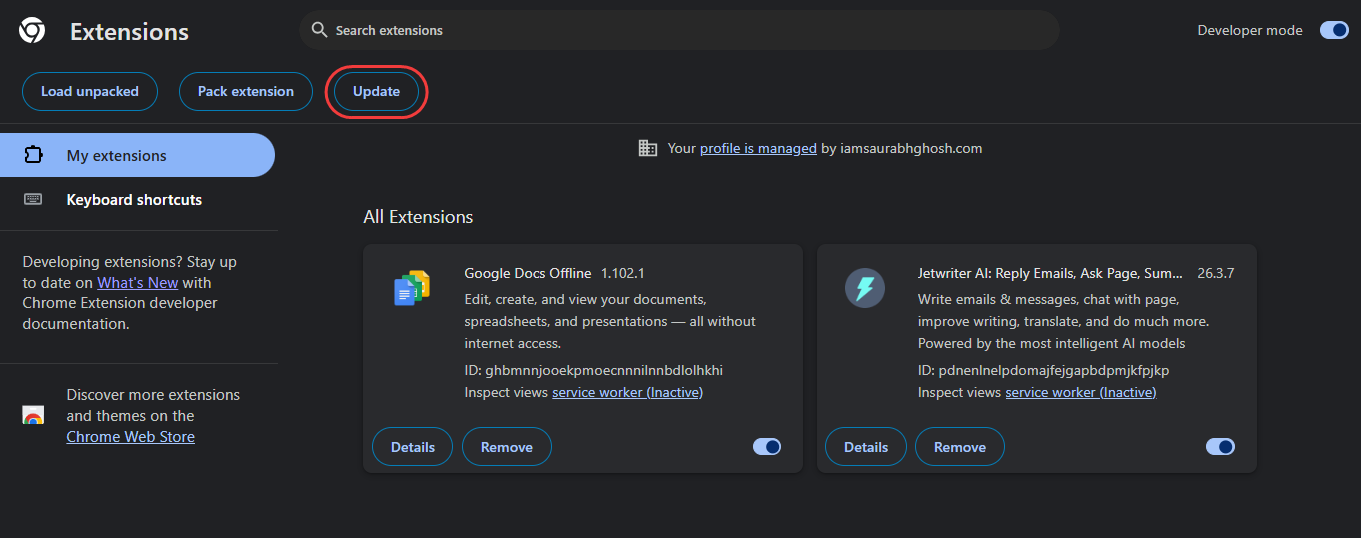
1. Open chrome://extensions/ in your browser
2. Turn ON Developer mode (top right corner)
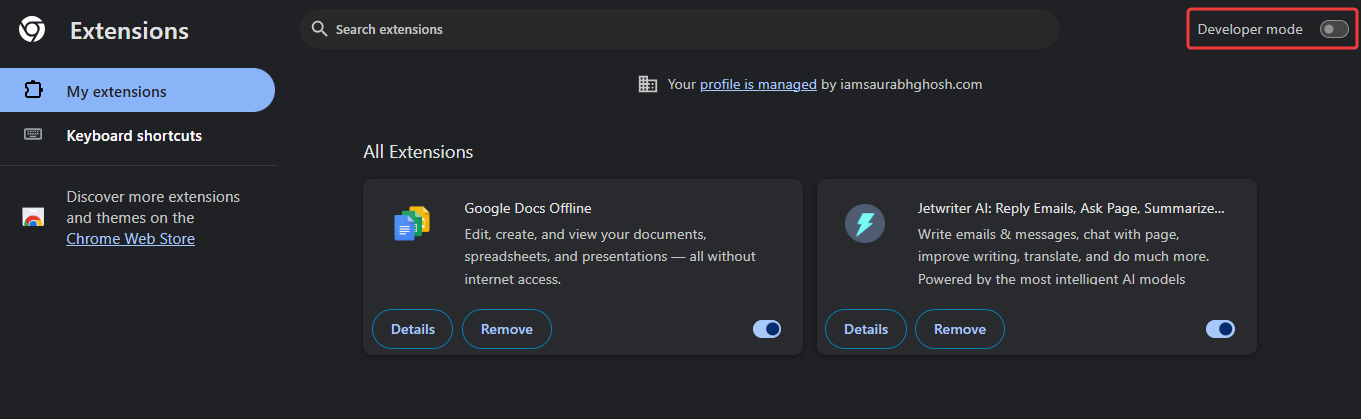
3. Click the Update button
Reinstall the Extension
You can also reinstall the extension to get the latest version.
Steps:
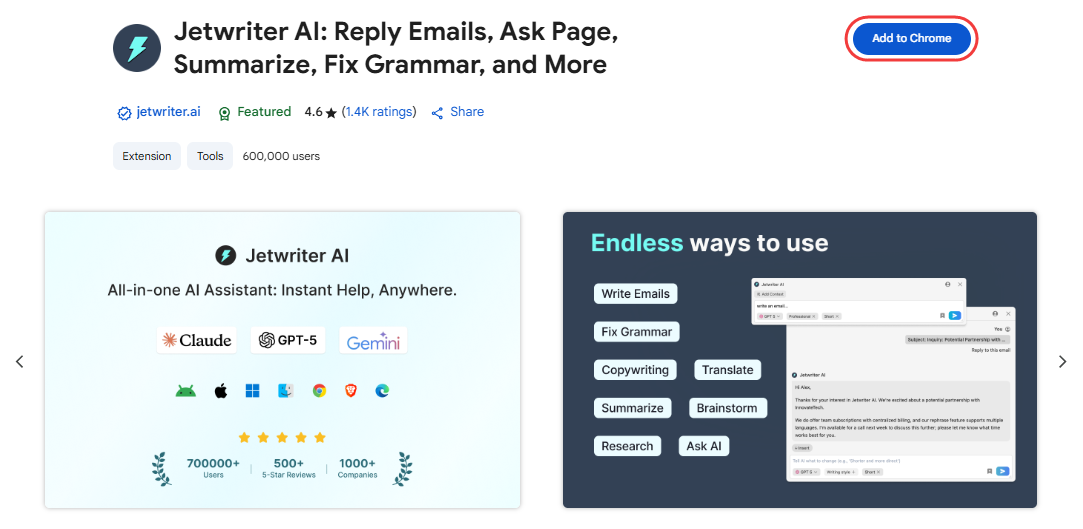
1. Go to the Chrome Extension page.
2. Remove the Jetwriter AI extension

3. Install it again from the Chrome Web Store
Conclusion
These are simple ways to update your Jetwriter AI Chrome extension. Most of the time, Chrome will update it for you. If not, you can use the manual methods above.
This guide is written for Chrome, but the same steps will work on other browsers like Edge as well.
Was this article helpful?
That’s Great!
Thank you for your feedback
Sorry! We couldn't be helpful
Thank you for your feedback
Feedback sent
We appreciate your effort and will try to fix the article